

 We typically respond the same day

Table of contents
GIFs are trendy and are widely shared by everyone nowadays, especially on social media. GIF stands for ‘Graphical Interchange Format.’ It means a compressed image file format that can create the animation.
GIFs are, in short, images converted into motion graphics or video animation, which is an awesome way to show your product photos.
The use of animated GIFs in your marketing strategy is also a terrific idea. They are simple to consume, they offer a new method to attract your viewers’ attention, and they have the potential to have a significant emotional impact on those who watch them. And, because content that makes us feel something motivates us to share it, it is worthwhile to experiment with these small animations. Similarly, just as creating GIFs can enhance your engagement, seeking programming homework help can enhance your coding skills, particularly in scripting tasks that automate such media creation.
There are many different ways you can create a GIF file. In fact, you can create a GIF in a few minutes. You can see online tools and apps for creating GIF file animation.
However, without a doubt, Photoshop is the best tool for creating GIF files. In this blog, I will tell you how you can create GIFs in Photoshop. You just have to follow the instructions step by step.
Let’s create GIFs!
Creating GIFs in Photoshop
Before we go further, GIFs are images that are played in sequence to give the appearance of a brief video. However, they are in image format rather than video format. In most cases, the amount of color tones in a GIF is limited to 256 in number. You can improve your work quality and efficiency by using this skill.
Step 1: Loading Images to Photoshop
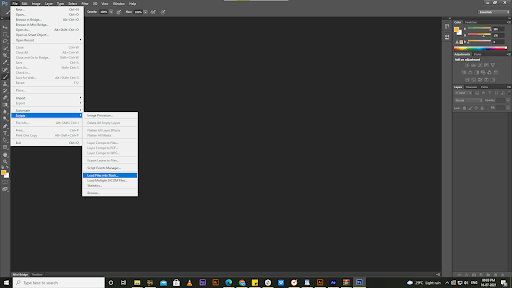
You might already have specific images which you can use to make a GIF.
Separately save the images you desire in a folder of your choice. To import them into Photoshop, go to File > Scripts > Load Files Into Stack.
You can insert any number of images, but ensure that your chosen images have a series flow.
Step 2: Select your Images
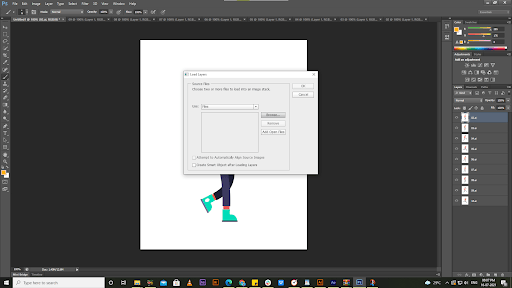
In this window, click on the browser and select the series of images you want and load them into stacks. If your images are unaligned, you can check the box asking you to Attempt to Automatically Align Source Images. This will stabilize the whole frame of the ones you’ve selected in your images. Now, click OK.
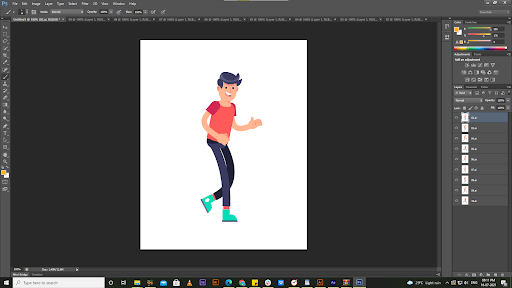
Then photoshop is automatically processed to create the images into a series layering panel on the bottom side of the corner. And if you want to arrange your photos in your own way, then click and drag them. You can also rename them by clicking on the name of the layer.
Step 3: Open the Timeline Window
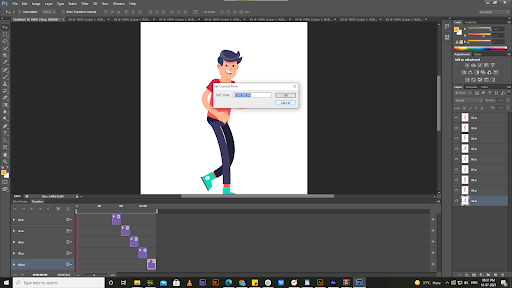
Now, click on the window option that you can see on the top of photoshop. This will make the Timeline window appear below the workspace.
At the timeline window, click to create the Frame Animation option.
If it’s not automatically selected, select it from the drop-down menu and then click it so that the frame animation options show up. Here you can see the frame animation option.
Make sure your top layer is selected, and click on the icon below to duplicate the frame.
Step 4: Set the Timings
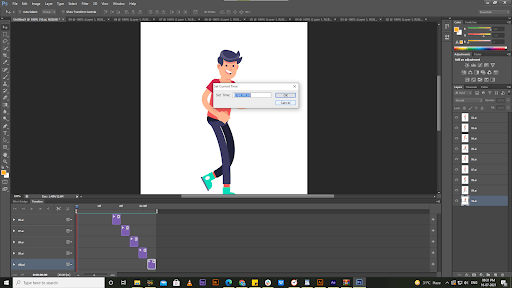
You can set the time for each image according to your wish and select it frame by frame.
This is an effortless way to create GIFs in a usual way. The timing indicates how much time you want to see your GIF animation. So, timing is a compulsory factor.
Step 5: Hide the Layers
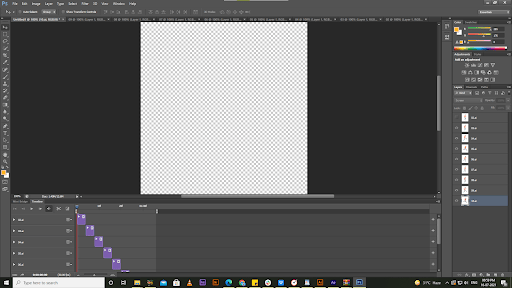
To make changes to the image, go to Layers and unhide the first layer. You’ll see that the image in the second layer is now shown in the second frame.
Continue on to the third frame. Hide the first two layers in this section in order to reveal the third layer in the frame. Repeat this step until you’ve set the layer for all of your frames.
Step 6 : See the GIF in Action
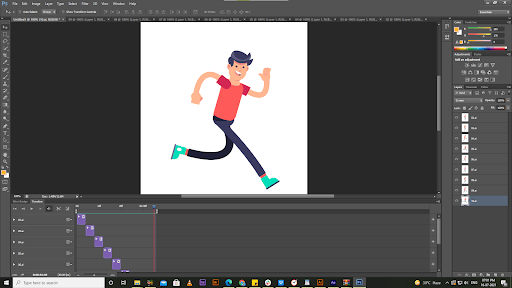
Click the Play icon to see a preview of your GIF. Make sure your images are in the right order and that the GIF runs well.
Step 7: Exporting and Saving the GIF
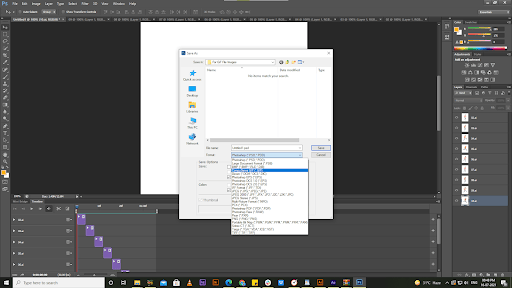
Go to File, then Save As. Select GIF as the file format from the drop-down menu. Click on Save.
The GIF Save Options window will appear after that. Click OK after choosing your preferred options.
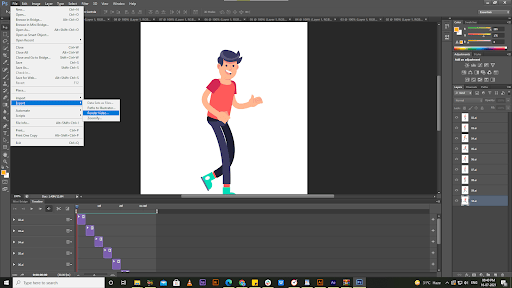
File -> Export -> Save for Web is another way to export and save the GIF. The GIF preview window will be opened as a result. Select GIF as the file format from the drop-down menu in the upper right corner. And then click on Save.
Now that your GIFs are created, you can use them. But how can you use these GIFs in marketing?
If you want to play your GIF on the media player, go to the File menu and then to the Export button. After that, you’ll see three options in the submenu, and then you’ll want to choose the Render Video Option button.
Other Platforms to Make GIFs
Online Websites
A large number of GIF-making websites are available online. Because they’re simple to use and create HTML5 movies that are technically superior to the original GIF files, we recommend utilizing Imgur, Gifycat, or GIPHY’s video-to-GIF tools.
Alternatively, you may upload a video to the GIF maker or send the URL to a video on YouTube or Vimeo. After that, you’ll be presented with a number of options for trimming and customizing your animated GIF.
Mobile Applications
Using a mobile application, creating GIFs on the move is possible. These are the most popular GIF-creation apps: GIPHY CAM (iOS/Android) and GIF Maker (iOS/Android).
You can import a video into the GIF creator and edit it to fit your needs. Google Gboard available on Android and iOS allows you to create GIFs.
Digital Software
GIFs may be created with a variety of digital art software programs, including Photoshop, GIMP, Sketchbook, and other popular digital art apps. However, this is a cumbersome process. If you’re looking for a more affordable way to enhance your space, consider exploring Cheap Canvas Wall Art Pictures Prints to add a unique touch to your home or office while avoiding the complexities of digital art creation.”
Choosing this option will provide you with a great deal of control over your animated GIF. Note that services such as Gifycat produce HTML5 films that are more visually appealing than standard GIFs.
Wrapping up
The use of GIFs is appropriate for solid designs with restricted color palettes, such as logos. As a result, the format’s lossless compression is used to its advantage, which favors flat sections of uniform color with sharp edges rather than rounded areas. Although formerly used for this purpose, PNG has now become the industry standard.
In this blog, I have explained how you can create GIFs on Adobe Photoshop. Following the step-by-step procedure, you can make your own GIFs. I had also listed out alternative platforms for you to make GIFs as well.
I hope this blog was helpful to you and you will be able to use GIFs be it for marketing purposes, for events, or maybe even for communication on social media. One thing is sure, GIFs are an excellent video marketing tool for any business to attract your audience.
Need a hand in making videos for your business? Get in touch with us.
Dive Into our Client Testimonials
Listen to business owners like you share how we’ve helped them grow. Your story could be next!






The webdew team is very supportive, they provide us with thoughtful suggestions.
We contracted webdew to build our new website. And let me tell you, they did a fantastic job. Their team was really easy to communicate with.”
The webdew team is very supportive, they provide us with thoughtful suggestions.
We contracted webdew to build our new website. And let me tell you, they did a fantastic job. Their team was really easy to communicate with.”
The webdew team is very supportive, they provide us with thoughtful suggestions.
We contracted webdew to build our new website. And let me tell you, they did a fantastic job. Their team was really easy to communicate with.”
“We worked with Chehak over the past several months to create a series of animated videos for an academic planner that we produce. And from the very beginning, she was absolutely professional and a pleasure to work with.”


6x
We helped clients multiply their website conversion rates through strategic design and UX optimization.
20%
Our marketing campaigns led to a 20% uplift in customer engagement across digital channels.
2K+
Delivered over 2,000 qualified leads through targeted funnels and smart automation.
120+
Our video content has earned 120,000+ views, driving brand awareness and audience retention.
“I recently had the pleasure of working with Chehak on a video demo project, and I was thoroughly impressed with her services.”


Additional Resources
Access expert tips, trends, and strategies designed for small businesses. Stay ahead of the curve and make informed decisions with our comprehensive resources!