

 We typically respond the same day

Table of contents
Ever wondered what is the “secret recipe” behind those amazing animations that you come across every now and then?
Well, learning how to use the graph editor beats everything when it comes to transforming your ability to work in After Effects. Having worked in motion graphics for quite some time, I can vouch that most skilled professionals use this feature to bring their animation videos to life.
So, if you’re serious about becoming a professional motion graphics designer, be ready to use the graph editor quite often.
This article will drive you through the basics of the graph editor in After Effects. It may seem quite intimidating at first; however, once you get the hang of this incredible feature, be ready to notice a considerable amount of improvement in the way your animations turn out.
What is a Graph Editor in After Effects?
Hoping to go past default easy-to-use keyframes and looking forward to digging deeper into how to bend curves as per your will?
Well, say hello to your new best companion, the graph editor in After Effects. The fundamental function of the graph editor is to graph how your movement will work out over time in a sound manner, thereby improving the video quality.
The Graph Editor outlines property values using a two-dimensional graph, wherein the composition, time is represented horizontally, i.e., from left to right. On the other hand, in layer bar mode, the time graph represents only the horizontal time element without displaying a graphical, vertical representation of changing values.
Speed Graph vs Value Graph
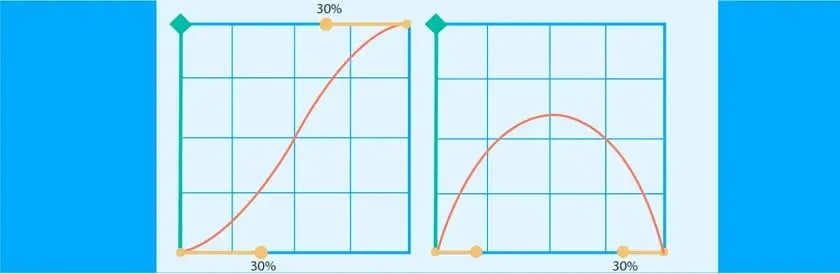
There are two ways to display and read the information, the speed graph and the value graph. Both are unique in terms of visual representation and in how they can be manipulated. That’s pretty straightforward to understand, right? No.
The difference between the two graphs is often pretty confusing to animators who have just stepped into the world of motion graphics design.
So, here’s a summary of the two:
Have a look at the visual example of the two. The Value Graph is on the left side, and the Speed Graph is on the right.
New to After Effects? Or don’t know how to use the graph editor in After Effects? Don’t worry; you are not alone. Most beginners tend to ignore this essential panel, or some don’t even know it exists. However, for those of you who are truly passionate about being a motion graphics artist, it’s time you start to learn graph editor in After Effects.
Ready to explore the power of Graph editor? Let’s dive in!
Where is the Graph Editor in After Effects?
Wondering how to open graph editor in After Effects? Well, you can open the graph editor in two different ways:

Types of Graph Editor
The default keyframes are sometimes not what you need while working on a particular project. So, if you want to add a pop of life to your animations, you need to have control over what happens between the keyframes.
A rush of speed out and then an immediate halt, a bouncing ball, text overshooting back and forth; well, these are only a few examples of what the graph editor can do. Keep reading to find out how to edit graph in After Effects.
Easy Ease
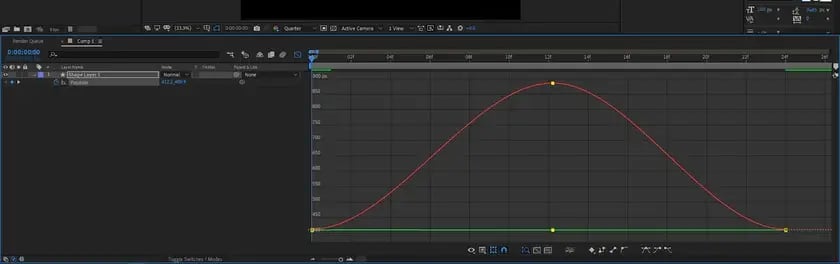
However, if you genuinely want to make your animations feel like butter, dive deep into the graph editor to push and pull those Bezier handles.
Extreme Ease
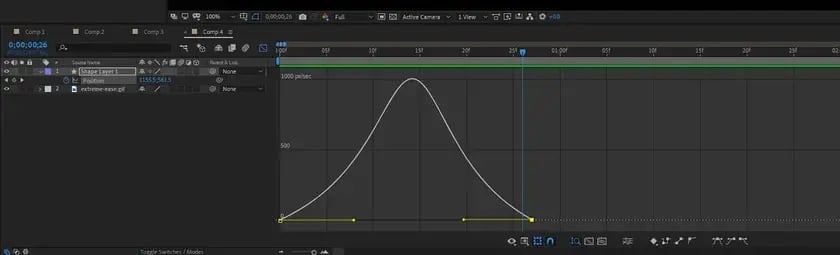
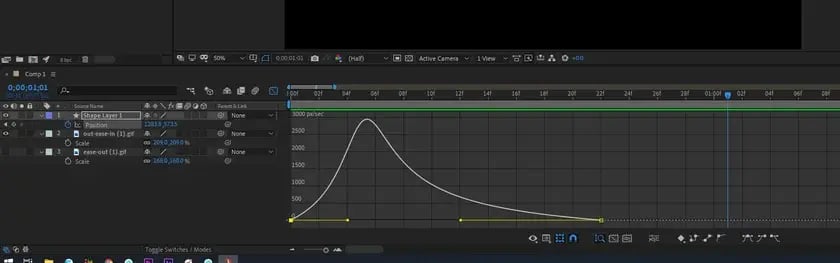
Explode out and Ease in
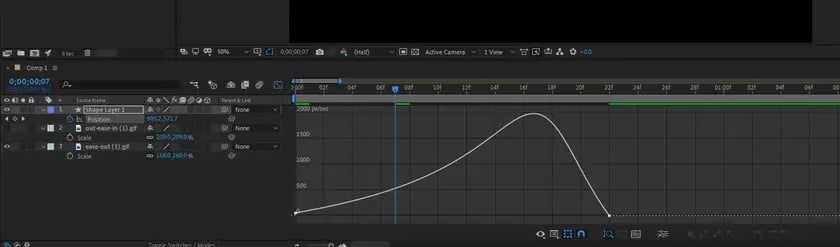
Ease out
To learn how you can use the graph editor in After Effects, watch the video.
Wrapping Up
Adobe After Effects is an excellent tool by which you can achieve amazing Visual Effects(VFX), logo animations, and video creation. Of course, it might seem pretty intimidating initially; however, it is a skill that one can master over time.
Ready to take your animation skills to one level up? Well, working with a graph editor in After Effects will definitely help you transform your motion graphics design careers. This guide is strictly targeted towards those who want to learn how to use the graph editor in After Effects and improve their animation skills for their next video project.
So, what are you waiting for? Start experimenting with Graph editor now!
Editor: Richa Sharma
Dive Into our
Client Testimonials
Listen to business owners like you share how we’ve helped them grow. Your story could be next!





.svg)
“Recently we reached out to Webdew for a website inside of HubSpot and they also did some mocking automation for us.”
“Webdew team was quite honest and quite easy to work with in terms of taking feedback implementing it, showing that it doesn’t happen again and things like making sure that it meets our expectations.”
“We worked with webdew to help us build our HubSpot website and they did an amazing job with it. They were very quick.”
“webdew has helped us optimize the sales and marketing processes, and this is automating a lot of processes.”
“Hi everyone my name is Kara and I work as a channel consultant at HubSpot Singapore. I’ve been working closely with webdew agency”
“Hi my name is Christian from OpenDoors Mortgage team and I’m in the mortgage business and just trying to work on new projects and kind of incorporating HubSpot for my operations”
“I’m one of the technology directors for Travelopia. We are the largest experiential travel company in the world. We’ve engaged webdew recently, not recently, it’s been about a couple of quarters now.”
“We worked with Chehak over the past several months to create a series of animated videos for an academic planner that we produce. And from the very beginning, she was absolutely professional and a pleasure to work with.”


6x
We helped clients multiply their website conversion rates through strategic design and UX optimization.
20%
Our marketing campaigns led to a 20% uplift in customer engagement across digital channels.
2K+
Delivered over 2,000 qualified leads through targeted funnels and smart automation.
120+
Our video content has earned 120,000+ views, driving brand awareness and audience retention.
“I recently had the pleasure of working with Chehak on a video demo project, and I was thoroughly impressed with her services.”
.svg)

Additional Resources
Access expert tips, trends, and strategies designed for small businesses. Stay ahead of the curve and make informed decisions with our comprehensive resources!