

 We typically respond the same day

B2B buyers now run formal vendor assessments before signing contracts. Accessibility compliance sits on those checklists more often than most marketing teams realize. The EU Accessibility Act, which came into force in June 2025, and strengthened ADA enforcement in the US mean that a HubSpot site without WCAG 2.1 AA coverage is increasingly a procurement blocker, not just a UX problem.
The good news: HubSpot CMS gives you enough native control to fix most accessibility gaps without touching a line of code. What you need is a clear checklist and the will to work through it.
This guide walks you through exactly that. Each section covers a WCAG requirement, explains what HubSpot does by default, and shows you the specific fix.
Why WCAG Compliance Is Now a B2B Sales Issue
The numbers make the case plainly. Around 1 in 4 adults in the US lives with a disability, according to the CDC. In the EU, that figure is closer to 87 million people. When a B2B buyer's procurement team includes accessibility on their vendor questionnaire, an inaccessible website means you fail before a demo call happens.
WCAG the Web Content Accessibility Guidelines sets the international standard. Version 2.1 is the version regulators and enterprise procurement teams reference. It organizes requirements under four principles: content must be Perceivable, Operable, Understandable, and Robust (POUR). Level AA is the target most legal frameworks require.
HubSpot positions itself as an enterprise-capable CMS. That makes WCAG compliance a shared responsibility. HubSpot handles platform-level accessibility, but your team controls content, theme settings, and module configuration. Most B2B sites have gaps in the content layer, not the platform layer.
The HubSpot WCAG 2.1 AA Compliance Checklist
1. Color Contrast
WCAG 2.1 requires a contrast ratio of at least 4.5:1 between body text and its background. Large text (18pt or 14pt bold) needs at least 3:1.
HubSpot's default themes do not enforce contrast ratios automatically. If your brand palette uses light grays on white, or pale text on colored CTAs, you're likely failing criterion 1.4.3 out of the box..png?width=1536&height=1024&name=ChatGPT%20Image%20Aug%2027%2c%202026%2c%2006_31_19%20PM%20(2).png)
What to fix: Open the HubSpot Theme Editor and check every text color against its background using the WebAIM Contrast Checker. Update your theme's color variables to meet the 4.5:1 threshold. Pay particular attention to button text (especially on hover states), form placeholder text, and footer links; these are the four places most B2B HubSpot sites fail first.
- HubSpot Color Variables control button text, link states, and heading colors centrally.
- A single theme update propagates the fix across every landing page and blog post.
2. Images and Alt Text
HubSpot Images require alt text that describes what the image communicates, not just what it depicts. A screenshot of a dashboard should say what the dashboard shows, not "dashboard screenshot."
HubSpot CMS adds an alt field to every image module. The problem is that the field defaults to empty. Your team has probably uploaded hundreds of images without filling it in.
What to fix: Run a site crawl using a tool like Screaming Frog or Sitebulb and filter for images with missing or empty alt attributes. Fix each in HubSpot's File Manager or directly in the page editor. For decorative images (dividers, background textures), set the alt attribute to an empty string (alt="") so screen readers skip them entirely. A detailed approach to visual design consistency, including image handling, is covered in the web design guide on webdew.
- HubSpot File Manager stores alt text at the file level; update it once and it applies everywhere that file is used.
- Decorative images with empty alt text reduce noise for screen reader users.
3. Forms and CTAs
Forms are where B2B sites lose the most accessibility points. WCAG 1.3.1, 3.3.2, and 4.1.2 all apply labels must be programmatically associated with inputs, errors must be clearly described, and required fields must be marked.
HubSpot Forms generate label elements by default, but many teams hide them visually (using CSS display: none) in favor of placeholder-only designs. Placeholders disappear on focus; screen readers read them inconsistently. Someone relying on assistive technology fills in the form, gets an error, and has no way to know which field failed or why.
What to fix: Stop hiding form labels. Use CSS to visually position them above each field, or use the .sr-only technique to make them visible to screen readers without showing them in the design. In HubSpot Form settings, enable the error message field for each required input. Set specific error text like "Email address is required" rather than the generic "This field is required."
- HubSpot Forms place label elements before input elements in the DOM; linking them properly only requires the for attribute to match the input id.
- Required field indicators should use both color AND a symbol (an asterisk plus a legend) so colorblind users understand the requirement.
4. Keyboard Navigation and Focus Indicators
Every interactive element on your HubSpot site navigation menus, CTAs, forms, modals, video players must be reachable and operable using a keyboard alone. WCAG 2.1.1 and 2.4.7 require both keyboard access and a visible focus state.
Most HubSpot themes suppress the browser's default focus ring with outline: none in their base CSS. That's a common design preference that directly breaks keyboard navigation for users who need it.
What to fix: Remove any outline: none or outline: 0 declarations from your theme CSS. Replace them with a custom focus style that meets the 3:1 contrast ratio against its surroundings. A clear blue outline on a white background, for example, is visible and on-brand for most B2B companies. This also connects closely to cross-browser rendering: what focus looks like in Chrome may differ in Firefox or Safari. Running cross-browser UI testing will catch these gaps before your users do.
Test keyboard navigation by pressing Tab through every page. If you lose track of where you are at any point, you have a focus management problem.
5. Responsive Design and Mobile Accessibility
WCAG 1.4.10 requires that content reflows to a single-column layout at 320px width without horizontal scrolling or loss of information. This is the WCAG criterion that aligns directly with responsive design.
HubSpot's drag-and-drop editor and most marketplace themes handle column reflow reasonably well, but custom-coded sections and embedded third-party tools often break at mobile widths. Responsive web design is the foundation here: fluid grids, relative units, and no fixed-width containers that overflow on small screens.
Touch targets buttons, links, form inputs must be at least 24x24 CSS pixels according to WCAG 2.5.8. Most designers naturally meet this on CTAs, but text links in body copy and icon-only buttons in navigation often fall short.
6. Video and Multimedia
Any video on your HubSpot site that contains speech requires captions. WCAG 1.2.2 applies to pre-recorded content; 1.2.4 applies to live video. For B2B sites, the most common failures are product demo videos and customer testimonial clips without captions.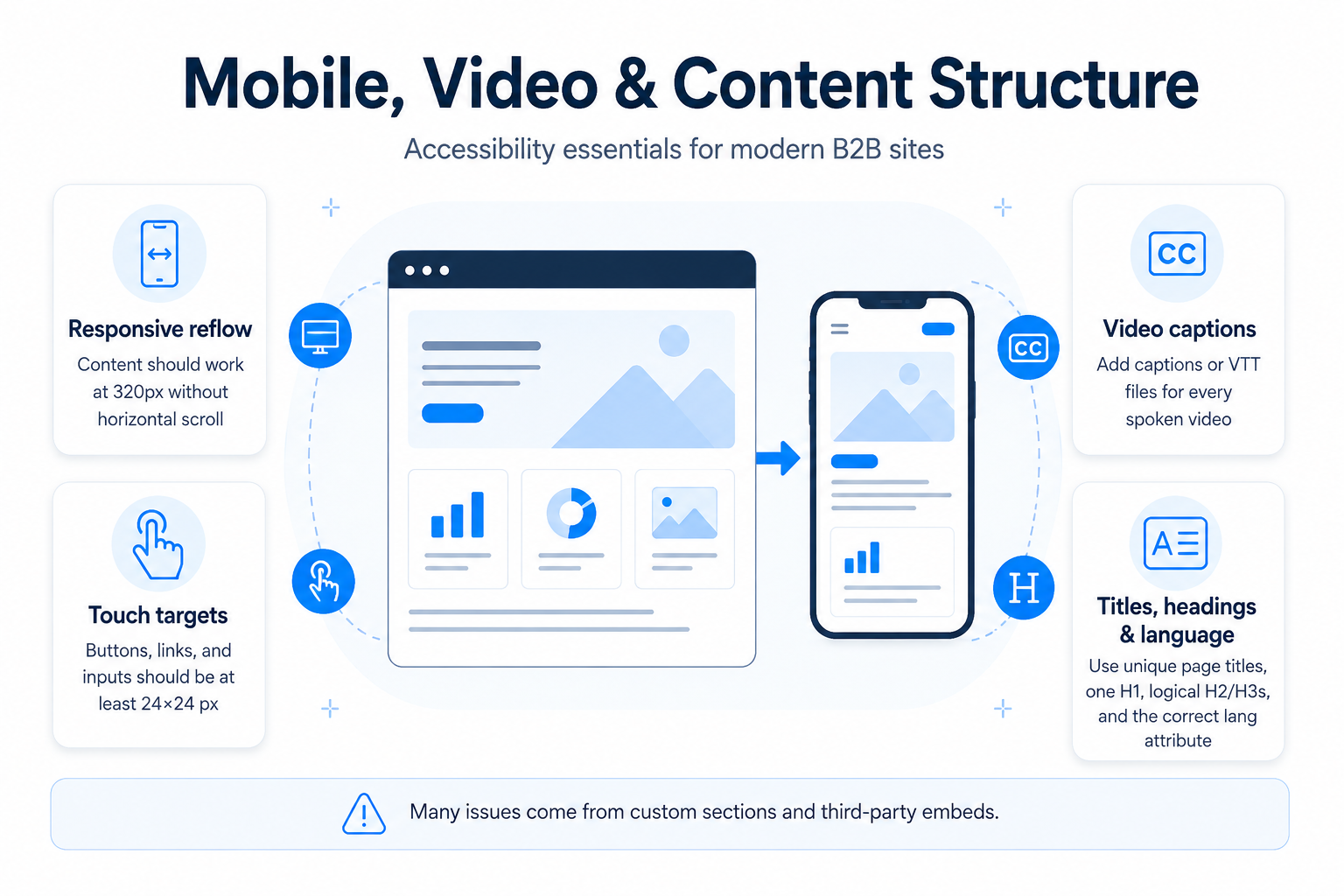
What to fix: For YouTube or Vimeo embeds in HubSpot, add captions directly in those platforms before embedding. For self-hosted videos using HubSpot's native video module, upload a VTT caption file. Auto-generated captions from YouTube and Otter.ai are a starting point, but they require a human review pass before publishing the error rate on proper nouns and technical terminology is too high to skip.
7. Page Titles, Headings, and Language
Three quick but frequently skipped fixes:
HubSpot Page Titles map directly to the <title> element. Every page needs a unique, descriptive title (WCAG 2.4.2). Heading structure must be hierarchical: one H1 per page, H2s for main sections, H3s for subsections (WCAG 1.3.1). The page language must be declared in the HTML lang attribute, which HubSpot sets based on your portal language setting but multilingual sites with mixed-language content often get this wrong.
Check these three items on every new page template. They take minutes to fix and matter significantly to screen reader users.
HubSpot-Specific Technical Steps
Beyond content-level fixes, a few platform settings make a meaningful difference:
Theme Settings: HubSpot's CMS Hub allows you to define global CSS variables for colors, font sizes, and spacing. Centralizing accessible color and type choices here means every new page starts from a compliant baseline. Pair this with a SaaS website design review to make sure your design system and HubSpot theme align.
Custom Modules: Any custom HubSpot module should include ARIA roles where needed, particularly for interactive components like accordions, tabs, and sliders. HubSpot's module editor accepts custom HTML, so you can add aria-expanded, aria-controls, and role="button" attributes directly.
Skip Navigation Link: Add a "Skip to main content" link as the first element in your HubSpot template's <body>. This lets keyboard users bypass the navigation menu and jump directly to the page content. It's a single line of HTML with CSS positioning that makes a significant difference for keyboard users.
How to Test Your HubSpot Site for Accessibility
There are four types of testing that together give you a reliable picture of your site's WCAG status. Understanding what website testing covers in a broader QA context helps frame where accessibility testing sits in your release process.
Automated scanning with tools like Axe DevTools or WAVE catches around 30% of WCAG failures. Run these on every key page template, not just the homepage.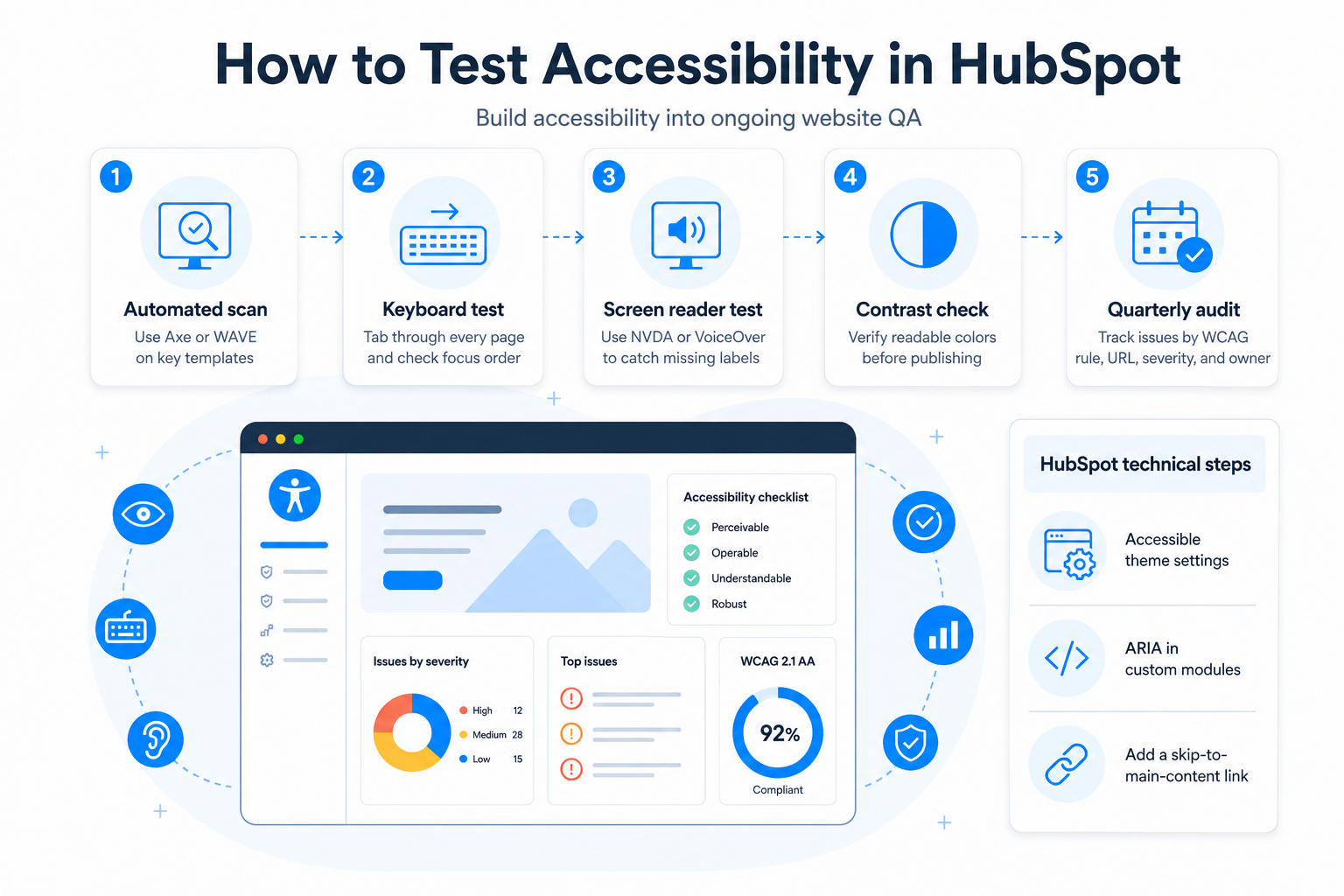
Keyboard testing means tabbing through every page and confirming that focus order is logical, every interactive element is reachable, and no keyboard traps exist.
Screen reader testing using NVDA on Windows or VoiceOver on Mac covers the real-world experience for users with visual impairments. Read every page aloud using the screen reader and listen for missing labels, confusing heading orders, and unannounced interactive elements.
Color and contrast checks using WebAIM's Contrast Checker or Stark (a Figma/browser plugin) should happen before designs go into HubSpot, not after.
Run a full audit quarterly. Track findings in a spreadsheet with WCAG criterion, page URL, severity, and owner. Accessibility is not a one-time project; content updates introduce new issues constantly.
webdew builds and optimizes HubSpot websites for B2B companies. If you need an accessibility audit or want to bring your HubSpot site to WCAG 2.1 AA, get in touch with the team.
Dive Into our
Client Testimonials
Listen to business owners like you share how we’ve helped them grow. Your story could be next!





.svg)
“Recently we reached out to Webdew for a website inside of HubSpot and they also did some mocking automation for us.”
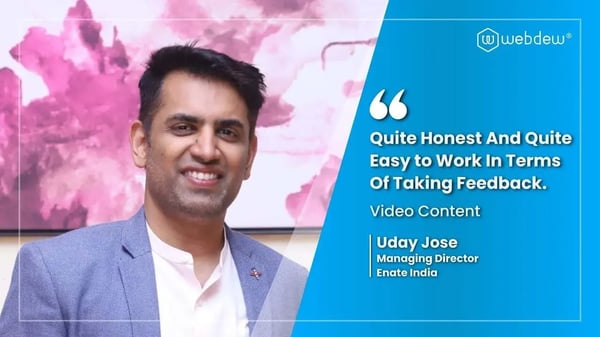
“Webdew team was quite honest and quite easy to work with in terms of taking feedback implementing it, showing that it doesn’t happen again and things like making sure that it meets our expectations.”
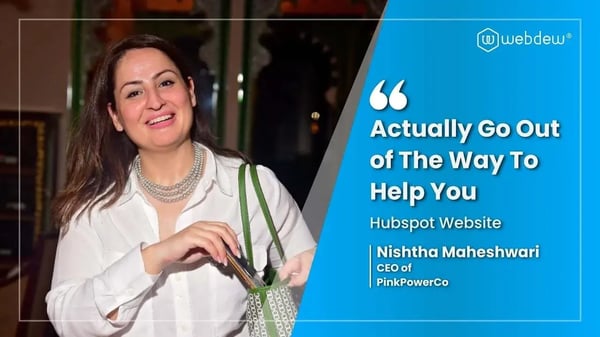
“We worked with webdew to help us build our HubSpot website and they did an amazing job with it. They were very quick.”

“webdew has helped us optimize the sales and marketing processes, and this is automating a lot of processes.”
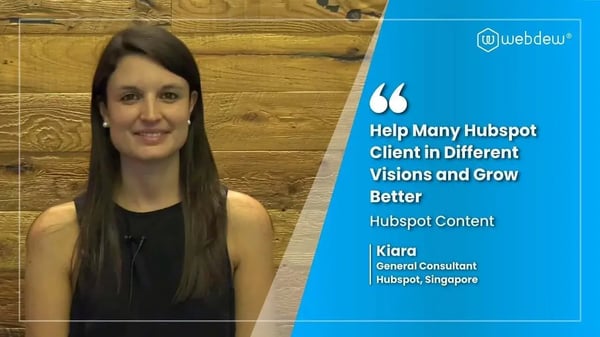
“Hi everyone my name is Kara and I work as a channel consultant at HubSpot Singapore. I’ve been working closely with webdew agency”
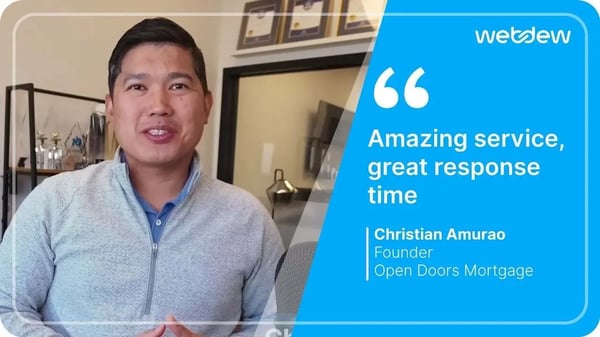
“Hi my name is Christian from OpenDoors Mortgage team and I’m in the mortgage business and just trying to work on new projects and kind of incorporating HubSpot for my operations”

“I’m one of the technology directors for Travelopia. We are the largest experiential travel company in the world. We’ve engaged webdew recently, not recently, it’s been about a couple of quarters now.”
“We worked with Chehak over the past several months to create a series of animated videos for an academic planner that we produce. And from the very beginning, she was absolutely professional and a pleasure to work with.”


6x
We helped clients multiply their website conversion rates through strategic design and UX optimization.
20%
Our marketing campaigns led to a 20% uplift in customer engagement across digital channels.
2K+
Delivered over 2,000 qualified leads through targeted funnels and smart automation.
120+
Our video content has earned 120,000+ views, driving brand awareness and audience retention.
“I recently had the pleasure of working with Chehak on a video demo project, and I was thoroughly impressed with her services.”
.svg)

Additional Resources
Access expert tips, trends, and strategies designed for small businesses. Stay ahead of the curve and make informed decisions with our comprehensive resources!