

 We typically respond the same day

Table of contents
Here is something that I have seen so often people believe in adding effects to their videos, but it is something beyond their skill set. Indeed, they might be familiar with Adobe After Effects tools, but still, they face the hassle in creating custom effects and applying them to multiple clips.
Adobe after effects can be a complicated program for many designers, but if you want to get the ball rolling and avoid pesky problems, you need to follow the right strategy. By keeping things aligned, you can create great videos by applying effects to multiple clips professionally.
Well! When it comes to applying the same effect to a set of clips, then there are various ways to choose from. Now, you might be wondering about how to choose the best approach. In the case of applying effects to video, then it totally depends on the noise content of all those clips.
If you have various clips shot at the same time and condition, then by updating camera settings and noise profile, you can save a noise profile and adjust the filter setting for each clip individually without wasting much time. But if your clips show the same noise, then it will work very well. If not, then you need to treat it individually to ensure that your video quality does not get effective.
Now, let’s get a deeper insight about applying effects to multiple clips in adobe after effects. I tried to explain the entire concept through images and video.
How to apply Effects to Multiple Clips in After Effects
Let’s begin!
Copy & Paste
Normally, we all wish to add a clean video to a single clip, and for that, we configure the filter by making a remove grain noise profile and adjusting filter settings. After the configuration, you can copy and paste the effects from one single clip to another but make sure each clip requires the same noise reduction. You can follow the same consideration for other effects too.
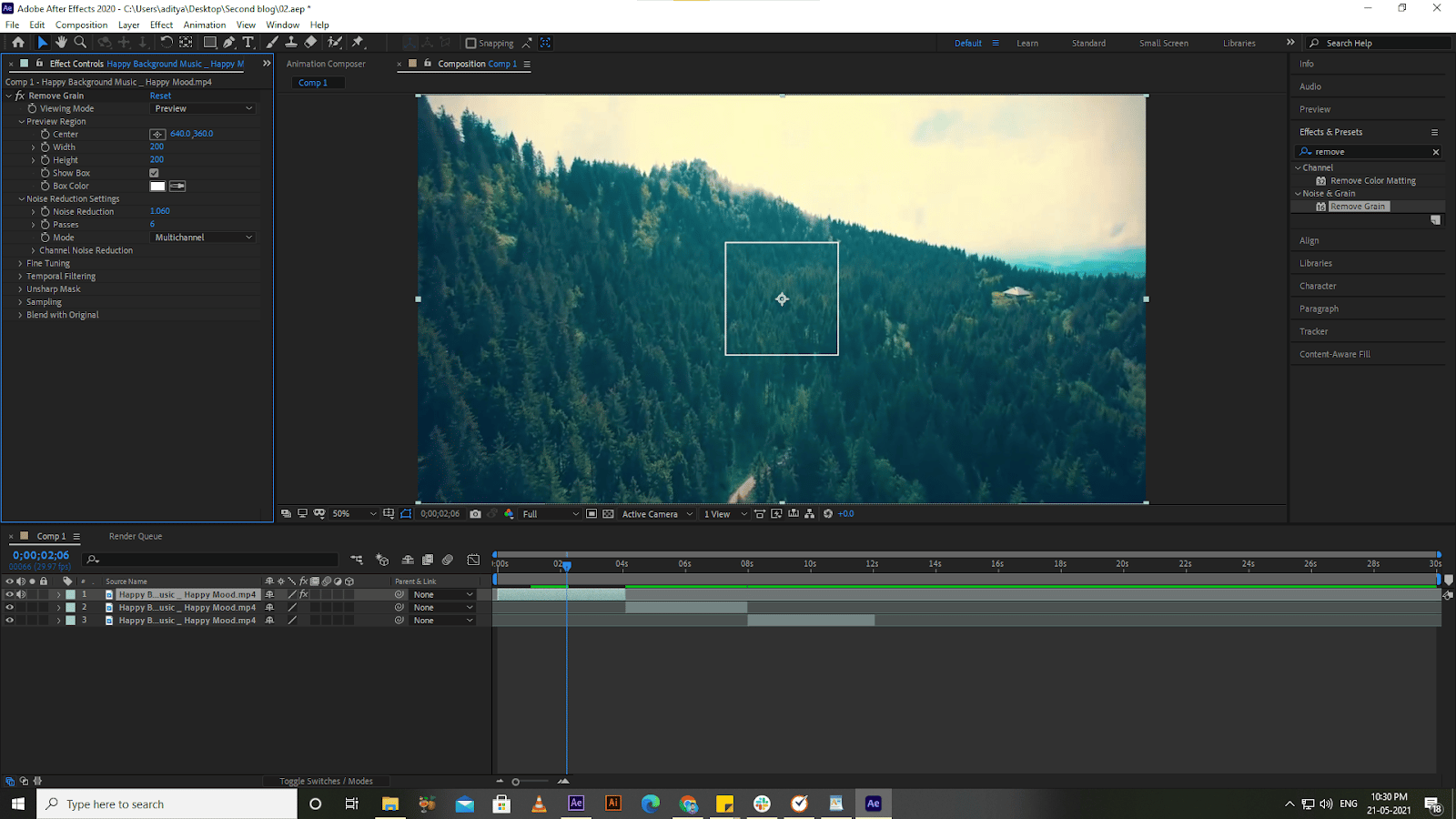
Once the adjustment of effect is made, simply right-click it on the Effect Controls page and select Copy (ctrl+c).
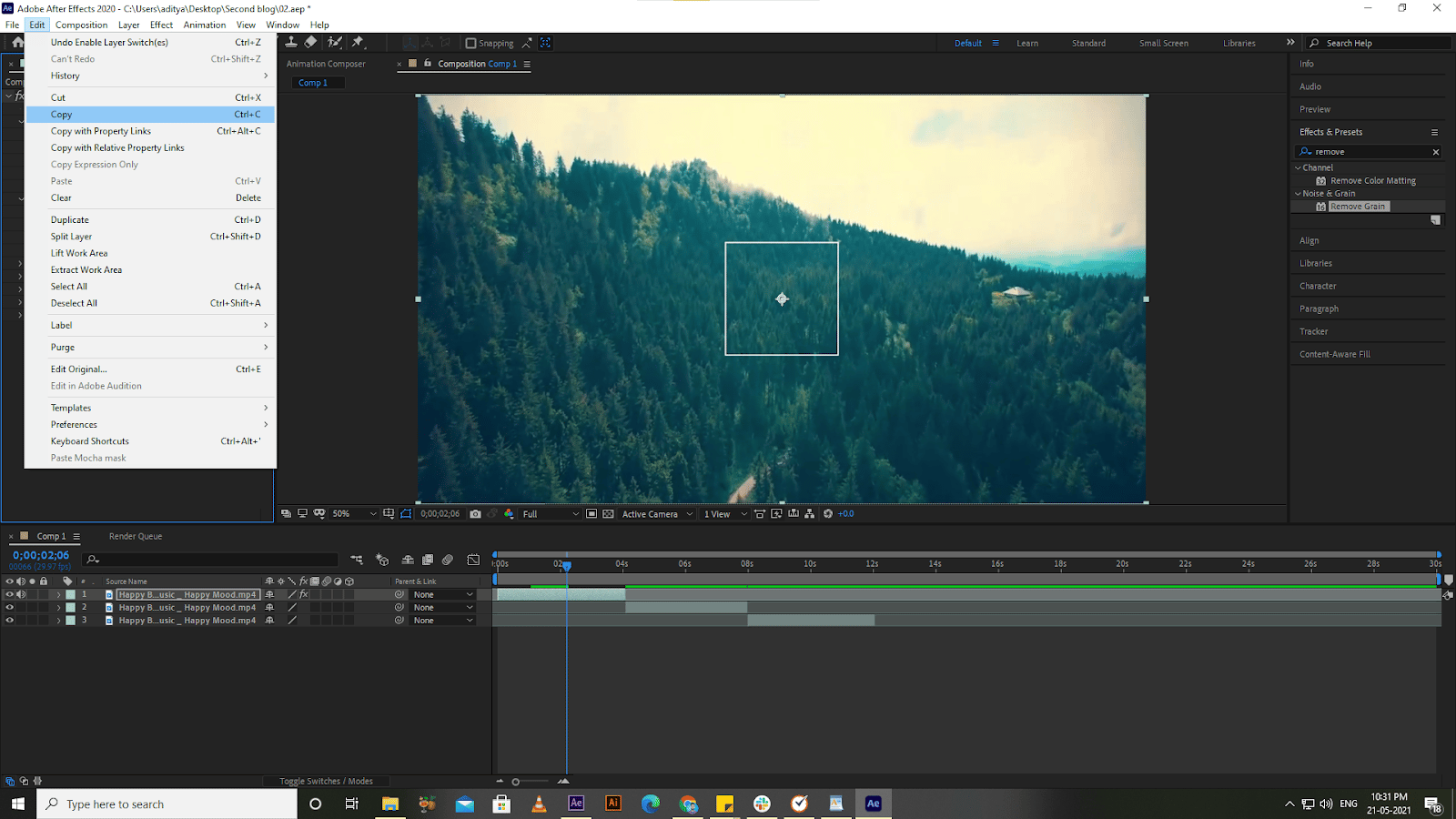
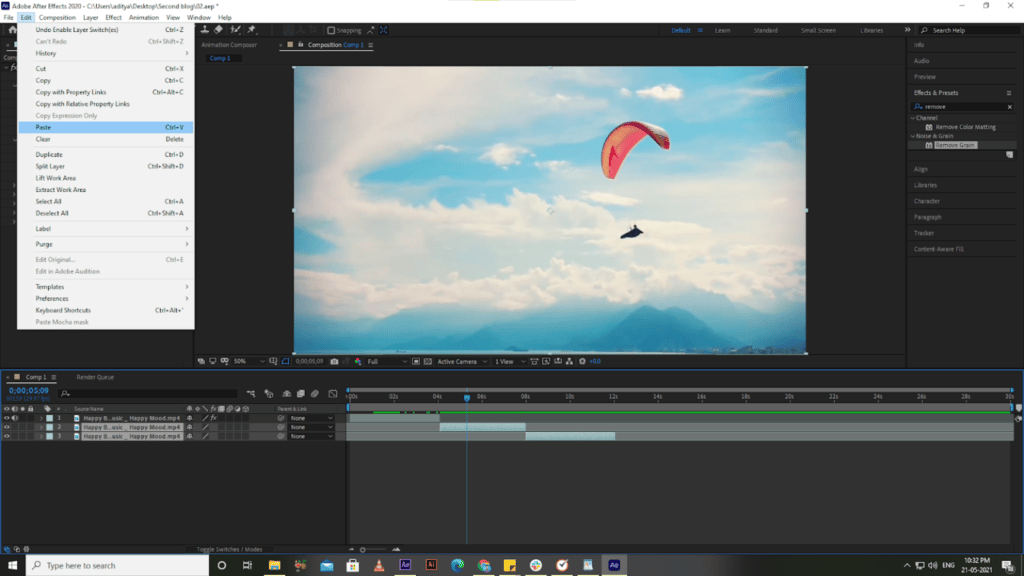
Moreover, if you are planning to copy multiple effects, then select all the effects by holding the Shift key, go to Edit, and select Copy. Now, select another clip or clips on which you want to apply some adjustments, go to edit, and select paste(ctrl+v).
Brightness & Contrast
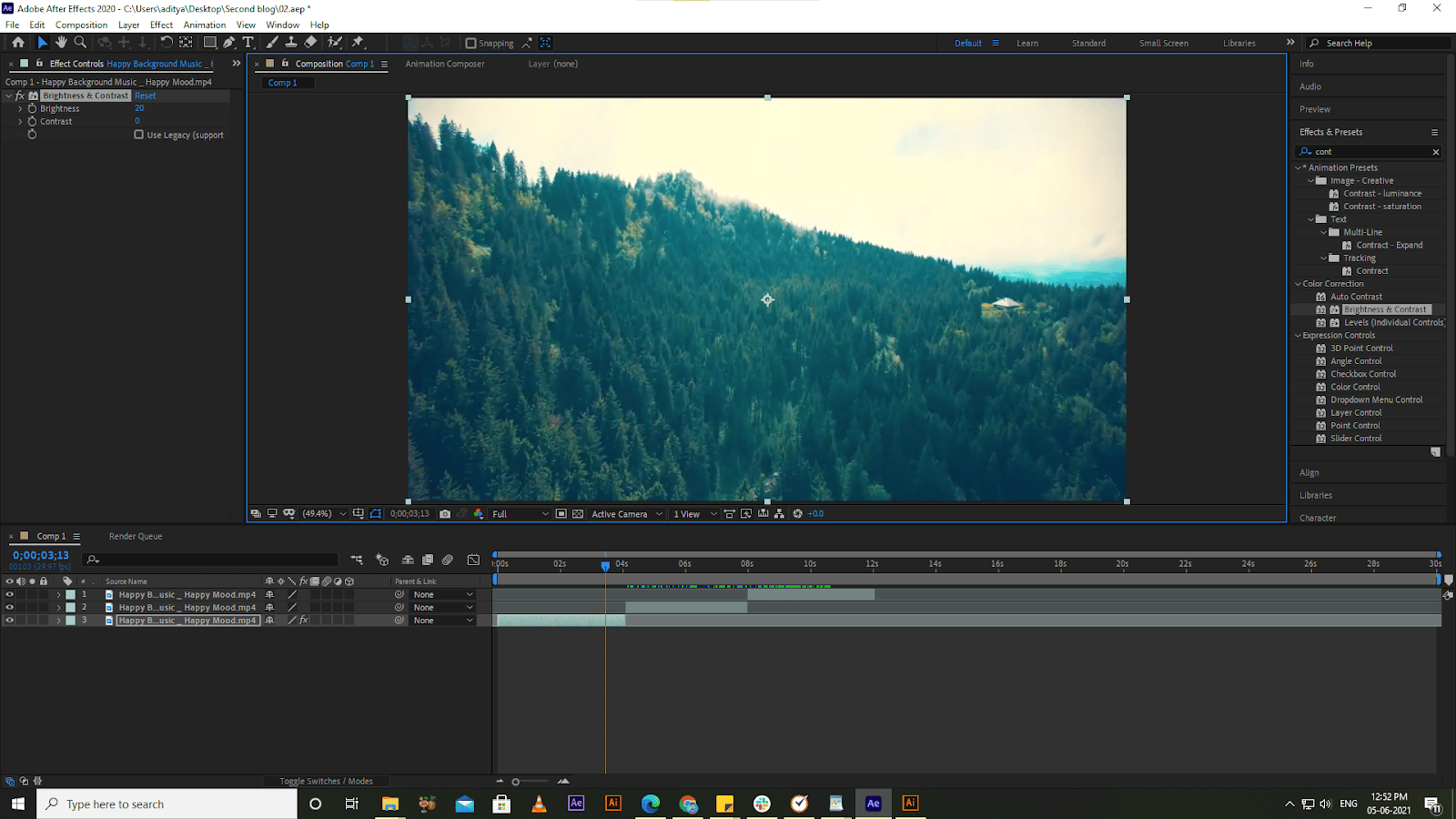
The brightness and contrast effect is mainly applied to adjust the brightness and contrast of a layer, which can also help unblur images and enhance their clarity. Through this effect, you can make adjustments to the pixel values of an image at once. While applying this effect, you need to keep in mind that it affects the entire image, not individual channels, shadows, highlights, and mid-tones. It is one of the easiest ways to make adjustments to make the video/image highly professional.
Now, you might be thinking about how to proceed with this effect. Well! To apply this effect, you just need to select your footage and navigate to effect> Color correction> Brightness & Contrast.
The best part is that you can apply the effect to the footage separately. While implementing this effect, if you see a zero value, then you need to understand that there is no change in the footer. But if you see a positive change in the values, then the image will look brighter and provide more contrast and vice versa. Check out the below screenshot to have better insight into brightness and contrast.
Pre-Comp
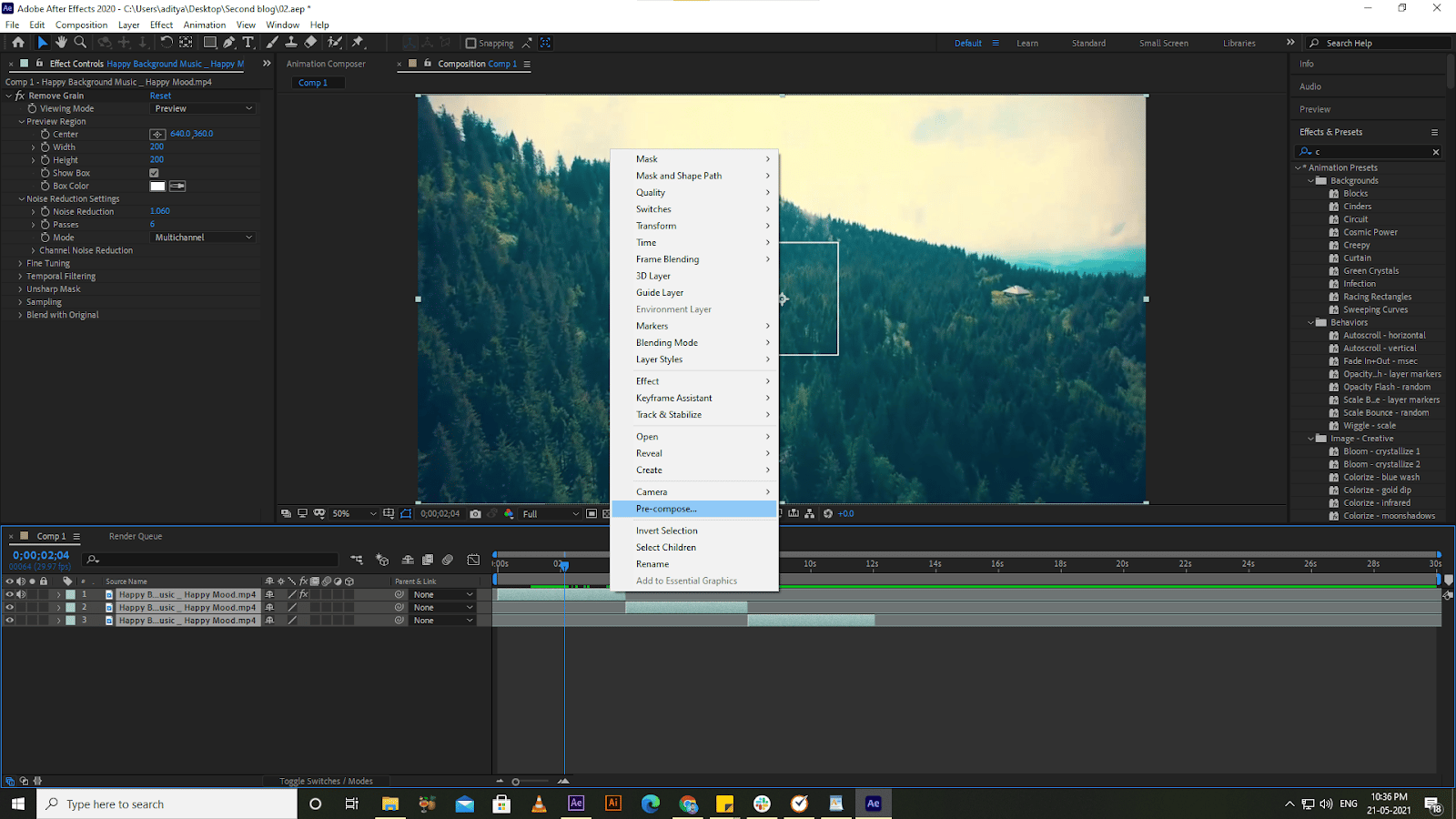
Whenever you work on Pre-comp, then it will surely remind you of After effect. It is both simple to create and understand. To get started, you just need to select to merge into one composition.
For this, just right-click> select Pre-compose > Click OK. Now you will see that all your layers have combined into one single composition. Now, you can easily apply the effects to Neat Video very effortlessly. Here is the screenshot for better understanding.
Save and Apply Animation Preset
Once you are done with the adjustment of the clip, it’s time to save the changes and get the final output. No matter whether you have a single effect or multiple effects to be saved on different clips, you can create an effect preset inside Adobe After Effect.
As this is the point where you might have made the adjustments to all the effects you wanted, just select the Effect controls page. Navigate to the menu bar > Click on Animation > Select Save Animation Preset. Now you will get an option to name the preset and select the location.
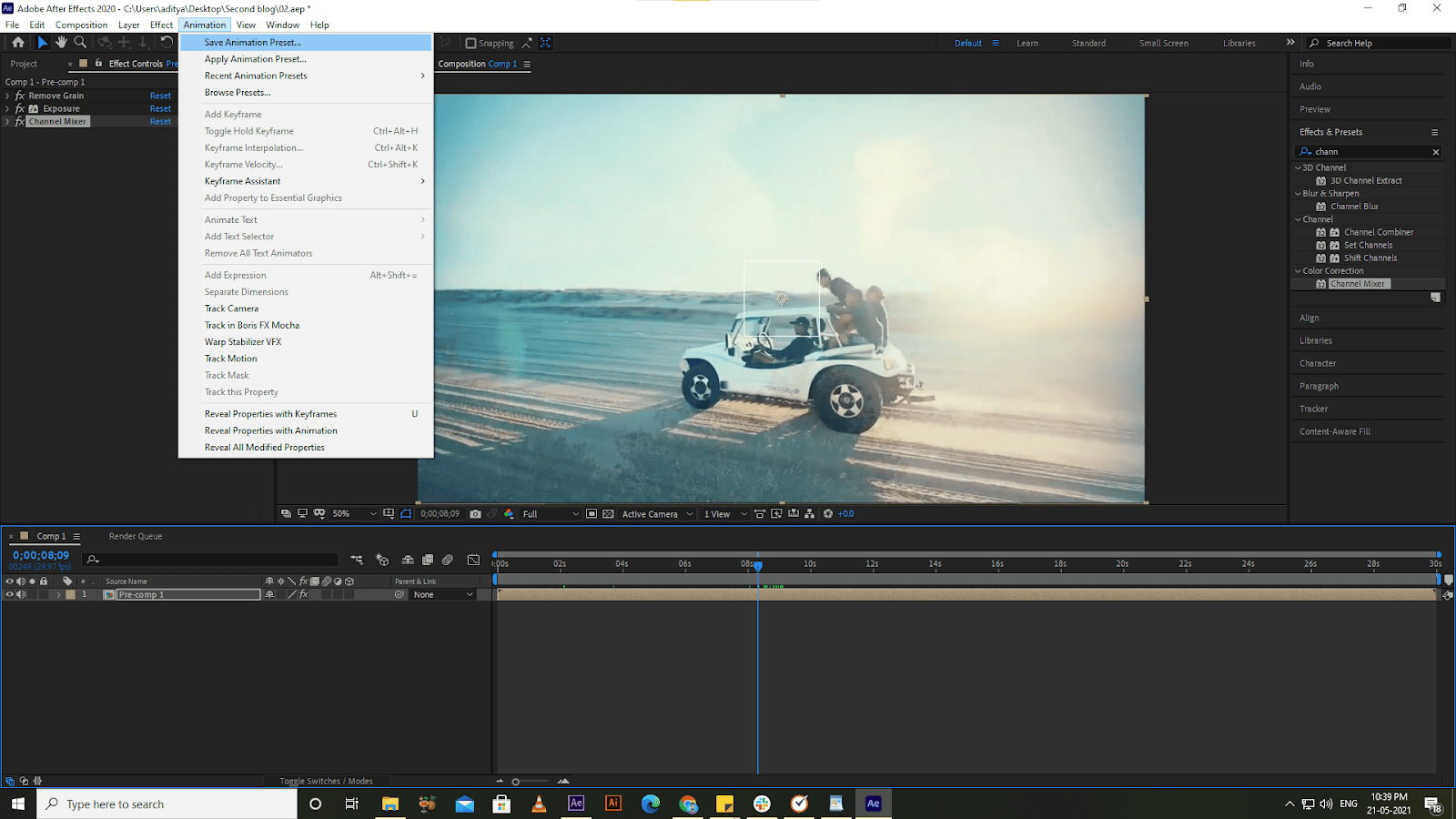
Once all the changes are done, and you want to apply the preset, simply choose the clip(s) you want to be updated. Now, navigate to the menu bar > click on Animation > choose Apply Animation Preset. Here, select the one you want to apply and apply the effects on specific clips.
Still, if you have any confusion, then here is the video of the entire concept. You can follow this video to apply effects to multiple clips in After Effects easily.
Loom video-
The Final Say
After-effect tools can be incredibly useful if you thoroughly understand the usage of each element in detail. Applying effects to multiple clips in adobe after effects is not rocket science. If you follow the right approach, then you can easily create animations that stand out from the crowd.
Hopefully, the information shared above will surely help you proceed with applying effects to multiple clicks like a pro. Still, if you have any concerns, feel free to contact us. The experts of best video editing company will help you to make awesome clips right away.
Editor- Divya Verma
Dive Into our Client Testimonials
Listen to business owners like you share how we’ve helped them grow. Your story could be next!






The webdew team is very supportive, they provide us with thoughtful suggestions.
We contracted webdew to build our new website. And let me tell you, they did a fantastic job. Their team was really easy to communicate with.”
The webdew team is very supportive, they provide us with thoughtful suggestions.
We contracted webdew to build our new website. And let me tell you, they did a fantastic job. Their team was really easy to communicate with.”
The webdew team is very supportive, they provide us with thoughtful suggestions.
We contracted webdew to build our new website. And let me tell you, they did a fantastic job. Their team was really easy to communicate with.”
“We worked with Chehak over the past several months to create a series of animated videos for an academic planner that we produce. And from the very beginning, she was absolutely professional and a pleasure to work with.”


6x
We helped clients multiply their website conversion rates through strategic design and UX optimization.
20%
Our marketing campaigns led to a 20% uplift in customer engagement across digital channels.
2K+
Delivered over 2,000 qualified leads through targeted funnels and smart automation.
120+
Our video content has earned 120,000+ views, driving brand awareness and audience retention.
“I recently had the pleasure of working with Chehak on a video demo project, and I was thoroughly impressed with her services.”


Additional Resources
Access expert tips, trends, and strategies designed for small businesses. Stay ahead of the curve and make informed decisions with our comprehensive resources!