

 We typically respond the same day

Table of contents
Go through our Honest FlexClip Review – your friendly guide to informed decisions! You might wonder, “Why should I read this?” Well, this review acts like a trusted companion, steering you through the realm of video creation.
It is clear that choosing the right video creator and editor amid various options can be overwhelming. That’s why we’re here to explore FlexClip, the online platform designed for crafting captivating videos on social media, websites, or any platform you fancy.
This review will break down all the tools and features, making it a breeze for you. So, if you’re eager to tell stories with videos, stick around. We’ll be your map in the world of FlexClip, guiding you to make the right choice for your video adventures!
FlexClip Review – Know about its Video Making and Editing Features
Once you log in, your next step is to explore what the tool can do and figure out how to use it. The big question is, is it worth your time? Let’s find out!
1. Templates
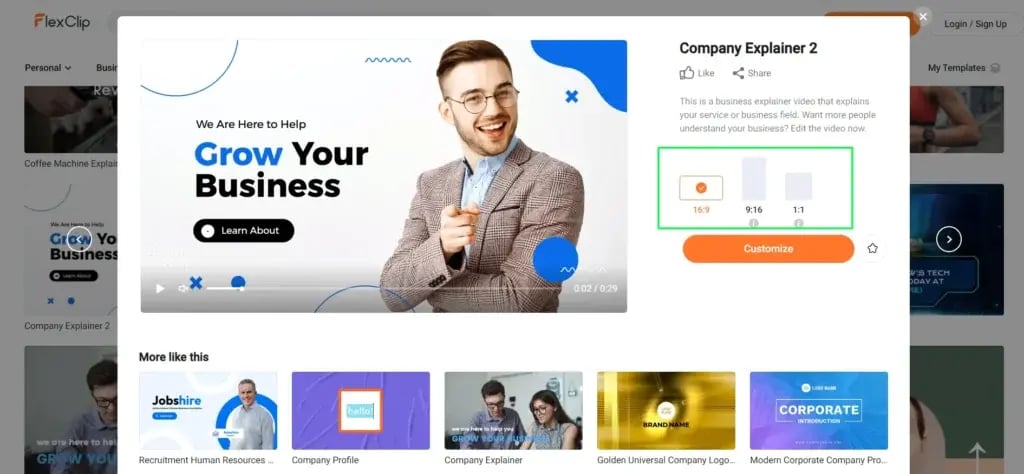
Discover over 500 templates in our tool, sorted into five main groups and 60+ sub-groups. Exploring them might seem tricky, but don’t worry; we’ve done the essential work for you. Specifically, we took a closer look at the Business and Services category and tested one of its templates just for you.
When you open a template, choose your preferred resolution. In our example, for the Company Explainer 2 template, we picked the 16:9 aspect ratio. Click on the customize button below.
After this, you’ll find options on the left side, where we’ll gradually throw light.
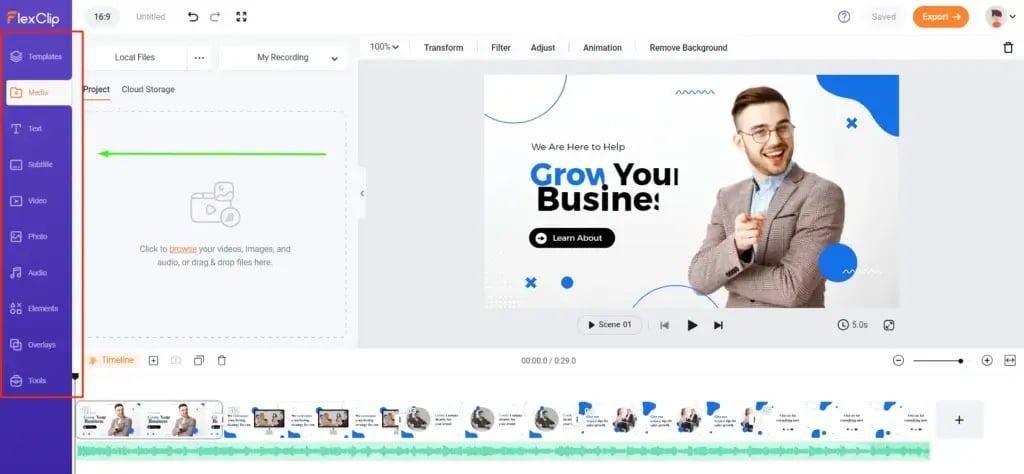
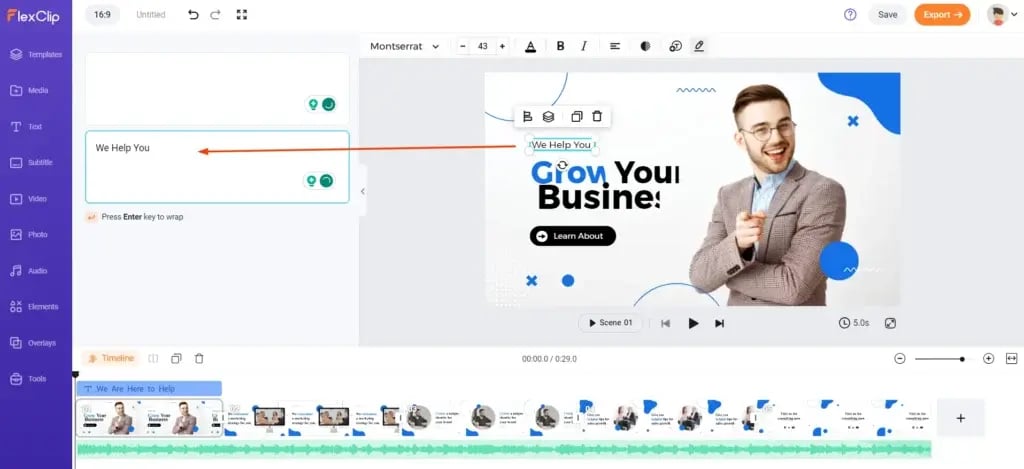
We’ll move toward the ‘Text’ portion in the next step. After double-clicking on the text you want to change, you’ll get a writing bar on the left, where you can add the text accordingly.
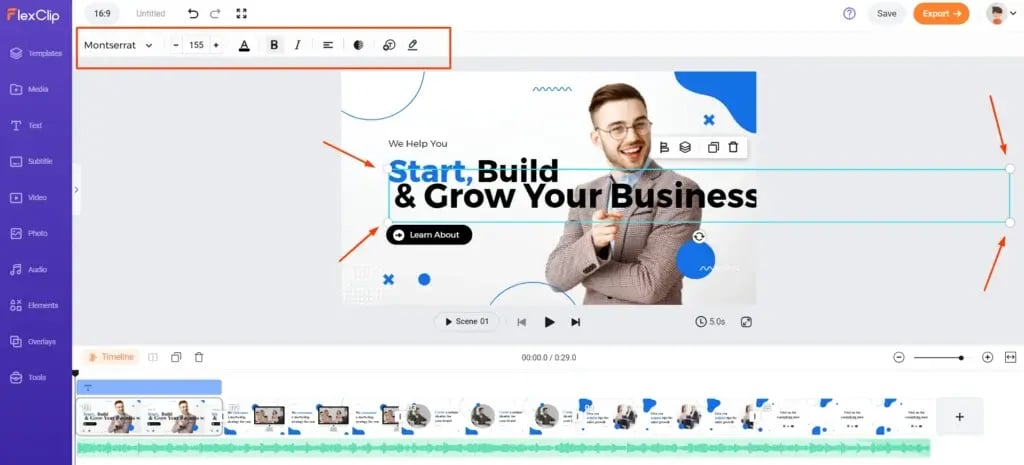
By using the adjusting points, you can adjust the size and placement of the text. Rest. At the top, you can see other options that help to edit the text, like font style, font size, colour, bold, italics, alignment, and opacity. Along with these, you get a unique text-to-speech feature present in the second from right.
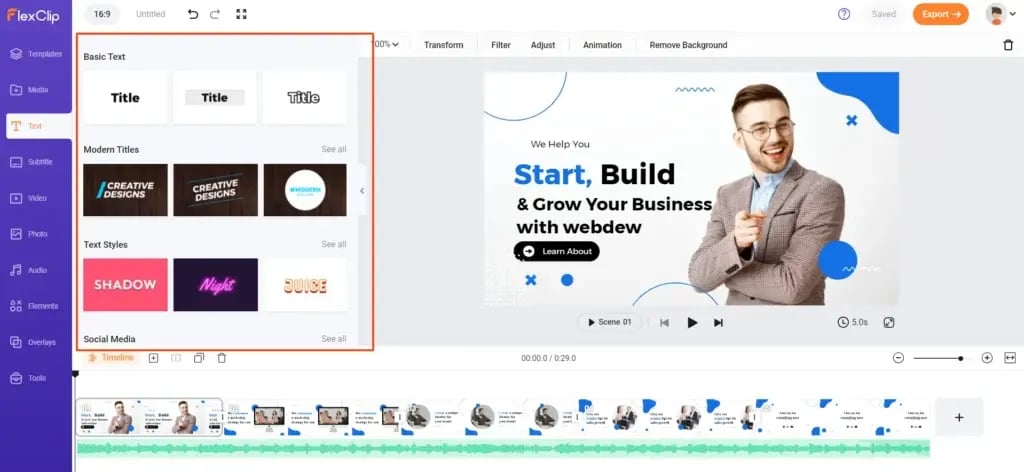
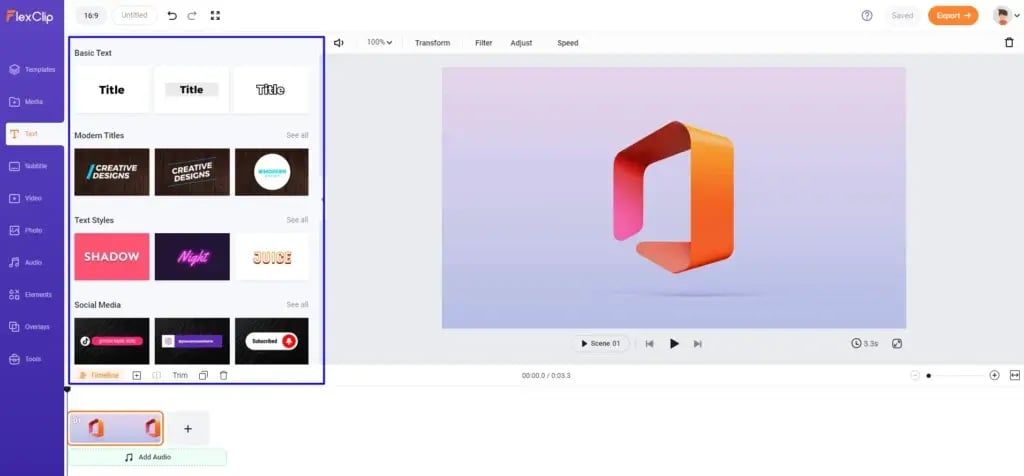
Along with these editing options for text, you also get a variety of text styles to choose from and make your video text look appealing.
Sometimes, you’ll need help finding the present clip in the template. You can replace existing video clips by hovering over them and selecting “Add as a layer,” as we did in the second scene of the video, Or add your own from the media or video section.
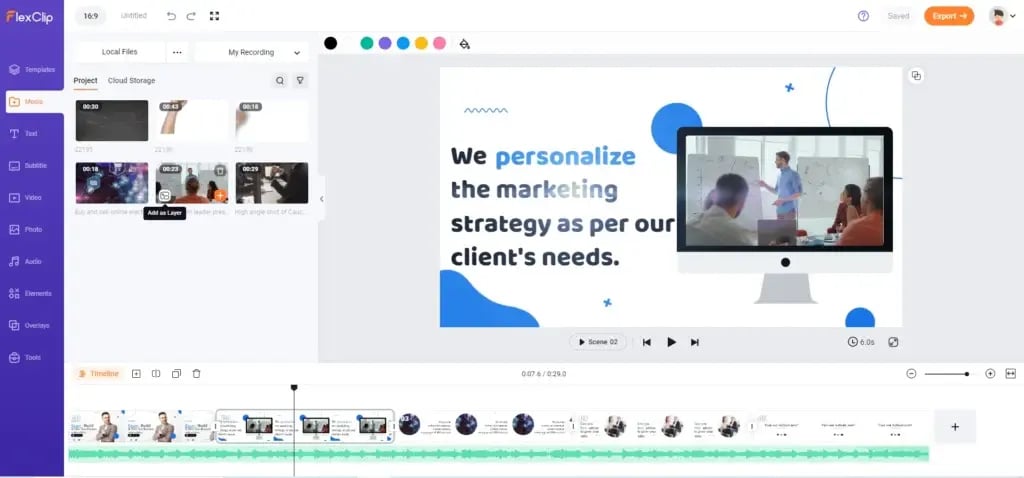
When you click on the video you want to add, you’ll see an option in the bottom left that says “Add as a layer, ” and here you go. Just click on that, and you can directly replace the one attached to the laptop screen inside the scene.
Also, if you click on it, it will generally be added to the whole screen.
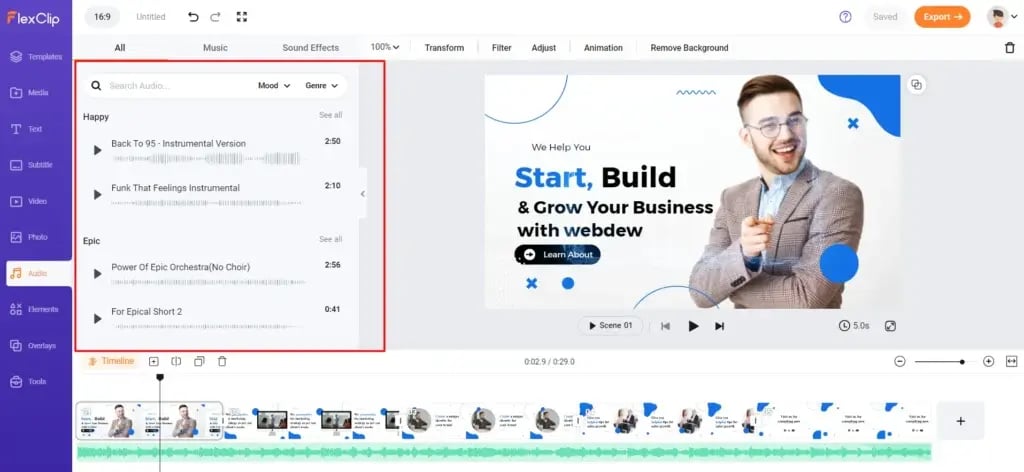
Audio is the next point, where you can choose from various options in the tool’s music library and add the sound per your need.
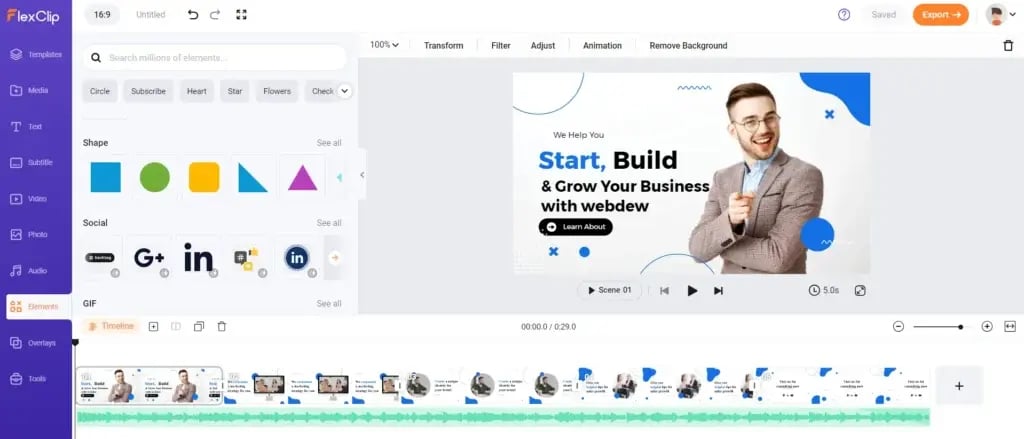
Another option is adding elements per your requirement in your scene. From a random shape to a social media icon, the library has it all and helps to make your scene or slide more stylish and valuable.
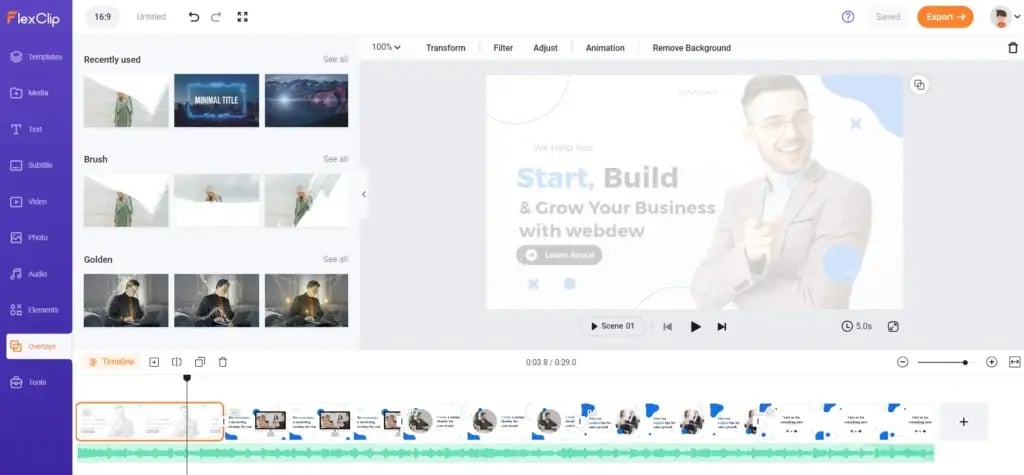
Next in line is ‘Overlays’. The word explains its meaning – to lay over something (here the scene). Here, you get various options to add to your scene as per your choice. It gives a significant visual effect to your slide, and you can use different styles for different scenes. We tried to add a lens flare effect, which you can see in our 2nd slide.
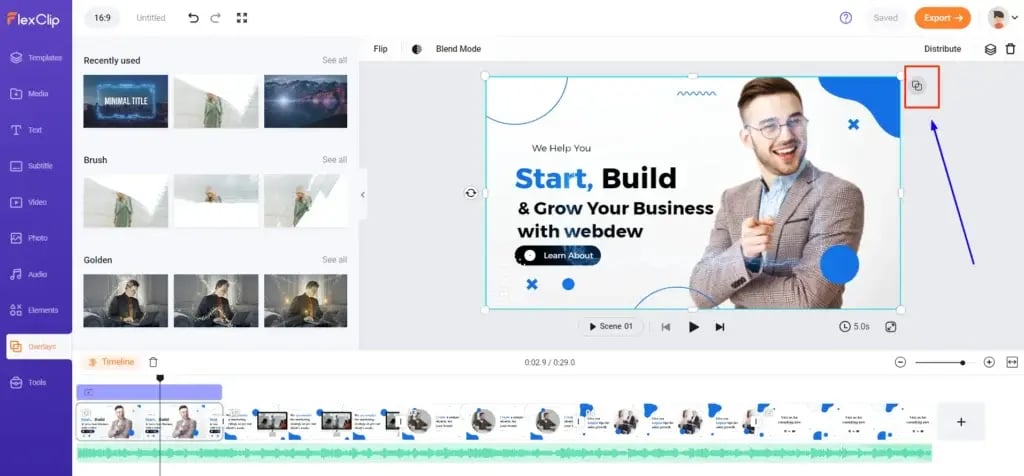
Adding was fine, but the next question is, if you need to delete the overlay effect, how’ll you do so? So the answer is the icon just on the right of the screen. By clicking on it, you can select the overlay you’ve added and click the delete button on your keyboard, and it’s done.
In the end, the extra yet essential tools can help craft a video smoothly. We’ll look into these tools in detail while learning how to craft a video from scratch.
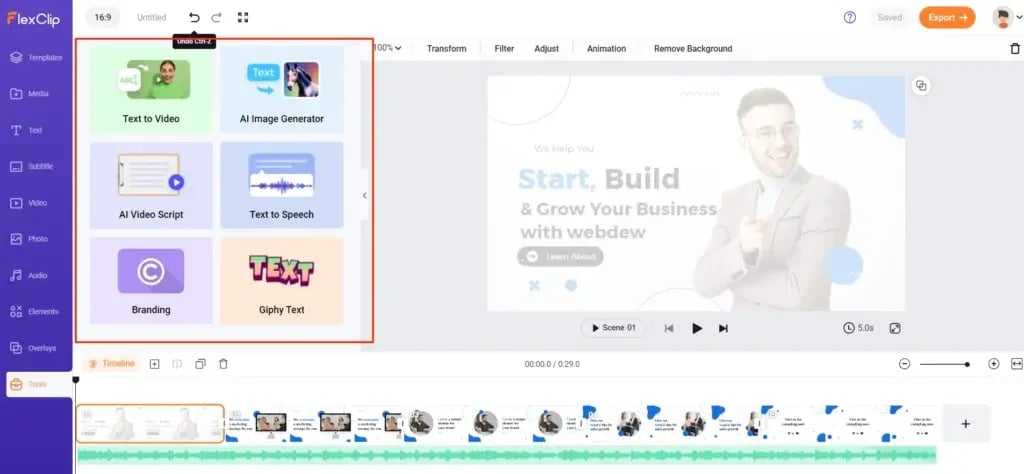
After reviewing these features, we’ll bring your focus to the scene’s timeline. You can see this option below the editing screen of the video.
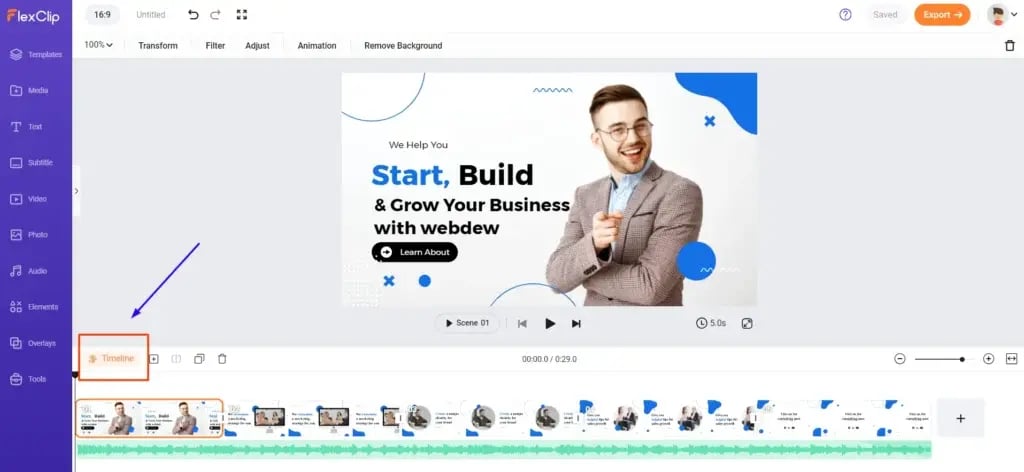
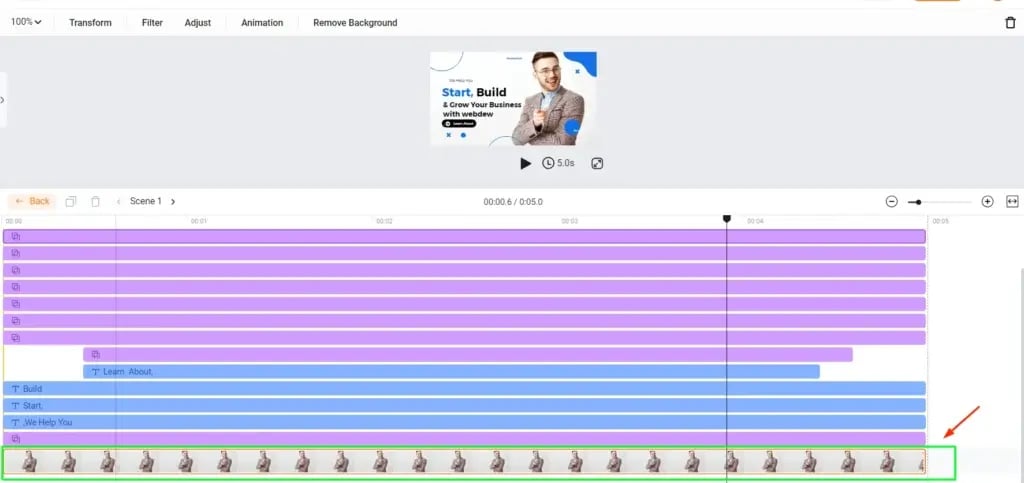
After clicking on that, you can observe and change the time and sequence in which all the elements of that particular scene will appear in the final video.
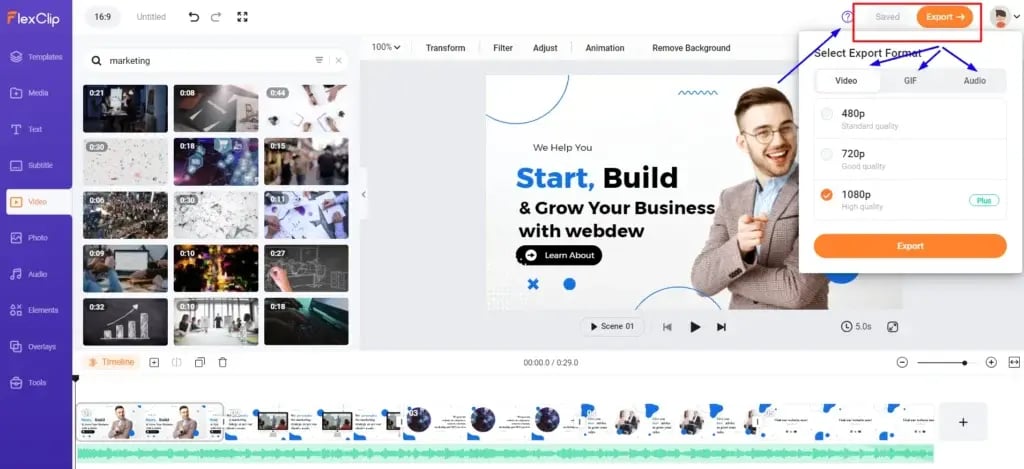
Now you can save and export your final video by choosing the option you need to (Video, GIF, or Audio)
You can export the video up to 720p in your free plan, too, but to avail of the option of 1080p, you must have a plus plan.
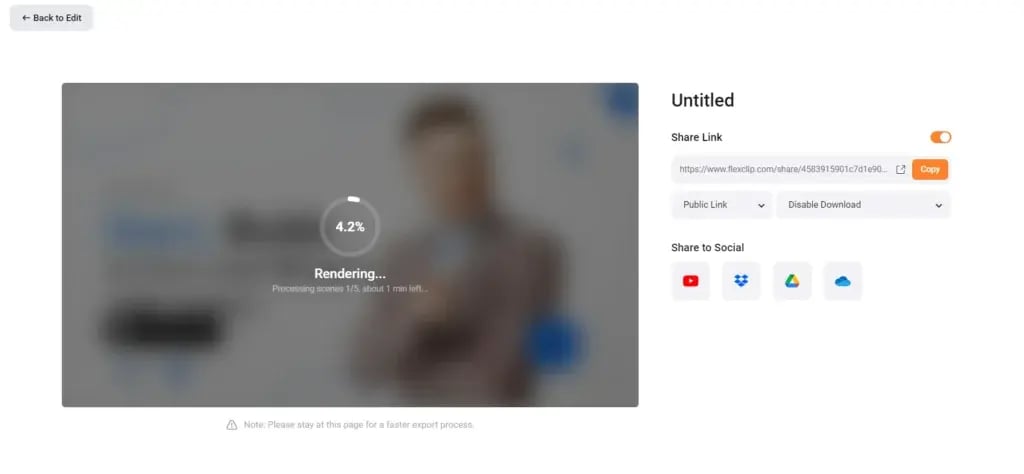
It will take a few minutes to render your video. Meanwhile, you can select the right option to share your video
- You can copy and share the link.
- You can directly share it with your social media handles.
- You can either keep the link public or private
- You can also turn the download option on or off.
? Review
- Flexclip makes it easy to create video content using its user-friendly template, but there were some minor drawbacks, too –
- ✔ The adjustments in the timeline portion were confusing to use.
- ✔ The font style Montserrat needed to appear clear and complete. This made us change the font style, too – Baloo Tamma.
Here is the link to video created with the help of template –
https://www.flexclip.com/share/4583915901c7d1e90af86da64525ab7cc37907d.html
2. Video Editing
After exploring FlexClip’s templates and editing features, let’s explore creating a video from scratch. Some features have been covered in the ‘Templates’ section, so feel free to use those without additional guidance.
Click on the “Create a Video” button on the homepage. Now, choose the mode and aspect ratio; we opted for Timeline mode and a 16:9 ratio.
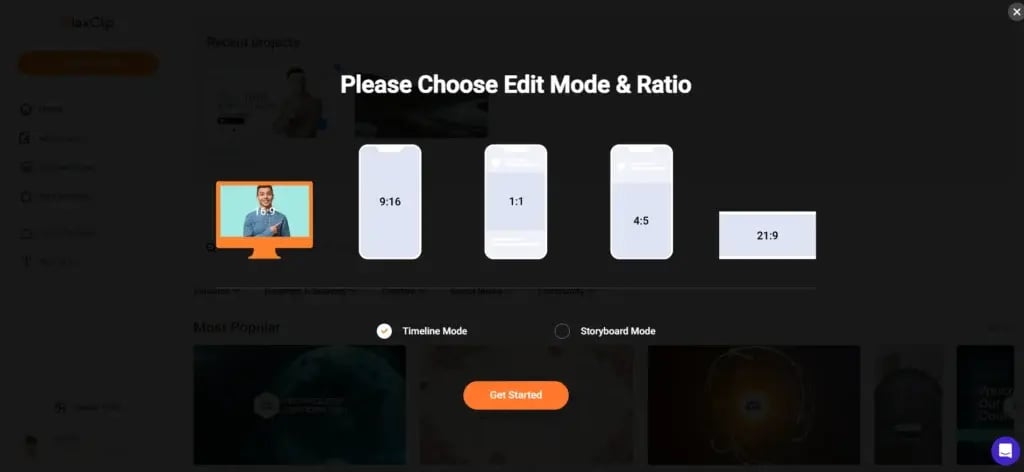
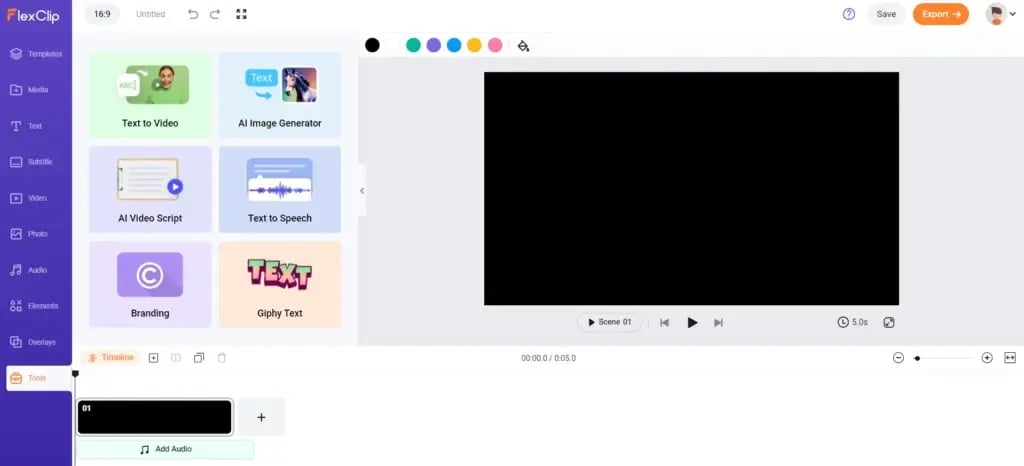
If you have a script, skip this step. If not, select “AI Video Script” for assistance.
Write your topic, and choose the video duration (short, medium, or long). We chose a short duration for simplicity.
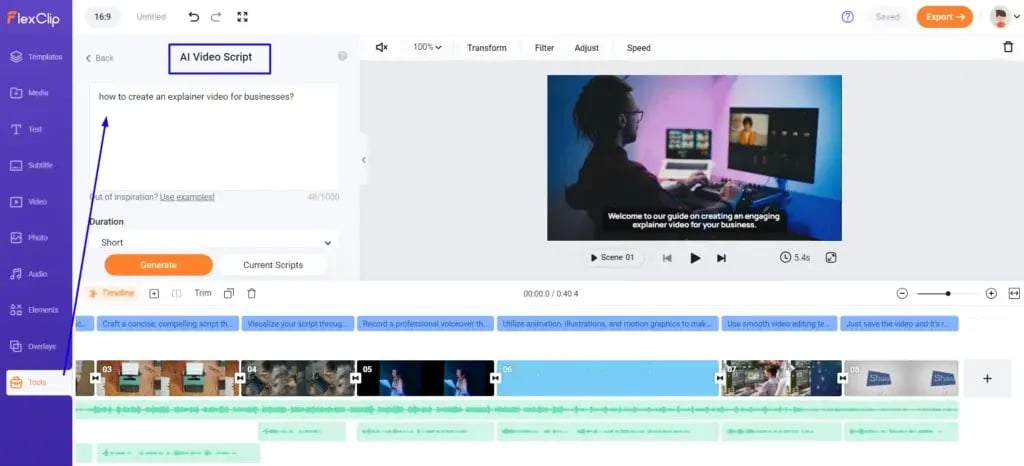
Here is your script, and now, again, if you can create a video on your own, you can skip this step.
However, if getting help from AI would be better, click on the option – AI to Video.
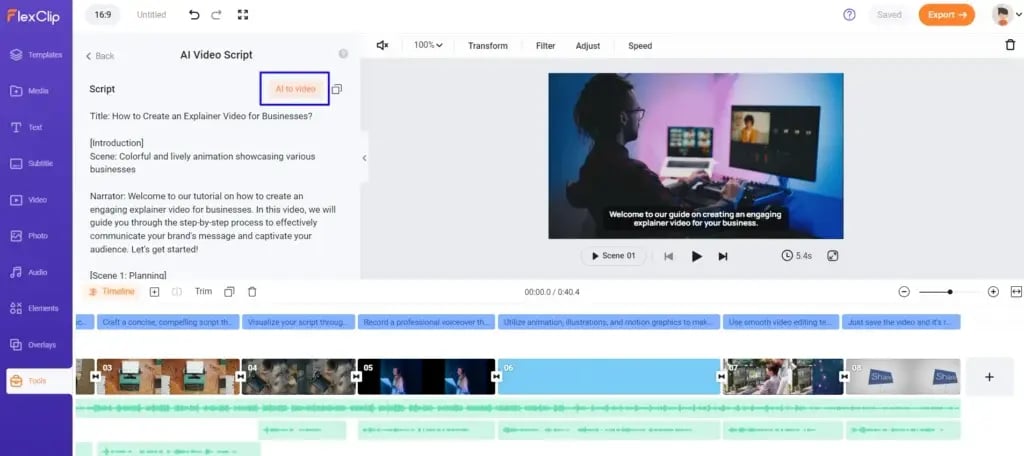
Skip this step if you can create the video on your own. Otherwise, click on “AI to Video.” Choose between AI Creation (using the complete script) or AI Excerpt (using the main idea and limited text).
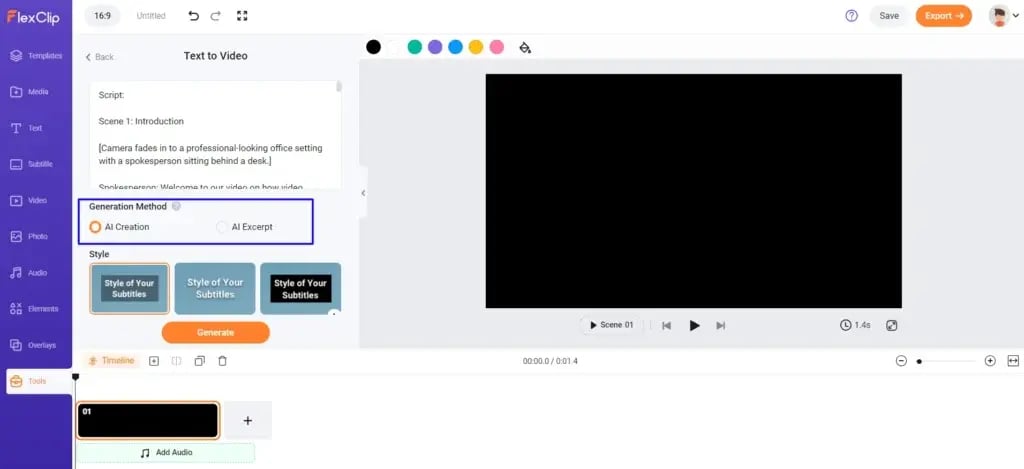
We used AI Excerpt but uploaded media to make the video more relatable. You can use stock videos/photos from the library.
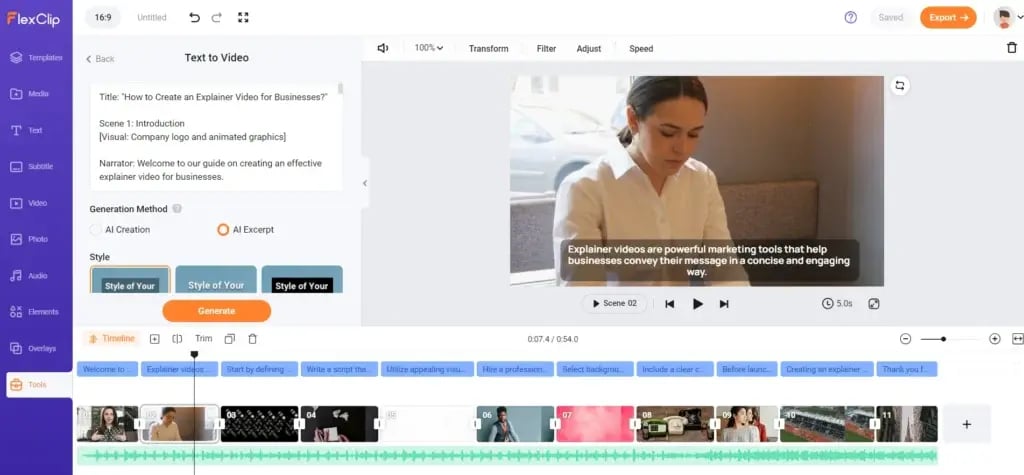
Thus, we added clips from its library and created an introductory video for your understanding.
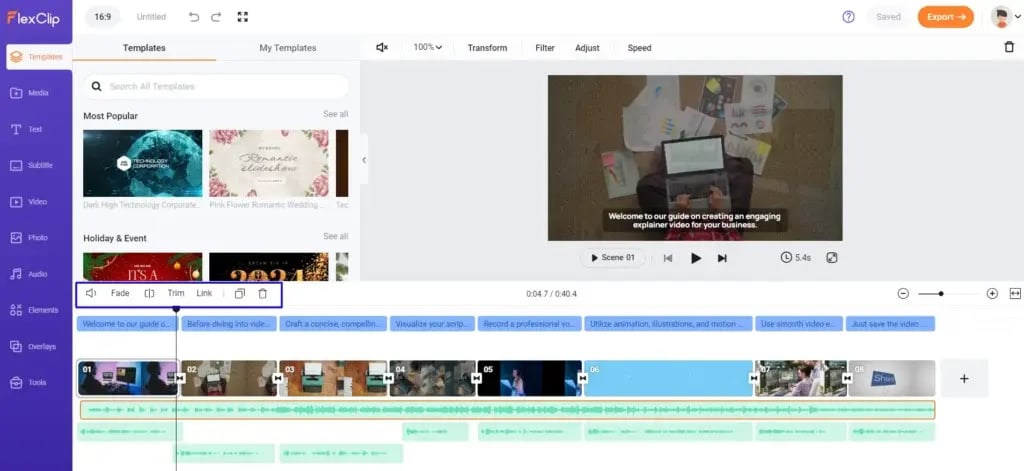
As we all know video, video is complete with audio. The tool automatically adds a basic audio. You can change it by adding your audio or choosing one from its library from the ‘Audio’ section on the left.
Add audio from the tool or upload your own. Edit audio features (volume, fade, trim) highlighted in the blue box.
Moreover, there is an option to convert your subtitle to voiceover. When you click on the video’s subtitle in the edit section, you will find an option, ‘Subtitle to Speech.’
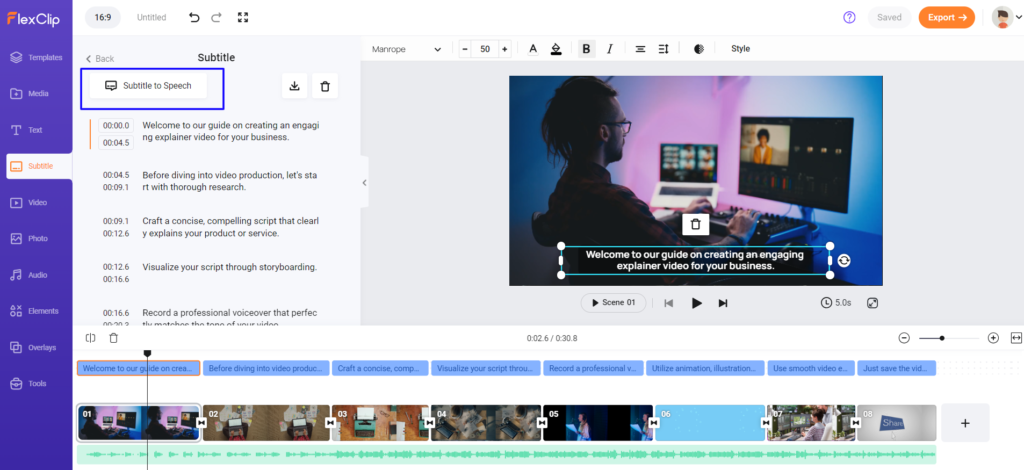
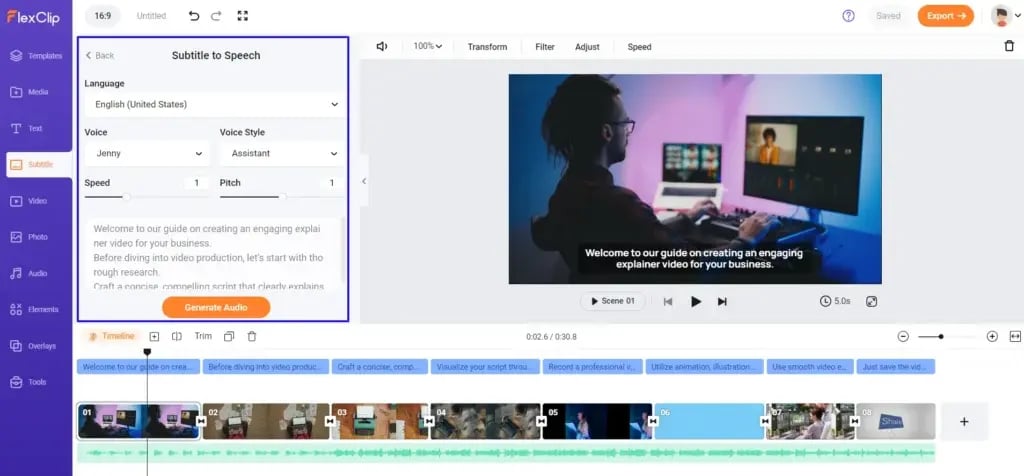
Convert subtitles to voiceover by clicking “Subtitle to Speech.” Customize voiceover language, style, speed, and pitch.
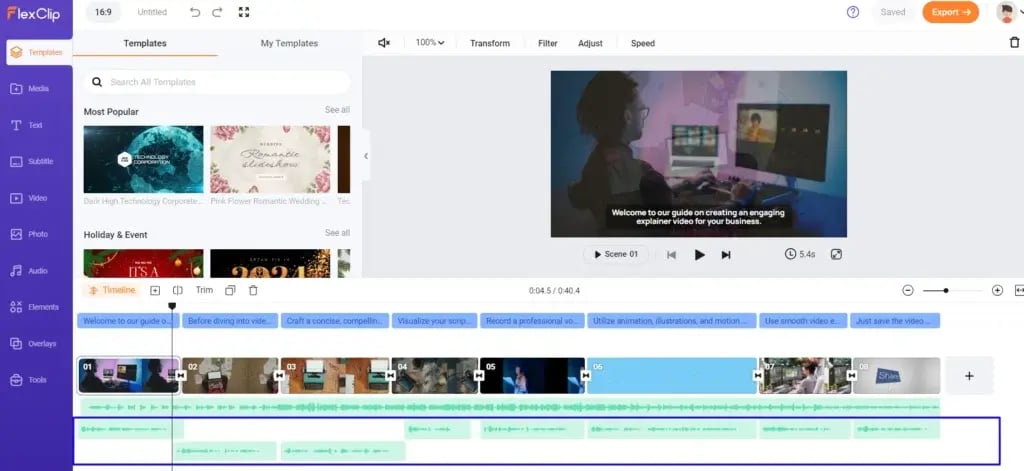
Easily adjust voiceover timing by sliding them according to scenes.
You can use two other options to add some exciting elements.
First, we will talk about Giphy Text.
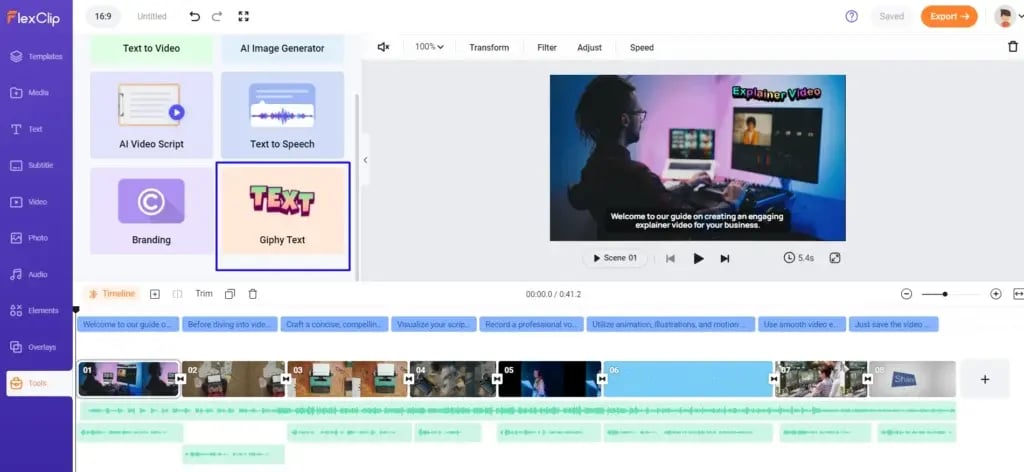
In this, you can add the text in the search bar and get it styled in different GIF ways. I selected the third option and added it in the first scene at the top of the laptop. It added an appeal in the video.
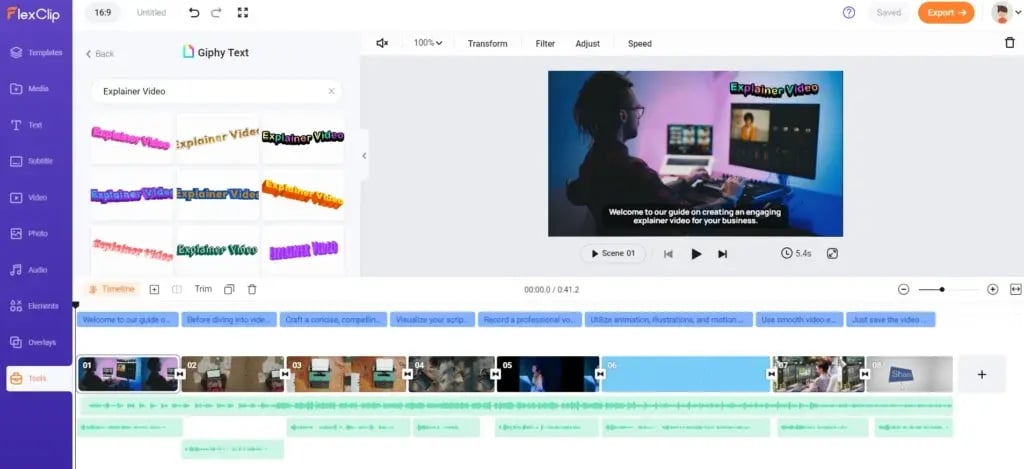
The next is ‘Branding.’ You can add your brand name as a watermark, as the name suggests. You can write it in the text form or add the image or logo.
You can also adjust the size, opacity, and the position of the image or text.
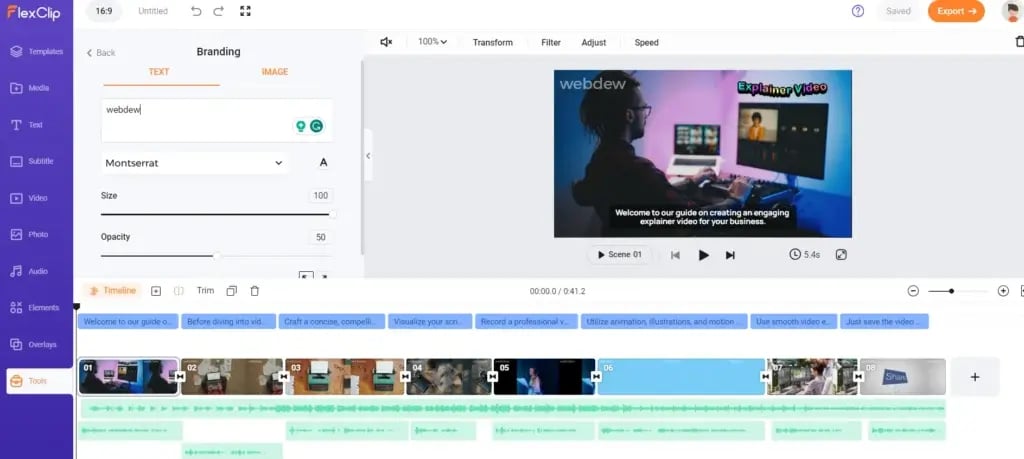
Here is the link to video created from scratch –
https://www.flexclip.com/share/45839152056f587692ae972d26b41f707764aad.html
? Review
- Creating and editing videos from scratch using FlexClip was a positive experience. The features were user-friendly and suitable for beginners.
- However, the AI video creation results could be improved, but the option to add personal media provides a solution for enhancing the video style.
3. Tools
There are some other tools offered by FlexClip that can be used separately for particular purposes.
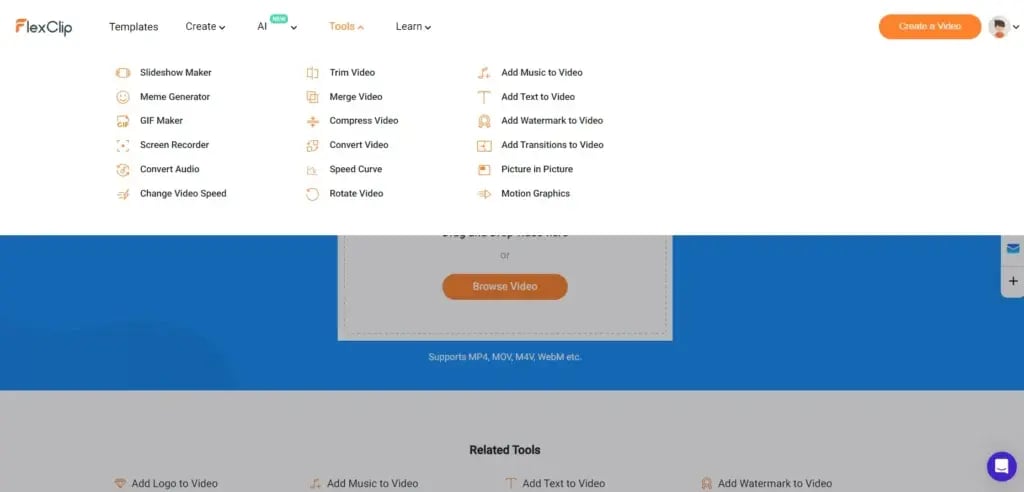
1. Slideshow Maker
FlexClip also provides a Free Slideshow Maker to make simple and appealing slide shows. To get started, you need to click on ‘Browse Photos’ to select your photos.
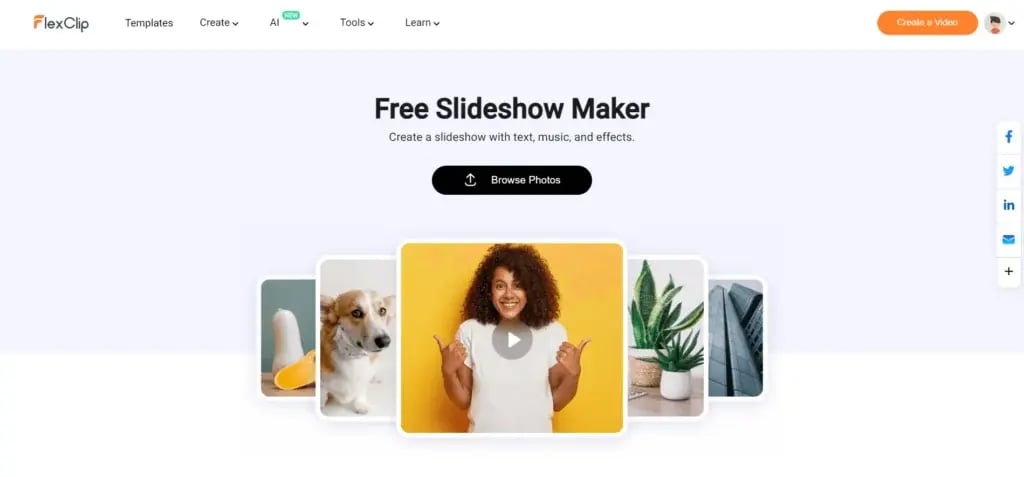
Next, you need to add photos, and you can arrange them here.
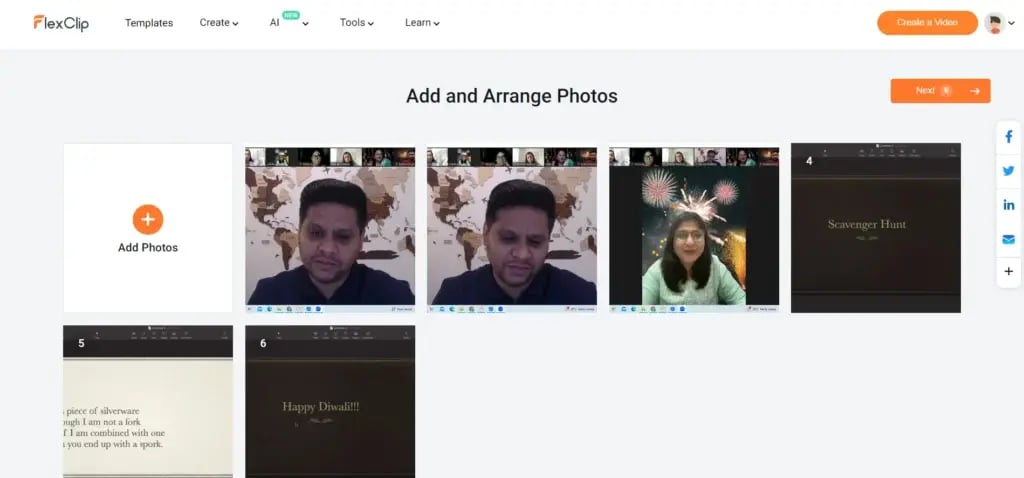
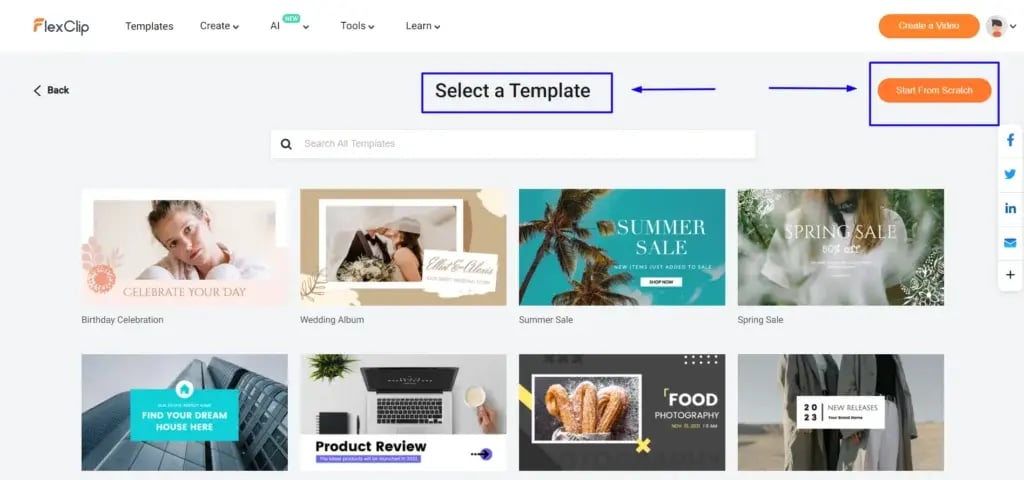
After this, you’ll get an option to either select a template or Start from scratch.
If you choose Start from scratch, it will take you to the main landing page, where you can follow the process of creating a video from scratch like we did in the ‘Video Editing’ section.
Here, we selected a template named ‘Film Frame.’
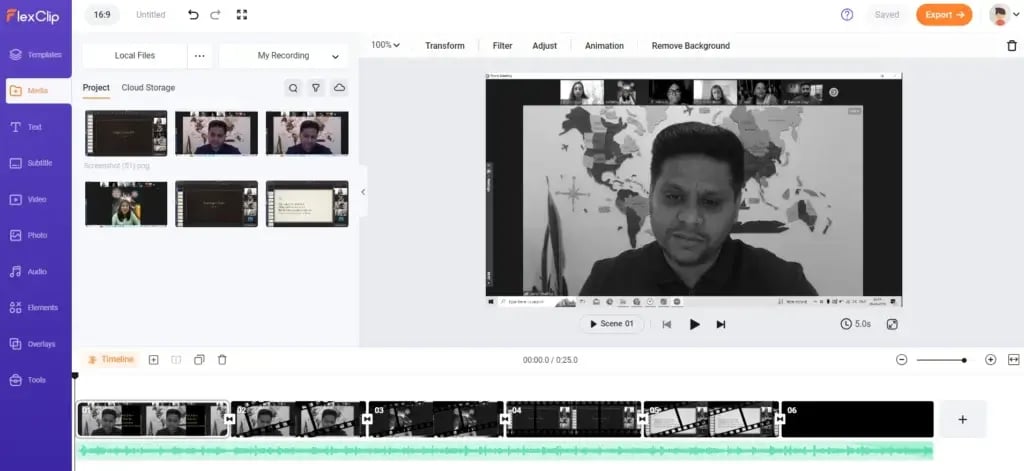
After selecting the template of your choice, you’ll ultimately land on the editing page of the tool. It is the same as the one we’ve seen in the ‘Templates’ and ‘Video Editing’ sections.
You’ll get all the same options, from uploading your media to using AI tools as required.
2. Meme Generator
FlexClip also provides a Meme Generator to make funny and humorous memes. To get started, you need to click on ‘Make a Meme Now.’
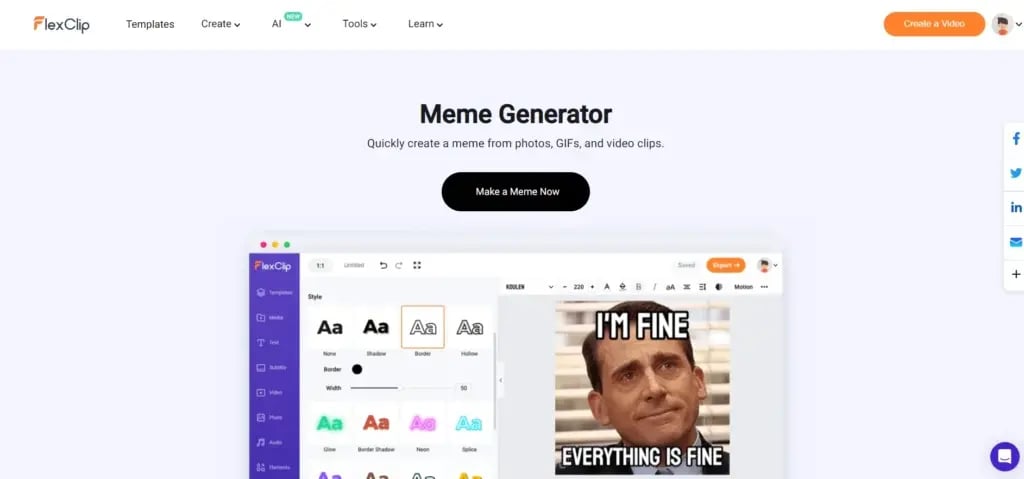
You’ll land on a page of templates. From there, you can select the template of your own choice to create a fantastic meme.
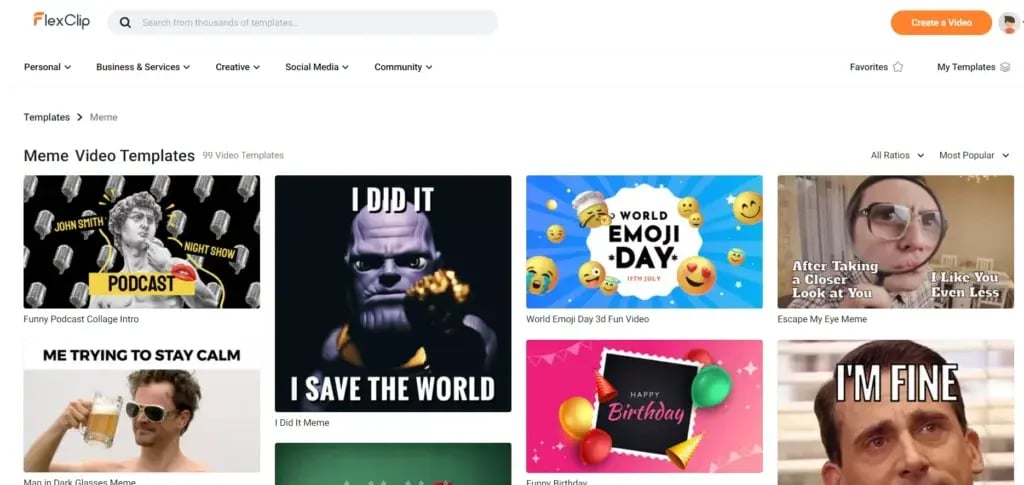
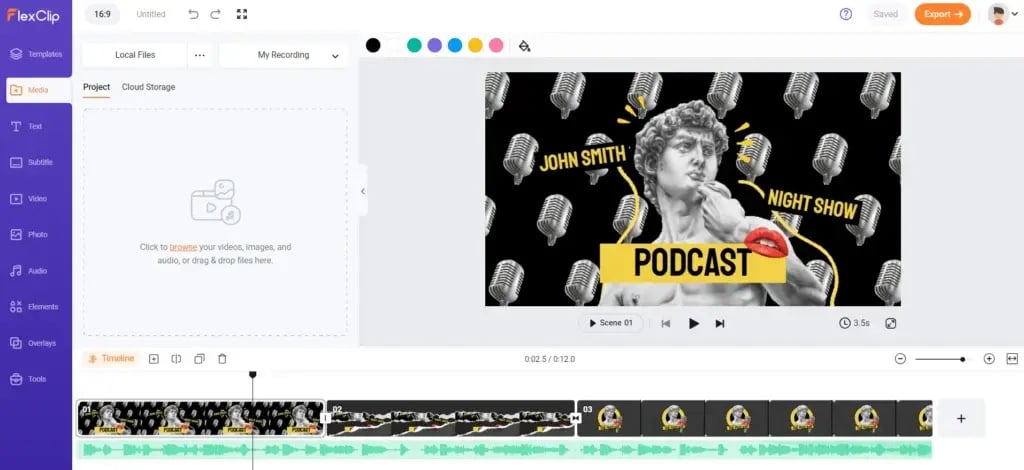
After selecting the template, you’ll get all those options we’ve discovered in the ‘Template editing’ and ‘Video Editing’ sections.
After adding elements of your choice, you can save and export the meme you’ve created.
3. GIF Maker
With the help of this GIF maker, you can create a funny and engaging GIF video for your social media platforms.
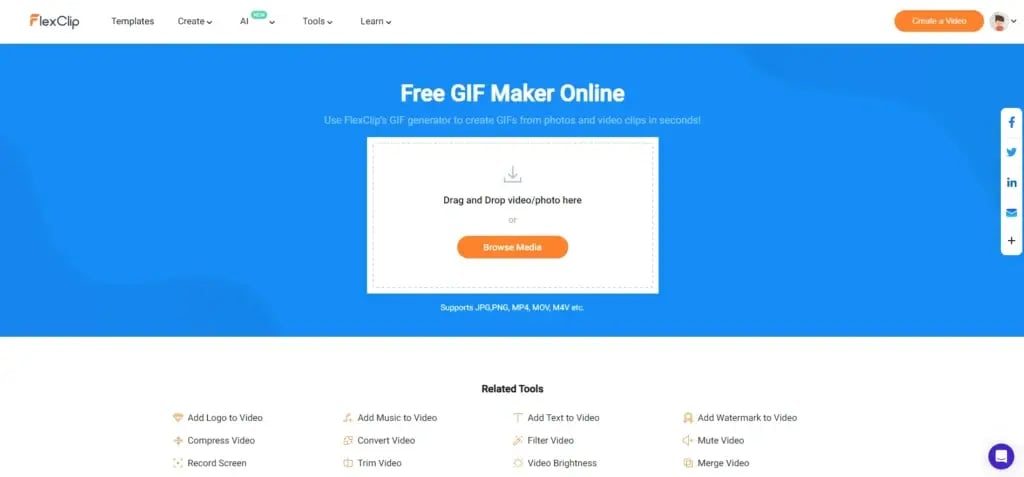
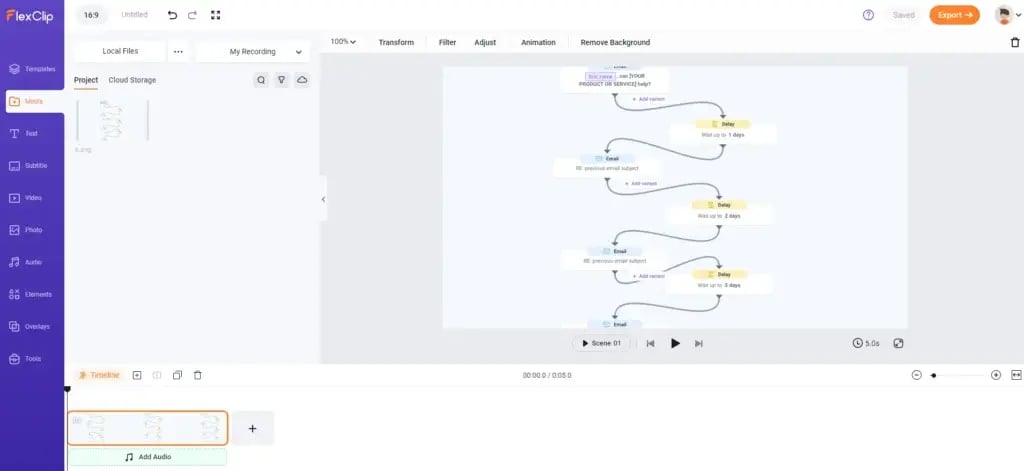
You’ll get the same options as those found in the main video editor of FlexClip. The editor just adds an automatic zoom-in effect. You can export the video in the form of a GIF with the available option.
4. Screen Recorder
FlexClip also provides a screen recorder to capture your screen online easily without installing FlexClip software or extensions. To get started, you need to click on ‘Start Recording.’
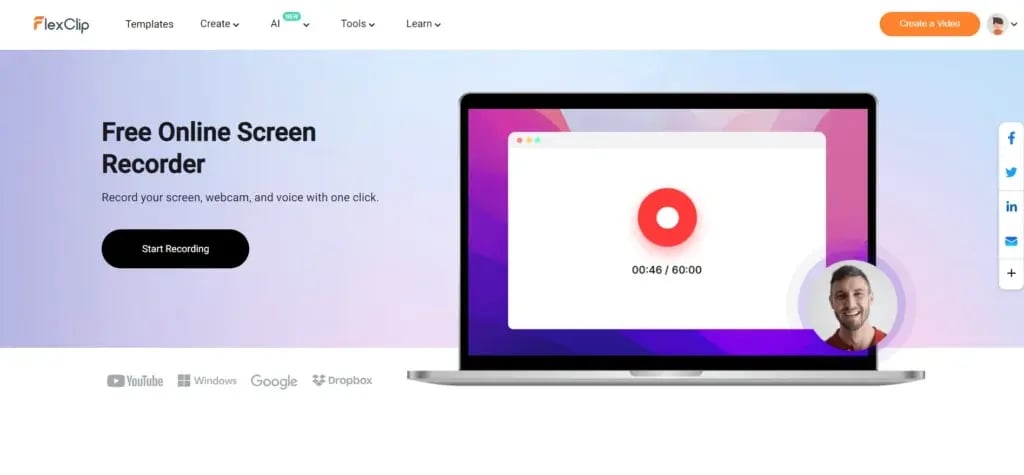
You’ll land on a page where you’ll get three modes –
You can choose the required mode and start recording.
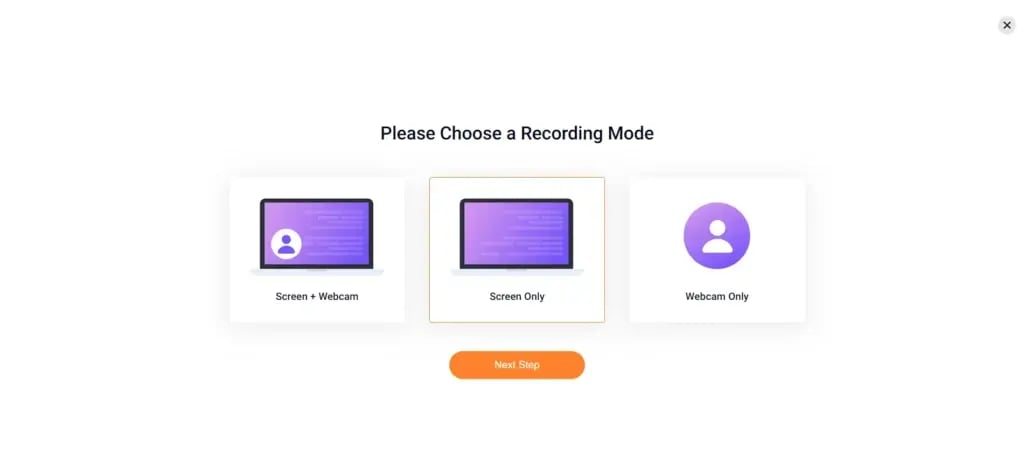
Here is the first mode, ‘Screen + Webcam,’ where you can find simple audio and webcam settings.
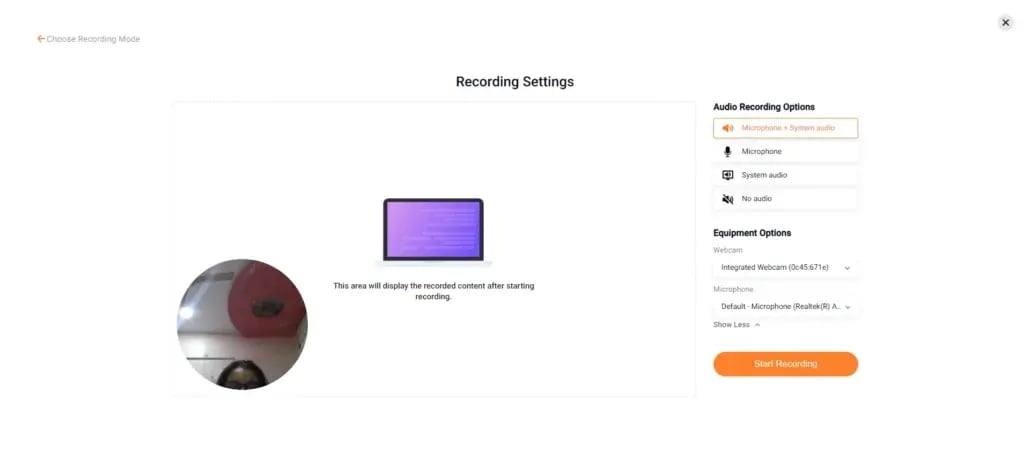
Next is ‘Screen Only’ mode. You’ll get a similar audio and video settings option to start your recording.
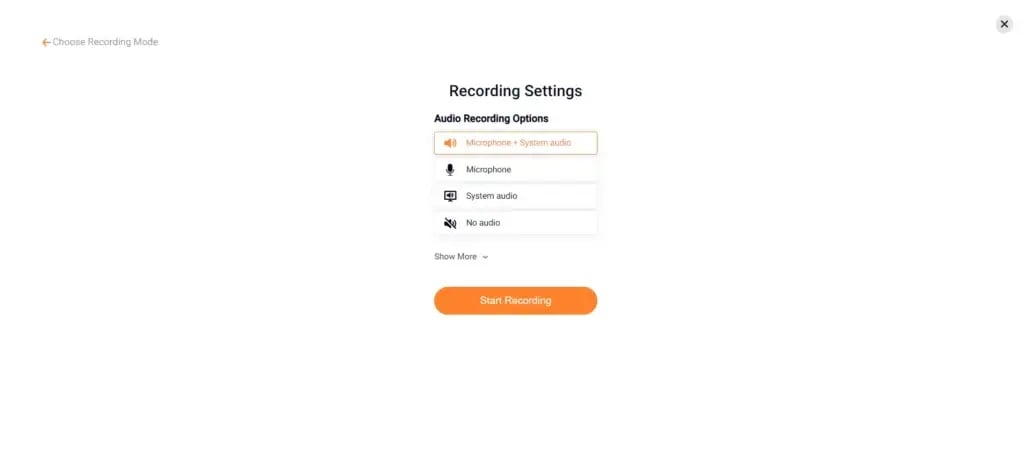
For camera reasons, we still need to add an example of a third mode, i.e., ‘Webcam Only.’ But you’ll get similar easy-to-use options there, too.
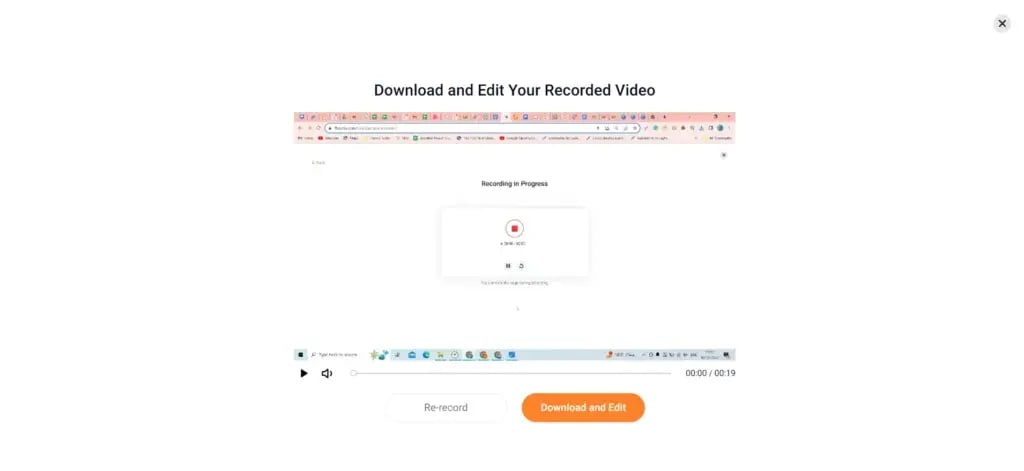
In the next step, after adjusting the settings when you start recording, such a screen will appear in front of you. With no complexities, you can start recording and pause or restart with the help of respective buttons.
When you stop the recording, you’ll see two options –
Re-Record
Download and edit: In this option, your recording will get downloaded, but if you need to do some editing, then it will automatically take you to the editor, the same as seen in the video editing section.
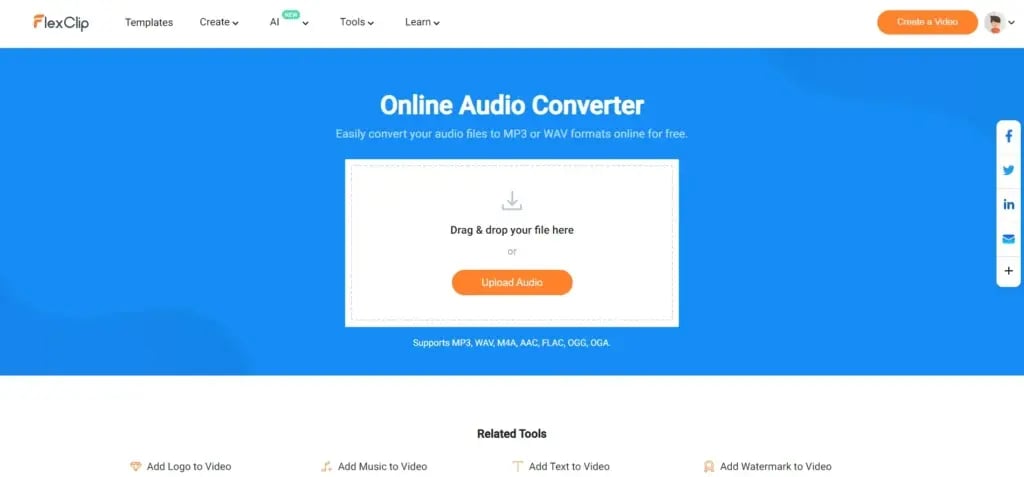
5. Convert Audio
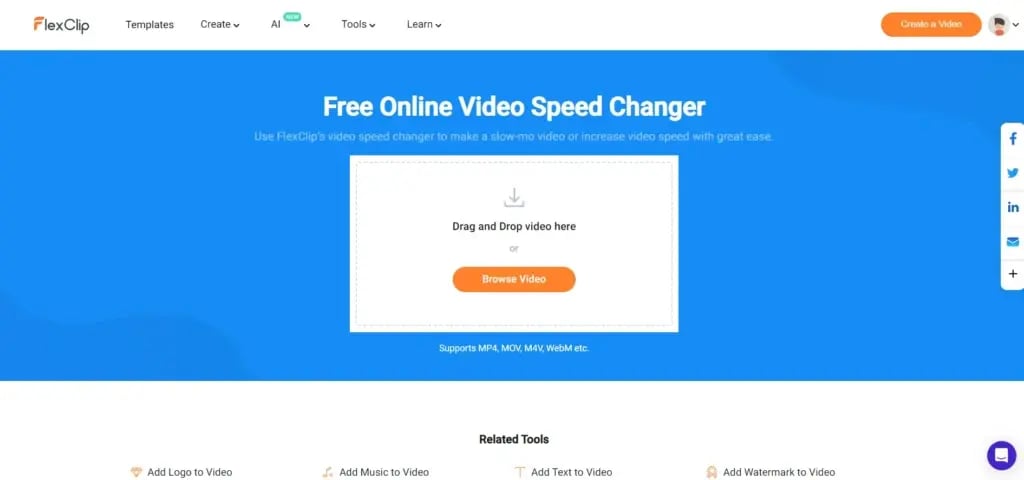
6. Online Video Speed Changer
With the help of this tool, you can change the speed of your video in minutes. You need to click ‘Browse Video’ or simply use the drag-and-drop feature to add the video of your choice.
You’ll find here two options – Normal Speed and Curve Speed.
In Normal Speed, you can adjust the speed, which will be constant for the complete video.
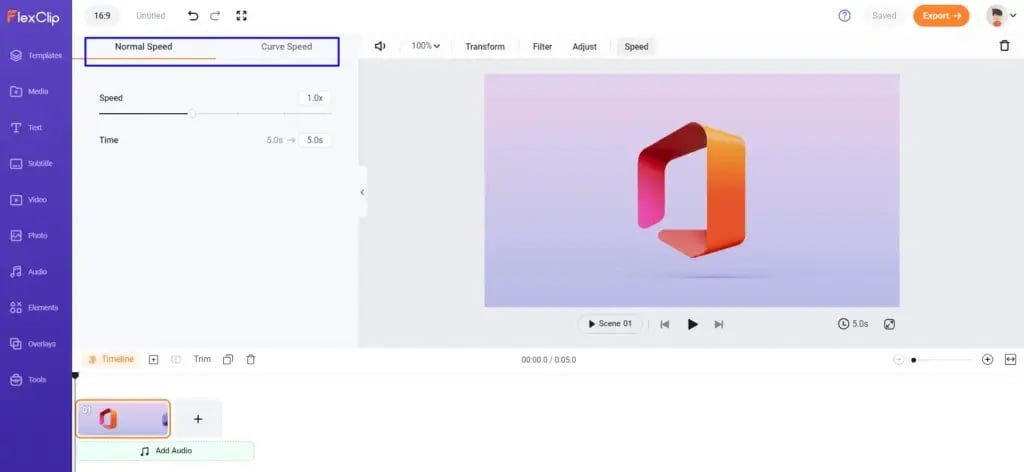
In Curve speed, you have six styles where the speed will differ for different portions. There is also a ‘Customize’ option, where you can keep the speed of your choice.
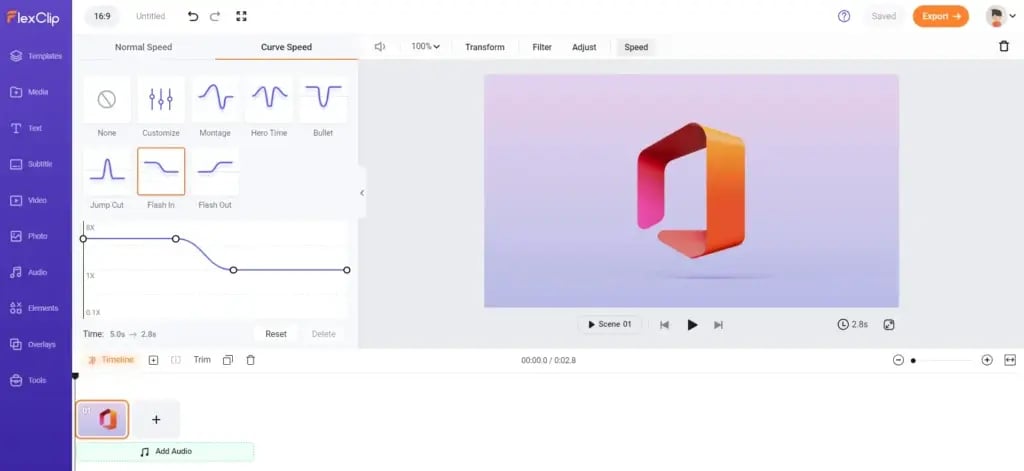
In the end, you can export the video as already explained. For your reference, we’ve added a video where we tried to experiment with the speed of the original video.
https://www.flexclip.com/share/45839154451a958bb08b2b84160d52f4af6fbd6.html
7. Trim Video
FlexClip also provides a Free Video Trimmer to reduce your original video length in minutes. To get started, you need to click on ‘Browse Video’.
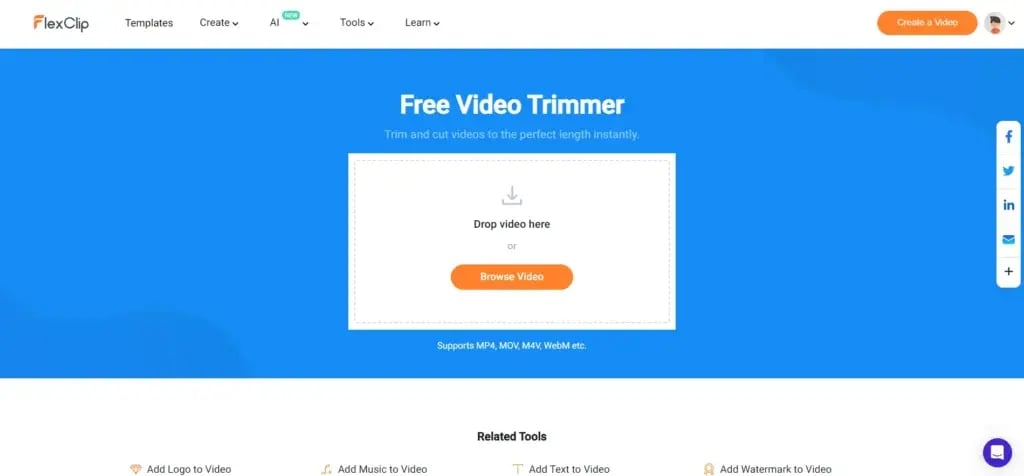
Here, you’ll land on the basic editor page of FlexClip, where you can use the option of ‘Trim’ to shorten your video and save it at the end.
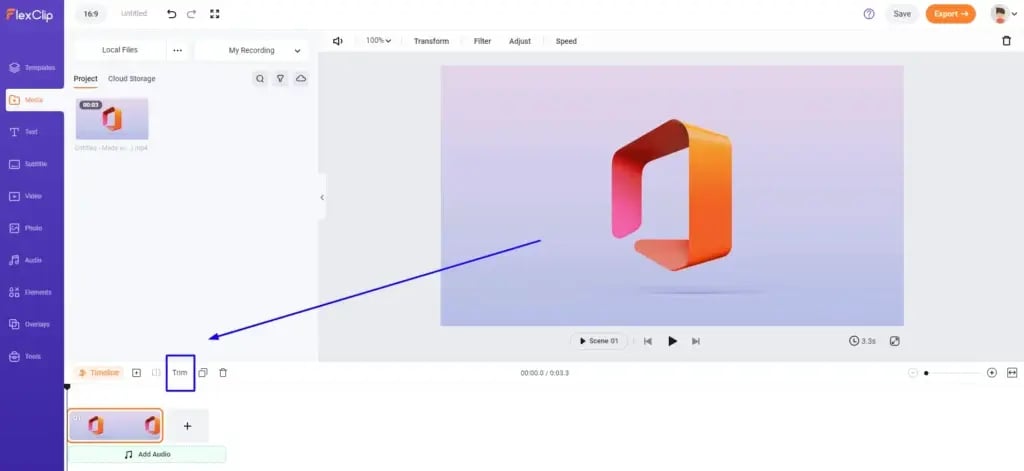
8. Free Video Compressor
With the help of this tool, you can compress your original large video files easily and quickly in minutes.
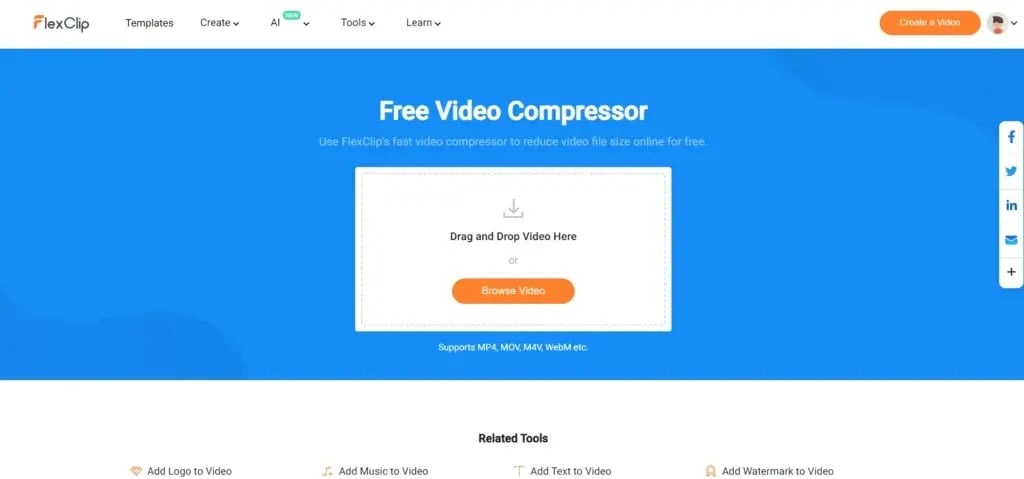
After selecting your video, you can select the quality and resolution of your choice. From Extremely Low Quality to Original, it has seven options, and from Original Resolution to 1080p, it has five resolution options.
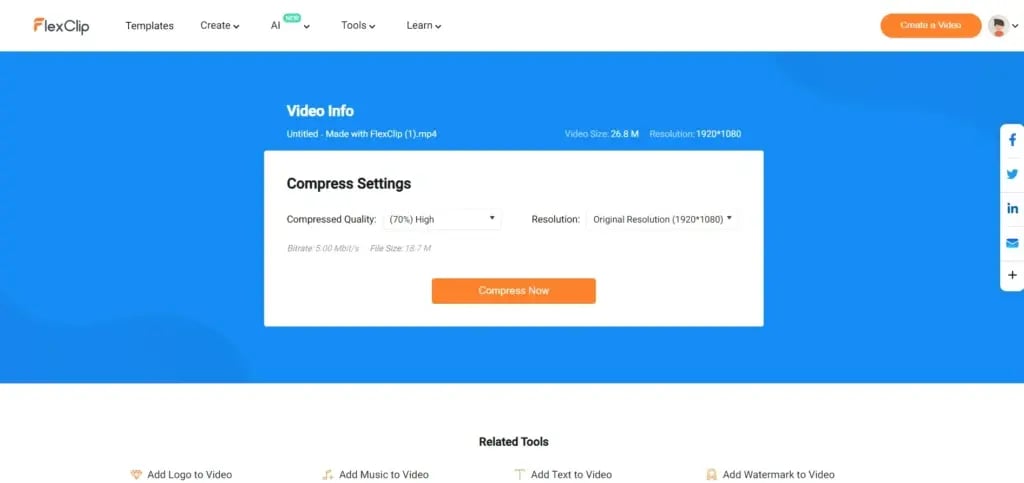
You can click on compress now and then save and download your compressed video.
9. Convert Video
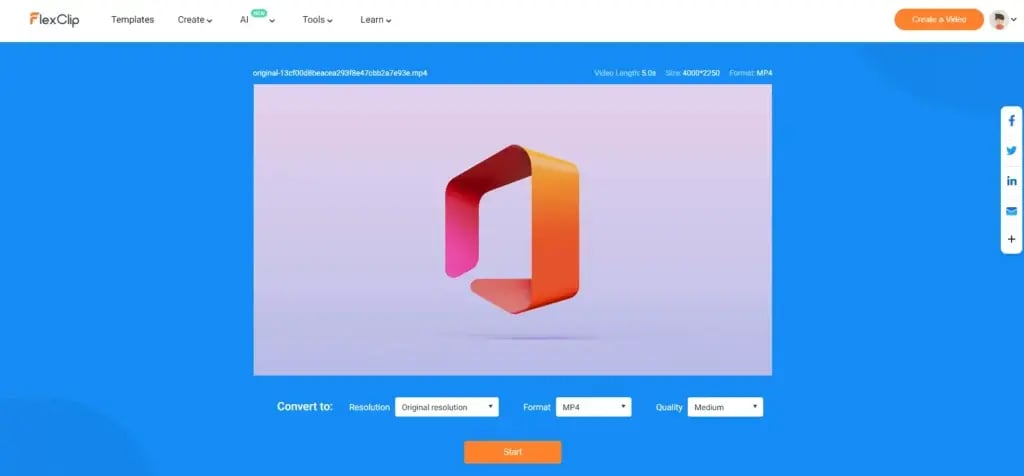
FlexClip also provides a Free Video Converter to give it a basic makeover. To get started with this great tool, you need to click on ‘Browse Video’.
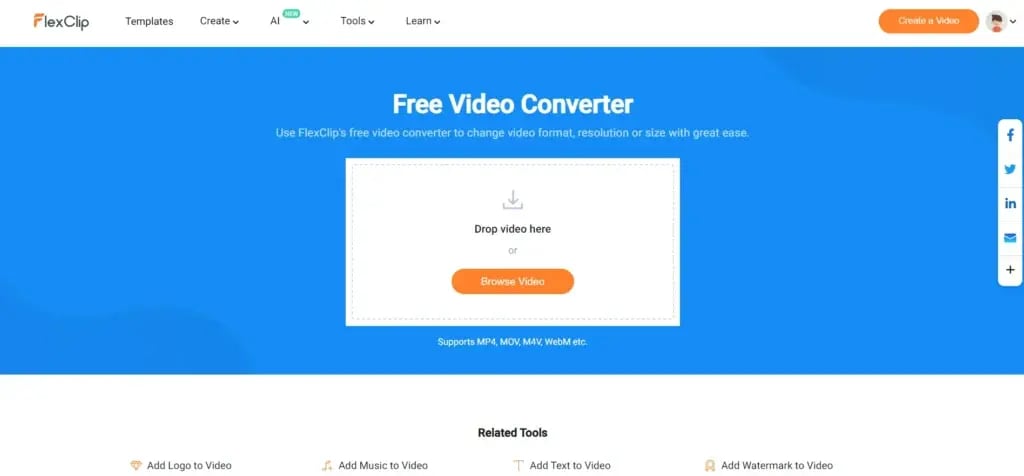
After selecting your video, you’ll find three options – Resolution, Format, and Quality. You can select the options per your requirement, and it’s done. Just export and download the converted video.
10. Speed Curve
It is none other than changing the speed of the video tool. Just click on ‘Upload Video’ to get started.
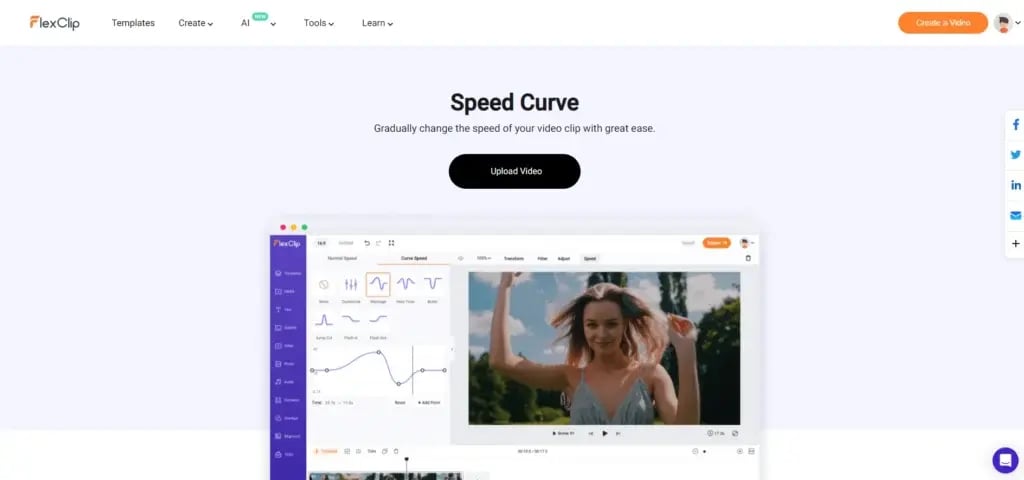
As mentioned earlier, you’ll find two options: Normal and Curve Speed.
In Normal Speed, you can adjust the speed, which will be constant for the complete video.
In Curve speed, you have six styles where the speed will differ for different portions. There is also a ‘Customize’ option, where you can keep the speed of your choice.
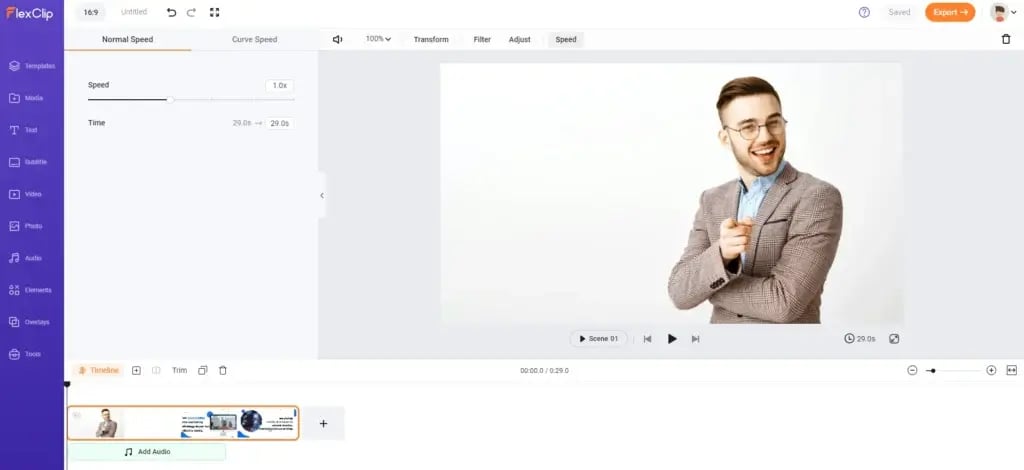
In the end, you can export the video as already explained.
11. Free Online Video Rotator
The primary task of rotating your video can be done quickly with the help of this ‘Video Rotator’ tool offered by FlexClip.
You must click ‘Browse Video’ to add your video and get started.
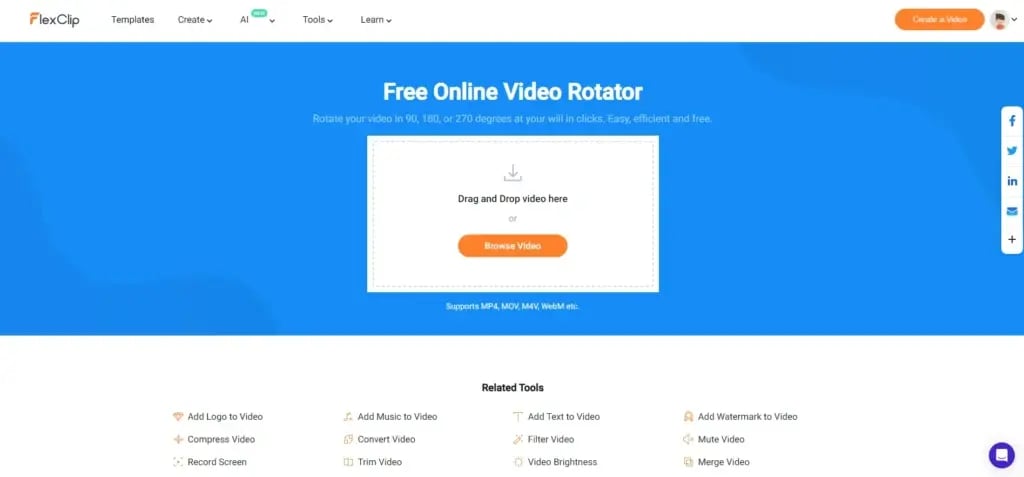
It will land you on the main editor page of the video, from where you can click on transform and choose how you want to rotate your video. And it’s done.
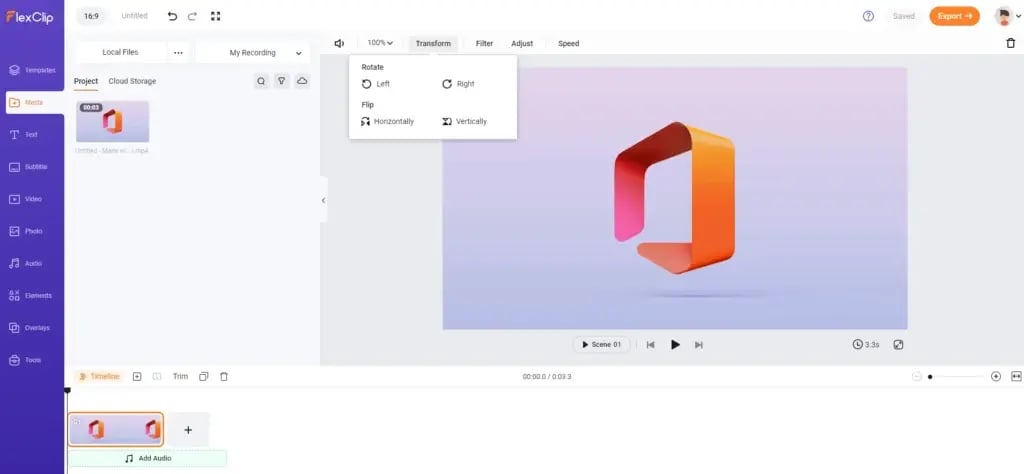
Export and download your video in minutes.
12. Add Music to Video
FlexClip offers a feature to add music to your video quickly and handily without buying any subscription plan.
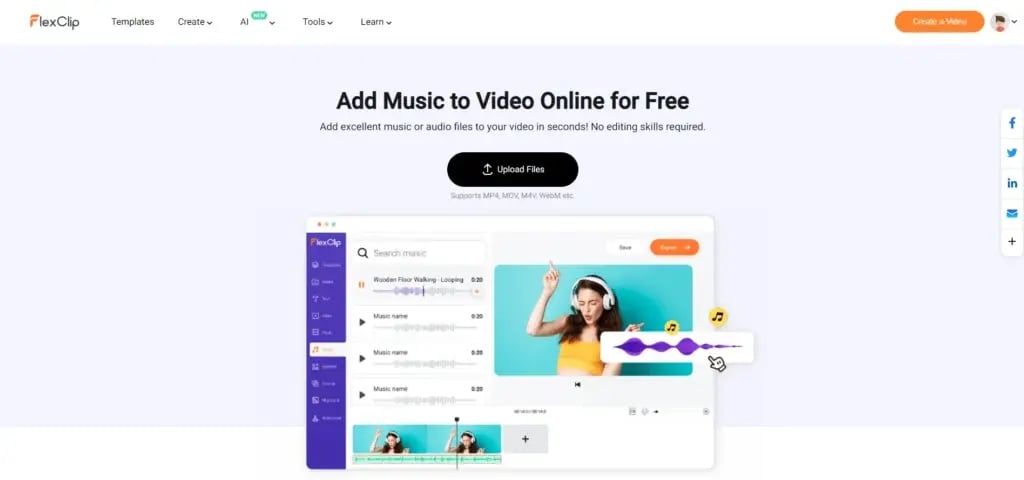
It will land you on the main editor page of the video, from where you can choose the music or sound effects from its music library or add your music through the media section as explained in the ‘Video Editing’ section. And it’s done.
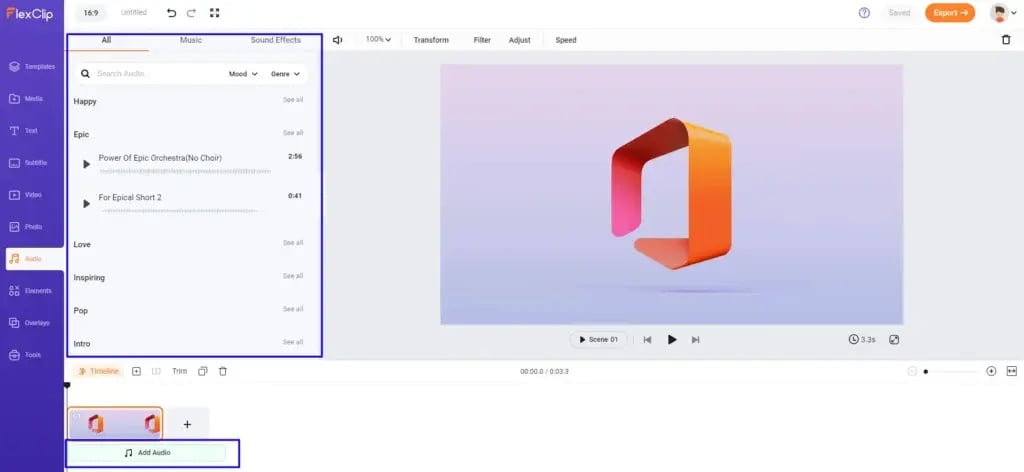
Export and download your video in minutes.
13. Add Text to Video
FlexClip also provides an option to ‘Add Text to Video’ to enhance the accessibility of your video. To get started, you need to click on ‘Upload Files”.
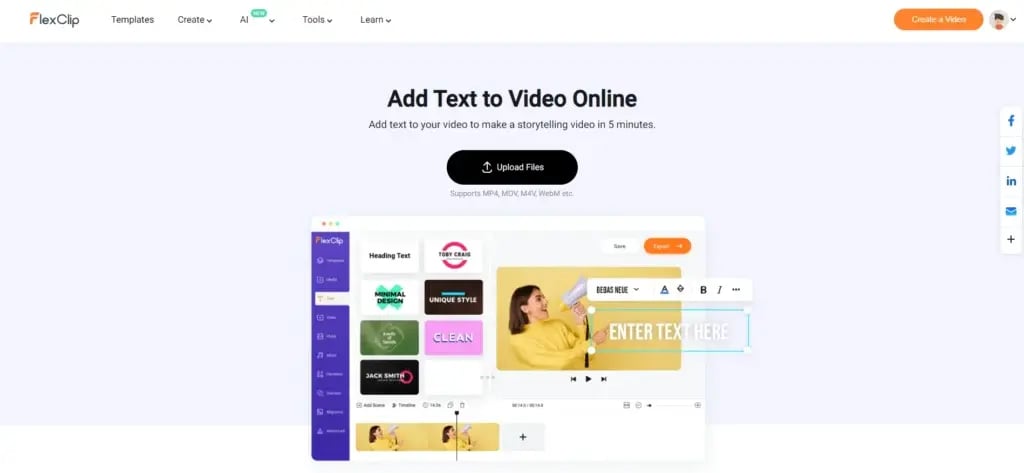
On the main editor page, pick your text style and add wherever you want to in the particular scene (check ‘Video Editing’ for details). Hit export, and your video will be ready to download in minutes!
14. Add Watermark to the Video
FlexClip also provides an option to ‘Add Watermark to Video’ to enhance your branding. To get started, you need to click on ‘Browse Videos.’
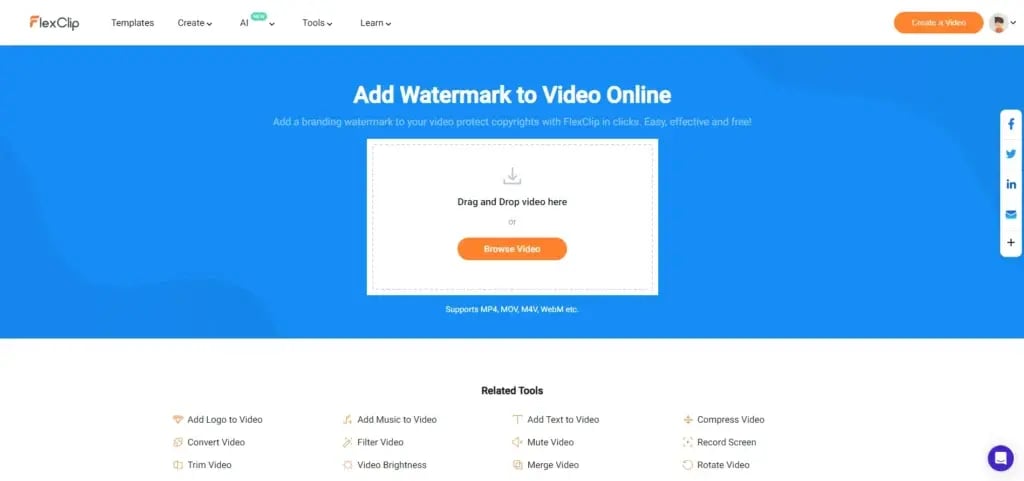
You’ll land on the editor page, where you’ll find the branding feature in front of you. As discussed in the video editing and template section, you can either write your brand’s name or add an image as per your choice and select its position, opacity, and font style.
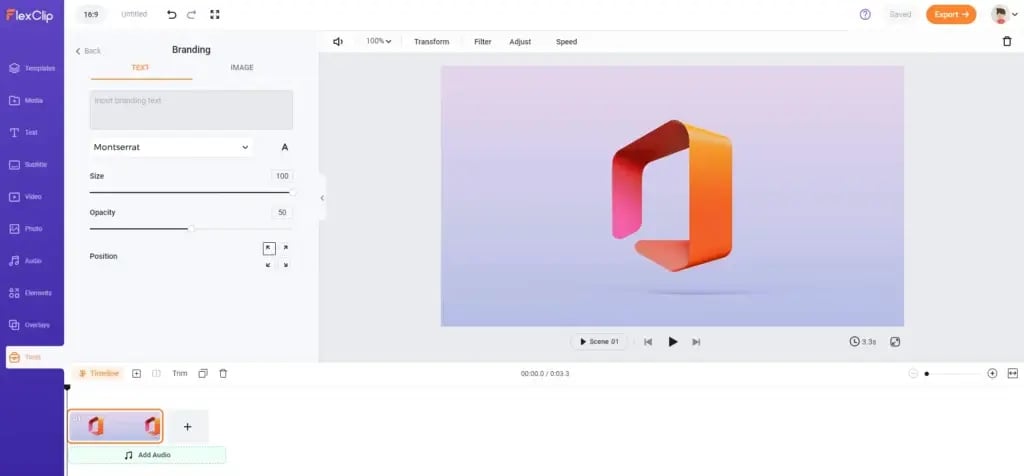
When done with the editing, save and export the video easily.
15. Add Transition to Video
FlexClip also provides an option to ‘Add Transition to Video’ to make your video visually appealing. To get started, you need to click on ‘Browse Videos.’
You’ll land on the editor page, where you’ll find the feature in front of you. As discussed in the video editing and template section, you can either write your brand’s name or add an image as per your choice and select its position, opacity, and font style.
16. Picture in Picture tool
With this tool’s help, you can easily overlay your pictures or videos in minutes.
It will land you on the main editor page of the video, where you can add an image or video as a layer on your already added media on the scene.
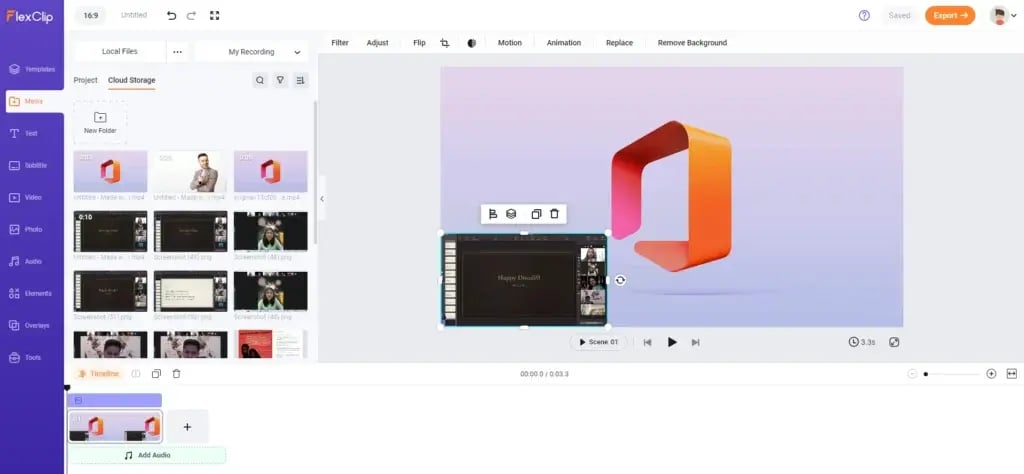
After doing so, you can save and export your media and use it as required.
17. Make Motion Graphics
FlexClip allows Motion Graphic creation platform to show your creativity through animations and visuals.
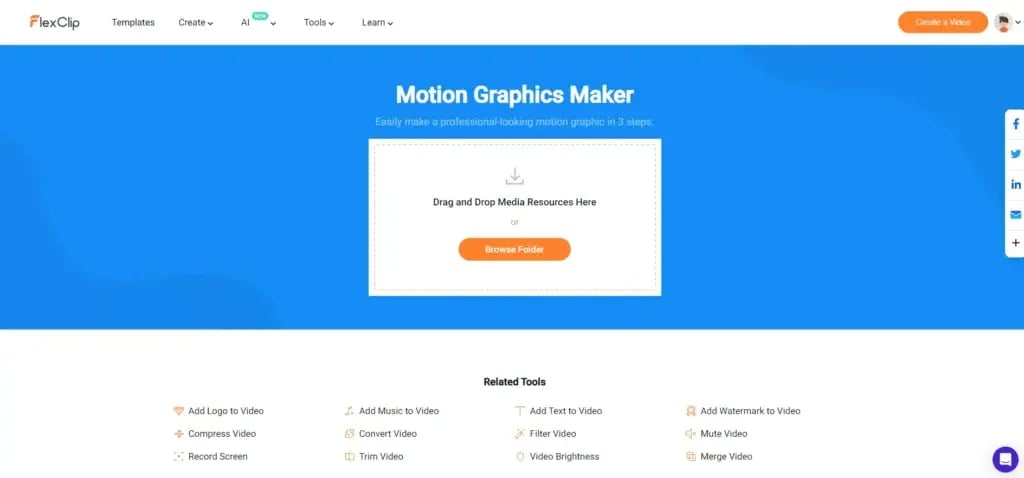
It is not different from making a video. All those tools and features are available in the ‘Video Editing’ section.
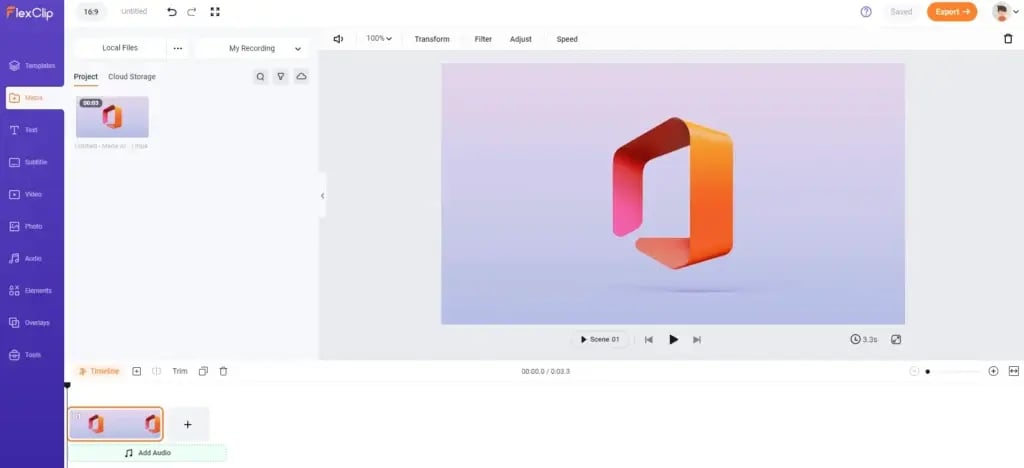
Review
The best part is that it is free and easy to use. It provides good options for the templates. The only drawback of this tool is that you need to either delete the image or add it again to bring it in the first place.
Otherwise, if you want it to be easy, add and rearrange the images after selecting the photos.
? Review
- After explaining the editing tools that FlexClip provides, we would like to mention that Flexclip makes it easy to edit video content, but there were some minor drawbacks, too –
- ✔ One cannot reorder the images directly while editing the slideshow in a template of slideshow maker.
- ✔ GIF Maker should have more enhanced and organized options other than those creating a video,
- ✔
4. Interface
Navigating through it is like a breeze. Everything is laid out so you can find what you need without head-scratching. It’s designed to be convenient, making your experience smooth and stress-free. So, no worries about getting lost in a maze of buttons – it’s all simplicity and no fuss.
5. Resources
FlexClip is for more than just making and fixing amazing videos and pictures. It’s also a cool place to learn stuff. In the ‘Learning Centre,’ you can read blogs and watch tutorials. It’s not just about FlexClip; they also discuss other excellent tools.
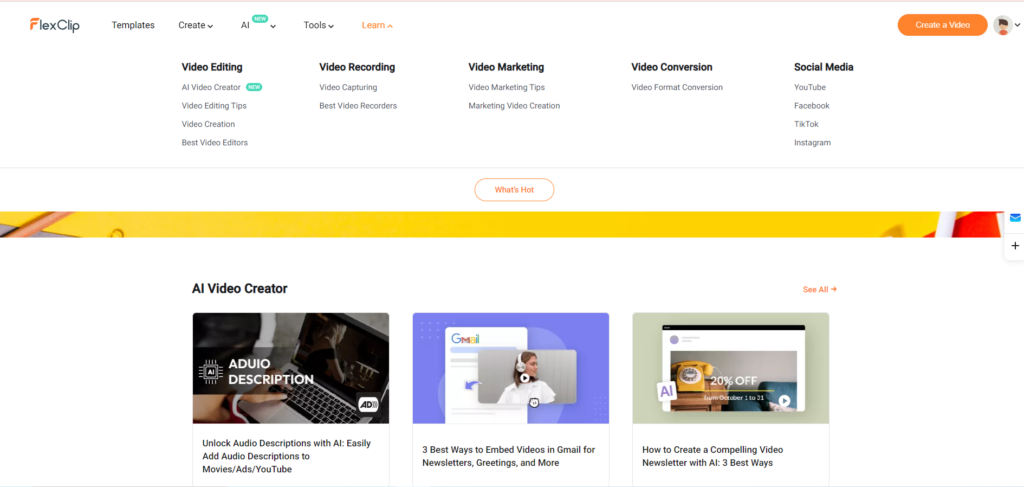
But here’s the tiny thing: It would be even better if they sorted things out more, like putting blogs and tutorials in one spot and having another area just for learning how to use this online video editor for the creative process of video making and editing. It’s like having a neat room where everything has its place.
6. FlexClip Pricing
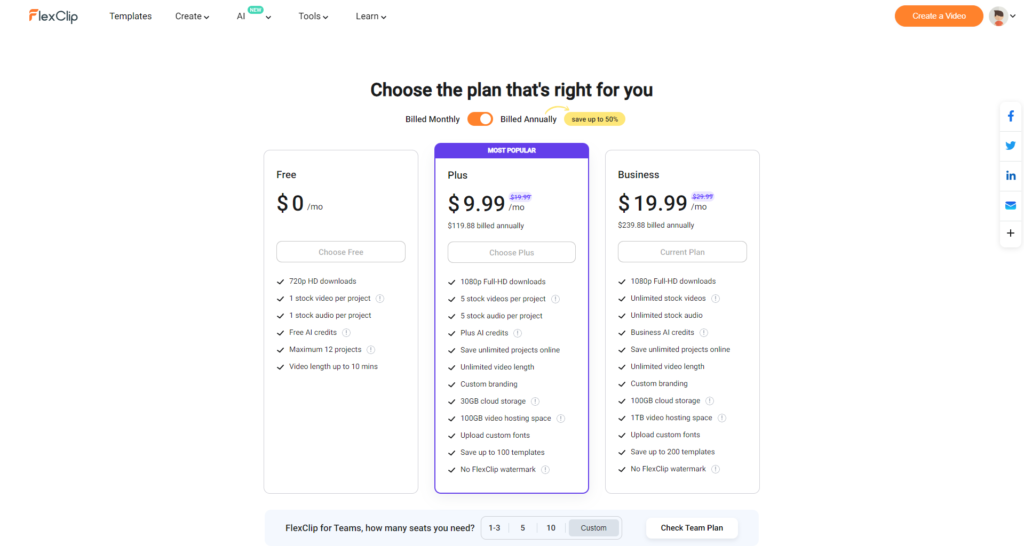
You can see on FlexClip pricing page that it offers various pricing plans to cater to different needs, starting with a free video maker plan with some limitations.
The Plus plan, enhances video length to 10 minutes in full HD 1080p, expands cloud storage to 30GB, and increases monthly subtitling and background removal allowances.
The Business plan, priced at $30 monthly or $240 annually, offers a total video run-time of 30 minutes, unlimited access to stock video and music libraries, and significantly increased auto-subtitling and background removal allowances, along with additional storage for commercial subscribers.
How did you find this video creation and editing tool?
In wrapping up this journey through FlexClip – video maker and video editing software, it’s clear that this platform offers a robust set of tools for creating and editing quality videos with a user-friendly touch for social media, websites, or any other platform of your choice.
The Learning Centre adds a valuable educational dimension, although some organizations could enhance the user experience further. Refining the AI video creation tool could also push FlexClip to its pinnacle.
However, overall it proves to be a decent beginner-friendly
So, are you in favour of using the FlexClip tool? Share your thoughts in the comment section.
Dive Into our
Client Testimonials
Listen to business owners like you share how we’ve helped them grow. Your story could be next!





.svg)
“Recently we reached out to Webdew for a website inside of HubSpot and they also did some mocking automation for us.”
“Webdew team was quite honest and quite easy to work with in terms of taking feedback implementing it, showing that it doesn’t happen again and things like making sure that it meets our expectations.”
“We worked with webdew to help us build our HubSpot website and they did an amazing job with it. They were very quick.”
“webdew has helped us optimize the sales and marketing processes, and this is automating a lot of processes.”
“Hi everyone my name is Kara and I work as a channel consultant at HubSpot Singapore. I’ve been working closely with webdew agency”
“Hi my name is Christian from OpenDoors Mortgage team and I’m in the mortgage business and just trying to work on new projects and kind of incorporating HubSpot for my operations”

“I’m one of the technology directors for Travelopia. We are the largest experiential travel company in the world. We’ve engaged webdew recently, not recently, it’s been about a couple of quarters now.”
“We worked with Chehak over the past several months to create a series of animated videos for an academic planner that we produce. And from the very beginning, she was absolutely professional and a pleasure to work with.”


6x
We helped clients multiply their website conversion rates through strategic design and UX optimization.
20%
Our marketing campaigns led to a 20% uplift in customer engagement across digital channels.
2K+
Delivered over 2,000 qualified leads through targeted funnels and smart automation.
120+
Our video content has earned 120,000+ views, driving brand awareness and audience retention.
“I recently had the pleasure of working with Chehak on a video demo project, and I was thoroughly impressed with her services.”
.svg)

Additional Resources
Access expert tips, trends, and strategies designed for small businesses. Stay ahead of the curve and make informed decisions with our comprehensive resources!