

 We typically respond the same day

Everyone nowadays uses Google for everything from finding the weather to maps and directions. Many businesses too add locations on their website. And you might have seen the photos that you take at a particular place automatically detecting the location.
In this blog, I will show you how to implement Google Places Autocomplete functionality so as to fill location(address) using the Google API key.
What is Google Places Autocomplete?
The Place Autocomplete service is a web service that responds to HTTP requests with location predictions. A textual search string and optional geographic bounds are specified in the request.
The service can be used to provide autocomplete capabilities for text-based geographic searches, returning places like businesses, addresses, and points of interest as the user inputs.
Many projects require filling in the full address or location fields. If you create a custom address autocomplete, that takes a lot of time. Google simply provides a google places API key that helps to easily autocomplete search address or location.
You can search for locations using either proximity or a text string. A Place Search produces a list of places and summary information for each one; a Place Details query provides further information.
A Find Place request accepts text input and returns a location. The input can be any type of Places text data such as a name, address, or phone number.
The request, however, must be a string. A Find Place request that contains non-string data, such as a LAT/LNG coordinate or plus code, results in an error.
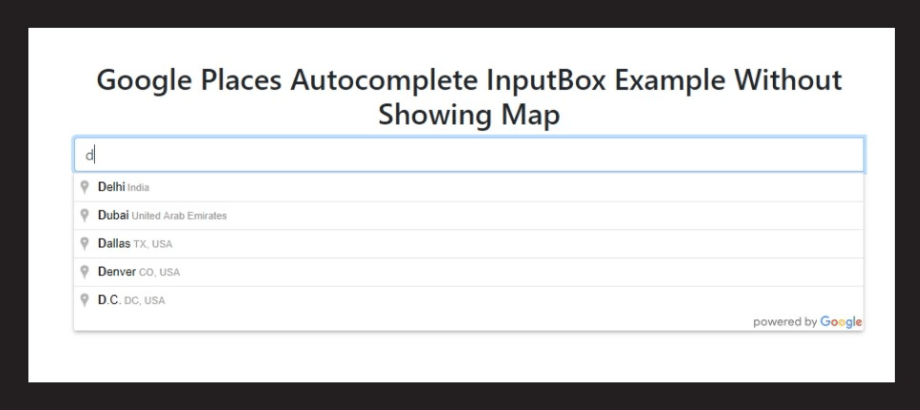
In the above screenshot, you can see that with the help of Google Map Place API, you can easily find any place just by pressing the first letter of the place or area.
Using Google API
The first step is to create a Google API key. So to create an API key, just follow the steps given below.
Visit the Google Developer console for your API key. Now you can follow the steps given below:
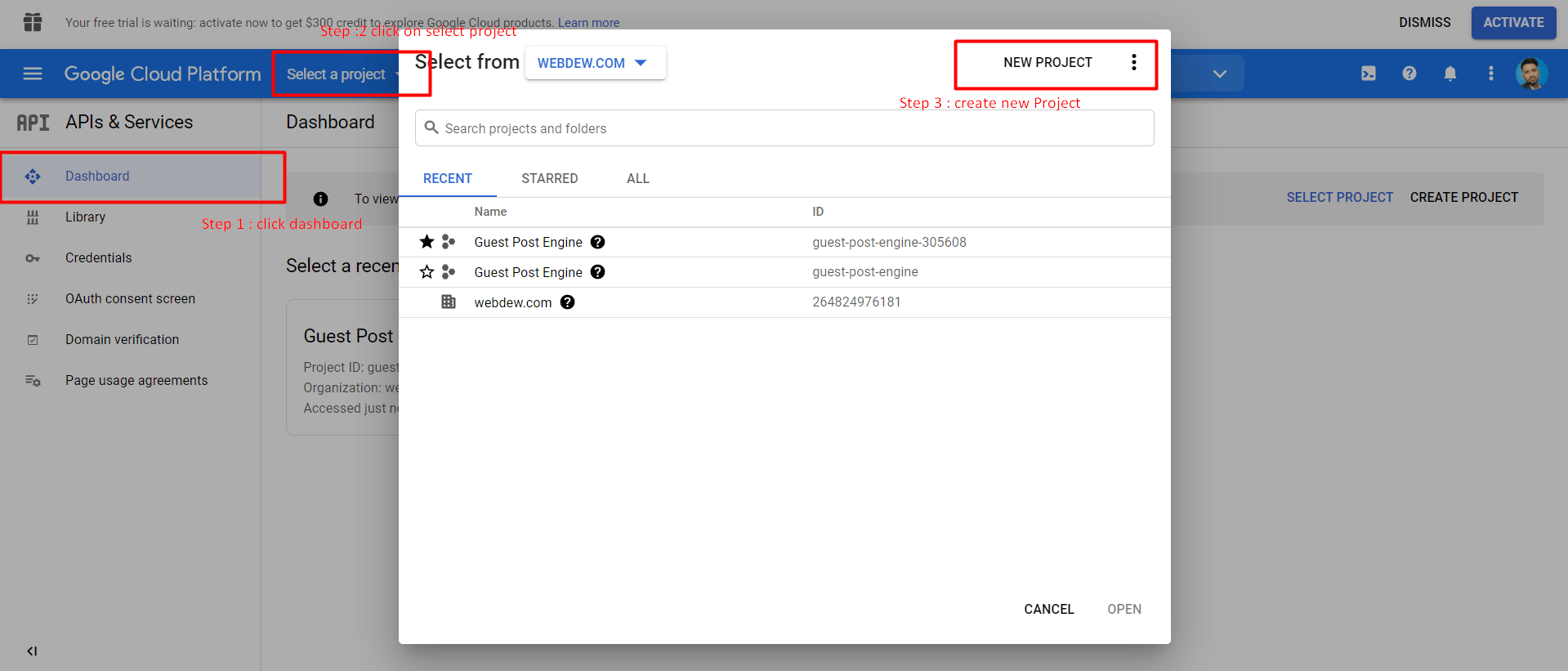
Step 1: Select the Dashboard that you can see on the left side of the screen.
Step 2: Click on Select Project.
Step 3: Click on Create New Project.
Once you click on ‘create a new project,’ the below-mentioned window will open on your screen, and you can create a new project.
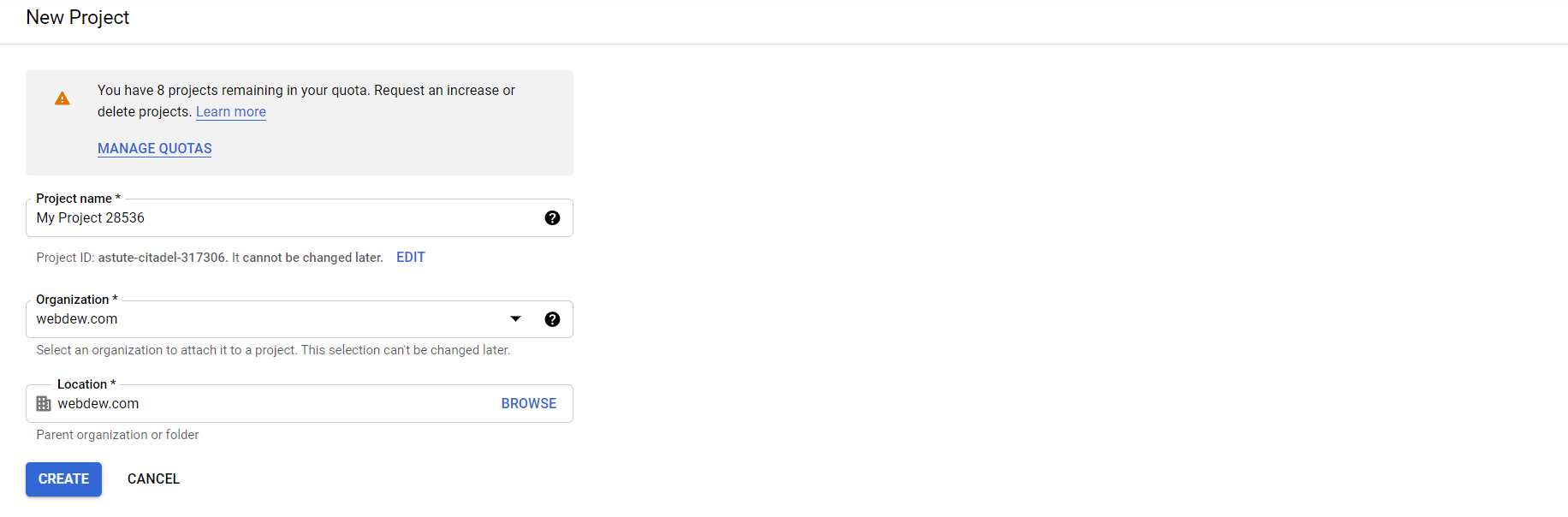
After successfully creating a project, the next thing is to select the side menu bar and click credentials. Here, you can create your Google API key.
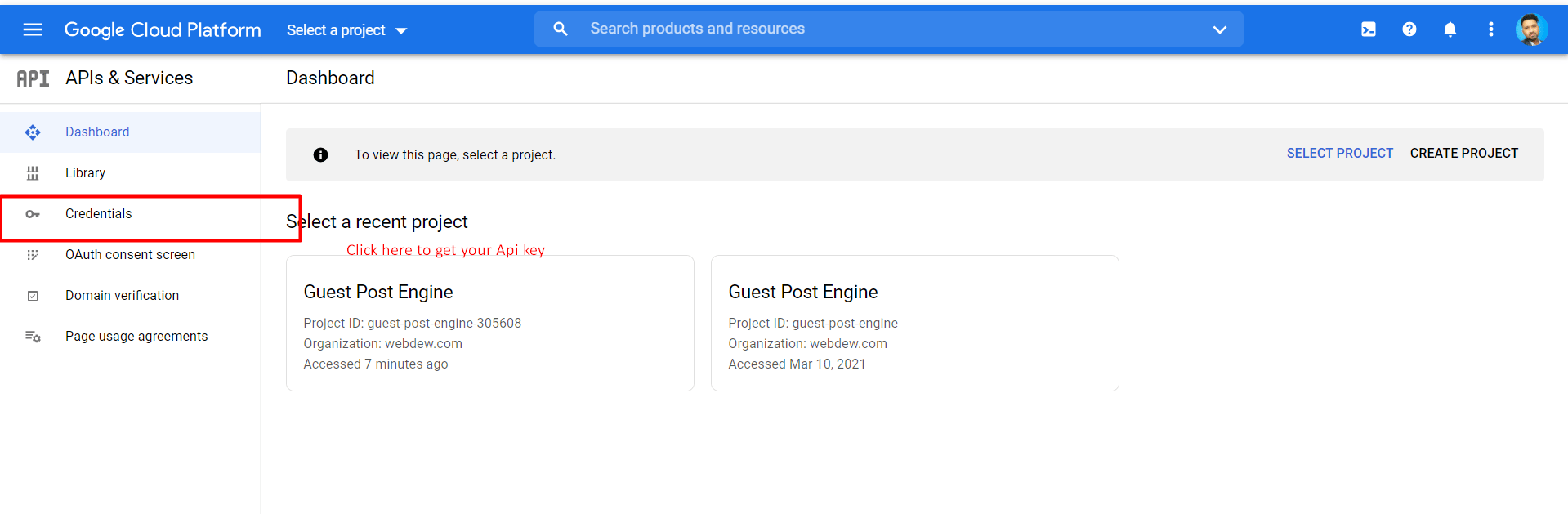
Click on the API key, and the below-mentioned window will open.
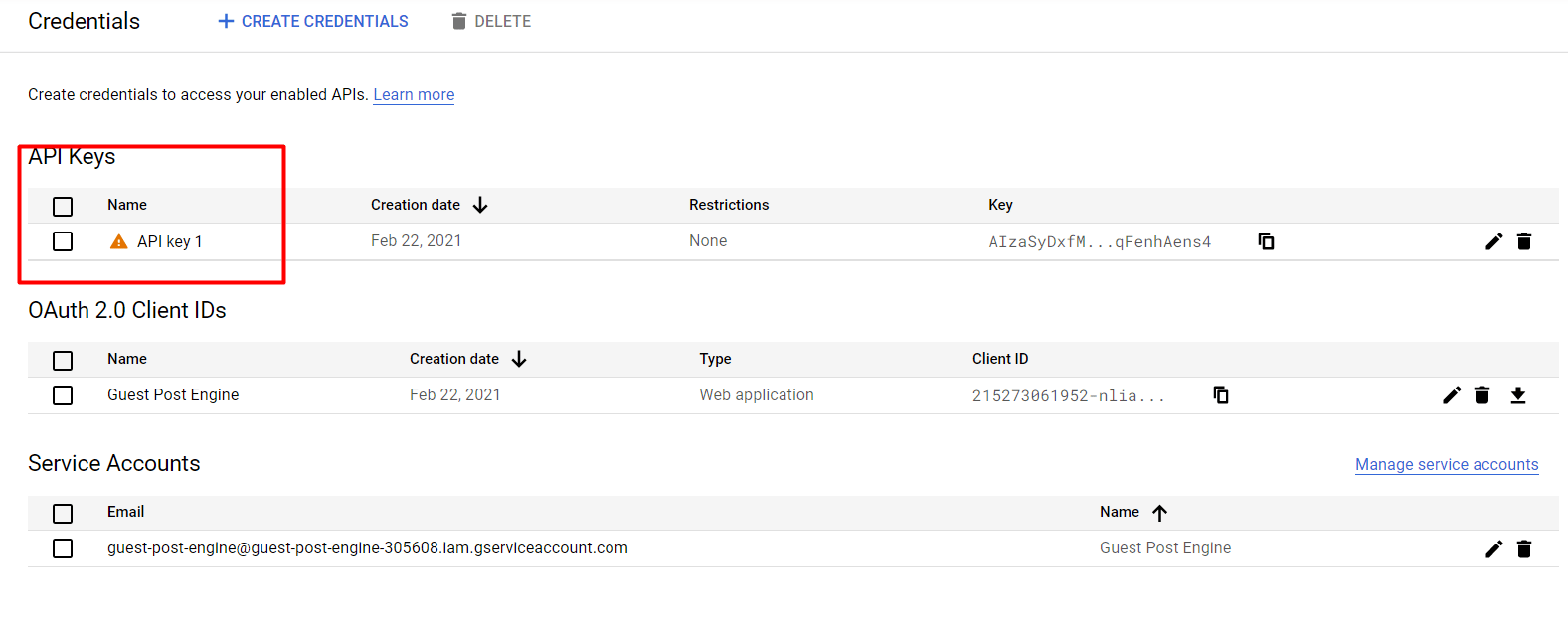
Now you can set HTTP Referrers like http://localhost/YOUR_FILE_PATH. You can do this by opening your localhost path and adding it.
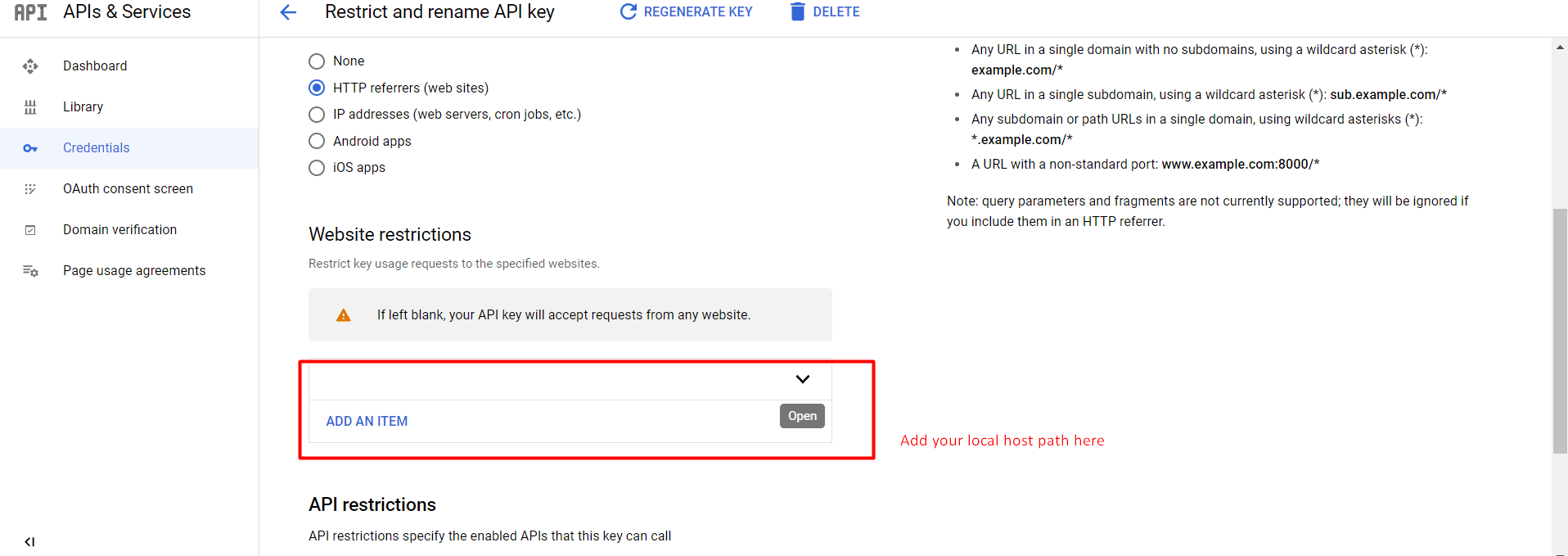
Now that you are done with the Google Map API setup, it is better to make sure your Google Map Place API key is enabled.
You can check if your API key is enabled or not by :
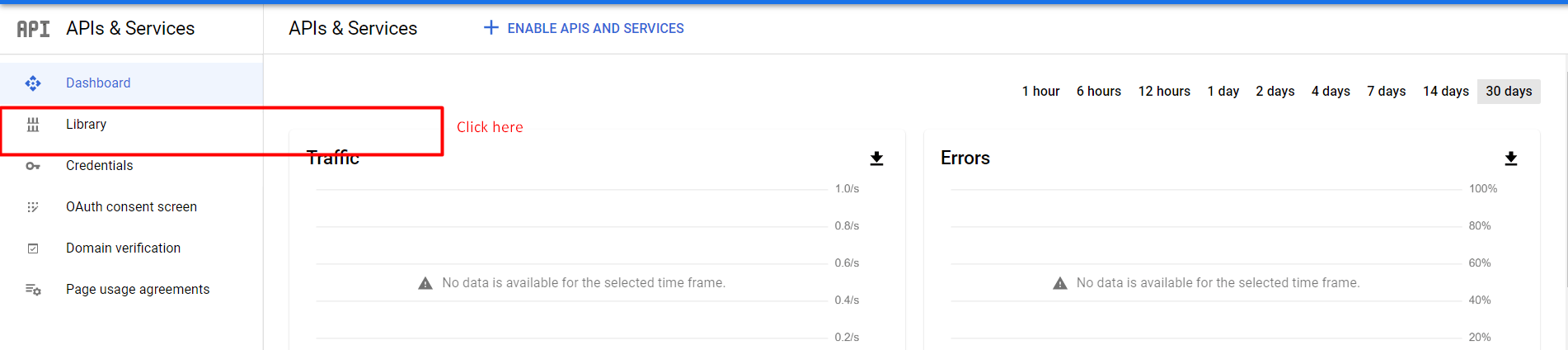
Step 1: Choose the ‘Library’ option.
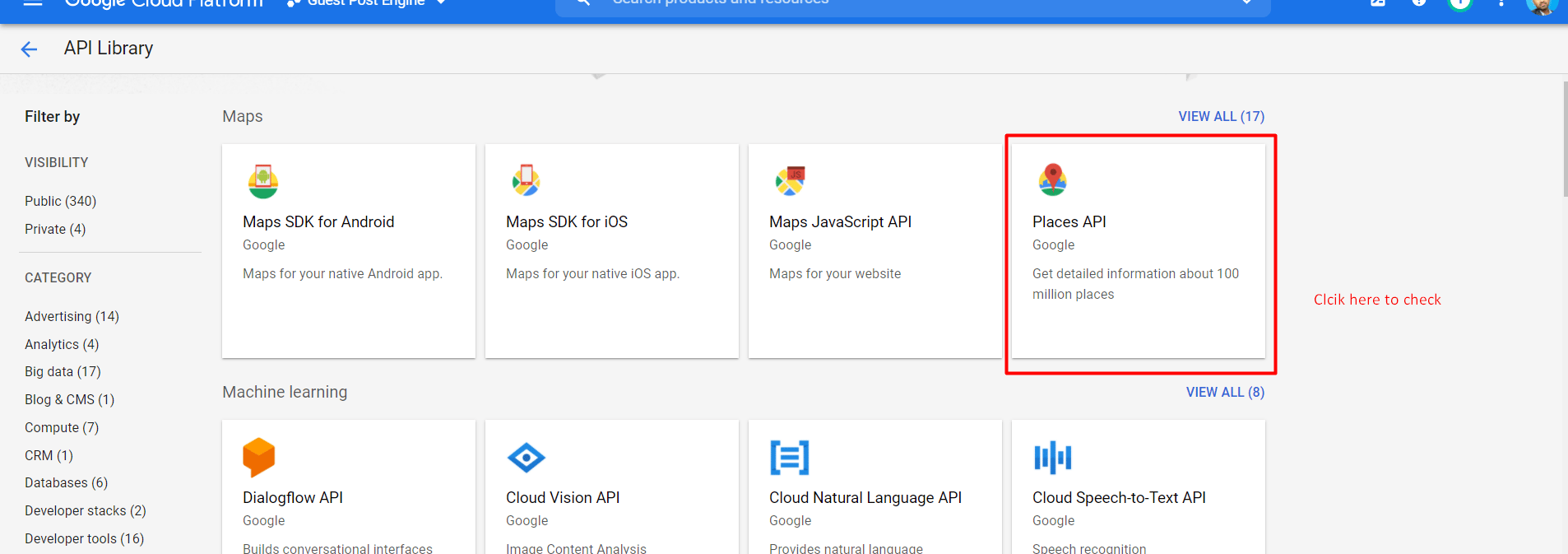
Step 2: To check if the API is enabled, select Places API.
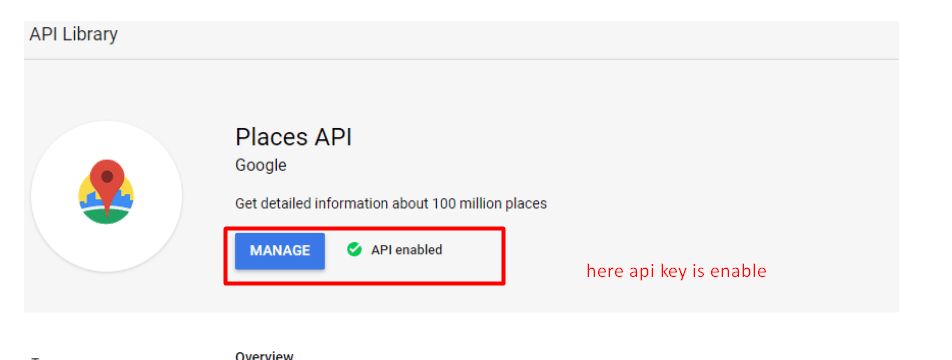
The window will open, indicating whether or not the API is enabled.
Now you need to create one HTML form name AutoAddress.html and put the HTML code in this file:
<!DOCTYPE html>
<html>
<head>
<meta charset=”UTF-8″>
<meta name=”viewport” content=”width=device-width, initial-scale=1.0″>
<meta http-equiv=”X-UA-Compatible” content=”ie=edge”>
<link rel=”stylesheet” href=”https://cdnjs.cloudflare.com/ajax/libs/twitter-bootstrap/4.1.3/css/bootstrap.min.css” />
<script src=”//ajax.googleapis.com/ajax/libs/jquery/1.9.1/jquery.js”></script>
<title>Google map Places Autocomplete – Tutsmake.com</title>
<style>
.container{
padding: 10%;
text-align: center;
}
</style>
</head>
<body>
<div class=”container”>
<div class=”row”>
<div class=”col-12″><h2>Google Places Autocomplete InputBox Example Without Showing Map</h2></div>
<div class=”col-12″>
<div id=”custom-search-input”>
<div class=”input-group”>
<input id=”autocomplete_search” name=”autocomplete_search” type=”text” class=”form-control” placeholder=”Search” />
<input type=”hidden” name=”lat”>
<input type=”hidden” name=”long”>
</div>
</div>
</div>
</div>
</div>
</body>
</html>
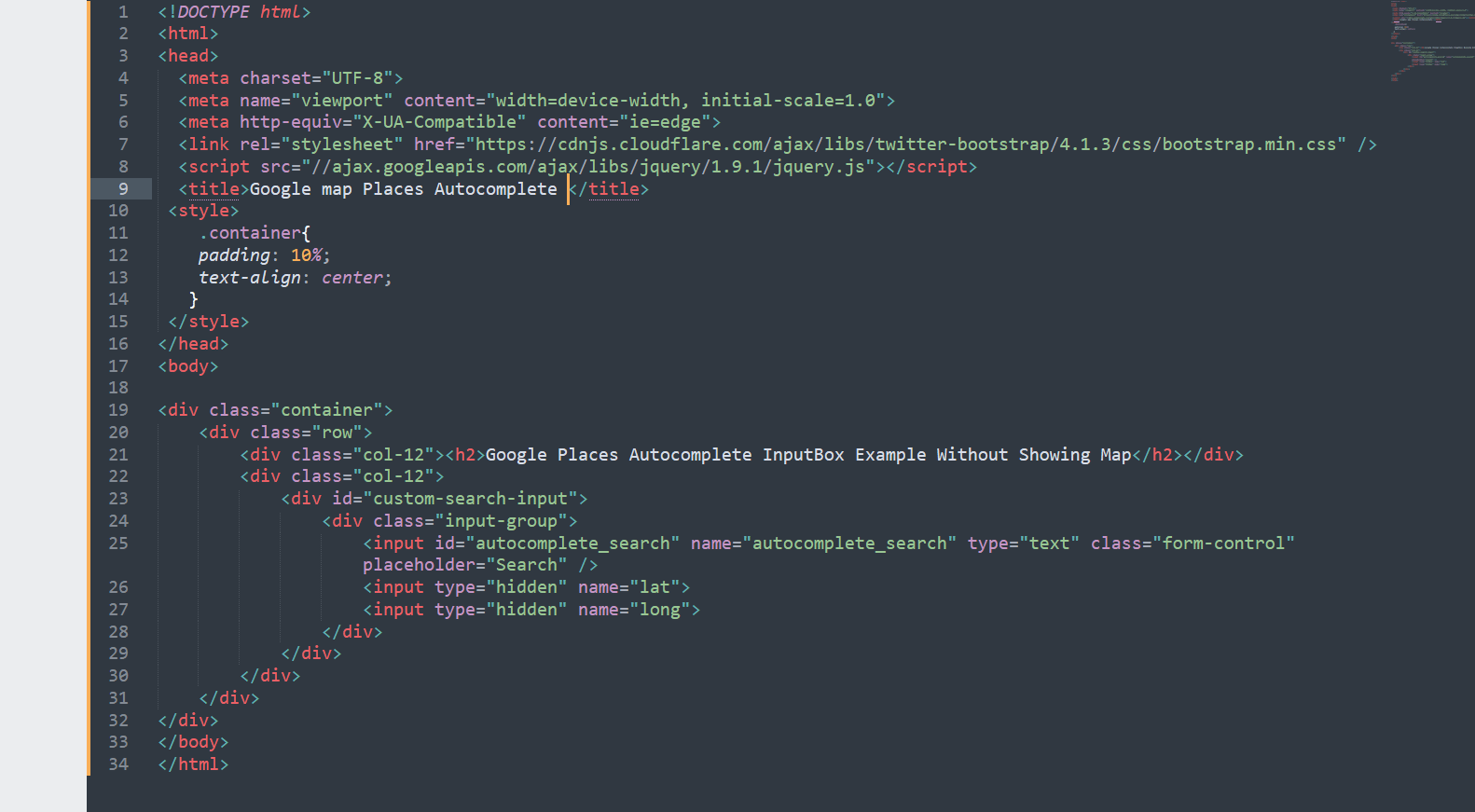
Finally, you now have your Google API key that is enabled. You need to put the API key in the script where it is written ‘PUT_YOUR_API_KEY_HERE.’
<script type=”text/javascript” src=”https://maps.googleapis.com/maps/api/js?key=PUT_YOUR_API_KEY_HERE&libraries=places“></script>
<script>
google.maps.event.addDomListener(window, ‘load’, initialize);
function initialize() {
var input = document.getElementById(‘autocomplete_search’);
var autocomplete = new google.maps.places.Autocomplete(input);
autocomplete.addListener(‘place_changed’, function () {
var place = autocomplete.getPlace();
// place variable will have all the information you are looking for.
$(‘#lat’).val(place.geometry[‘location’].lat());
$(‘#long’).val(place.geometry[‘location’].lng());
});
}
</script>
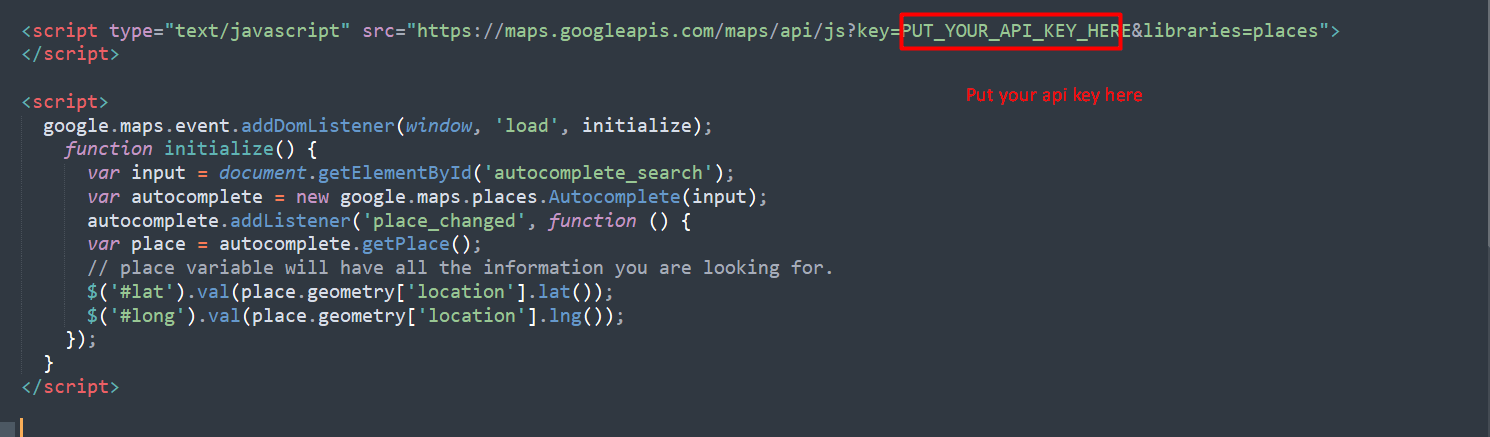
You can now run the file on your local system as you have set up the code. You will see the output as shown in the image below.
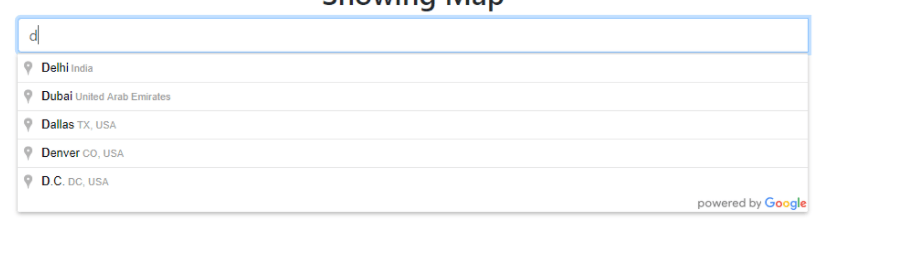
You can search any place by clicking the first letter of the place. For example, if you are looking for Canada, once you press ‘C,’ it will show all the palaces starting with the letter’ C.’
Useful Points to Note
Here are a few points that you should keep in mind during API use:
Wrapping Up
I hope this blog helped you understand how to implement Google Places autocomplete using the Google API key.
You can use autocomplete to emulate the type-ahead search functionality of the Google Maps search box in your applications. When a user begins typing an address, autocomplete fills in the blanks.
APIs are useful in many ways, like you can get Time Doctor logged data using API, and even create custom objects on HubSpot using API.
Are you still stuck and need help? Our experts can help you out. Feel free to contact us!
Dive Into our
Client Testimonials
Listen to business owners like you share how we’ve helped them grow. Your story could be next!





.svg)

“Recently we reached out to Webdew for a website inside of HubSpot and they also did some mocking automation for us.”

“Webdew team was quite honest and quite easy to work with in terms of taking feedback implementing it, showing that it doesn’t happen again and things like making sure that it meets our expectations.”

“We worked with webdew to help us build our HubSpot website and they did an amazing job with it. They were very quick.”

“webdew has helped us optimize the sales and marketing processes, and this is automating a lot of processes.”

“Hi everyone my name is Kara and I work as a channel consultant at HubSpot Singapore. I’ve been working closely with webdew agency”

“Hi my name is Christian from OpenDoors Mortgage team and I’m in the mortgage business and just trying to work on new projects and kind of incorporating HubSpot for my operations”

“I’m one of the technology directors for Travelopia. We are the largest experiential travel company in the world. We’ve engaged webdew recently, not recently, it’s been about a couple of quarters now.”
“We worked with Chehak over the past several months to create a series of animated videos for an academic planner that we produce. And from the very beginning, she was absolutely professional and a pleasure to work with.”


6x
We helped clients multiply their website conversion rates through strategic design and UX optimization.
20%
Our marketing campaigns led to a 20% uplift in customer engagement across digital channels.
2K+
Delivered over 2,000 qualified leads through targeted funnels and smart automation.
120+
Our video content has earned 120,000+ views, driving brand awareness and audience retention.
“I recently had the pleasure of working with Chehak on a video demo project, and I was thoroughly impressed with her services.”
.svg)

Additional Resources
Access expert tips, trends, and strategies designed for small businesses. Stay ahead of the curve and make informed decisions with our comprehensive resources!